Configure AI Agent Settings
Customize the agent's speaking tone, AI instructions (including an optional custom welcome message), and follow-up reminders from the Training tab.
Open the Training Tab
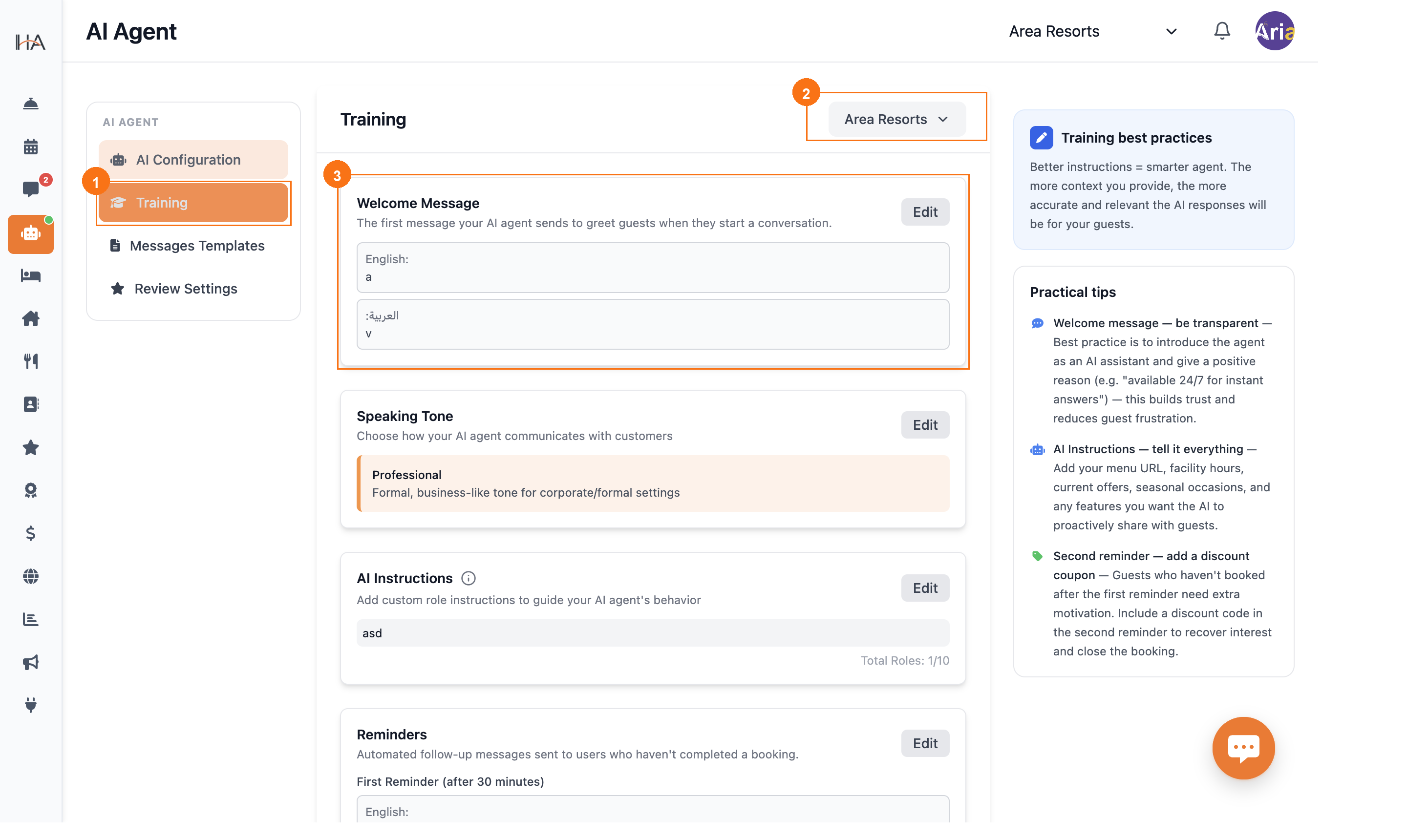
In the AI Agent section, click Training in the left sidebar (or click Edit Setup from the property card in AI Configuration): ① Left sidebar shows all four tabs — Training is highlighted in orange when selected ② Property selector dropdown — switch between properties to configure each one's agent separately ③ AI Instructions card — the instructions that shape how the agent replies. There is no separate welcome setting: for a custom greeting, add an instruction starting with "Welcome message:" (e.g. "Welcome message: Welcome to our hotel! I'm the AI assistant, available 24/7.") and the agent opens every new conversation with it
Speaking Tone, AI Instructions & Reminders
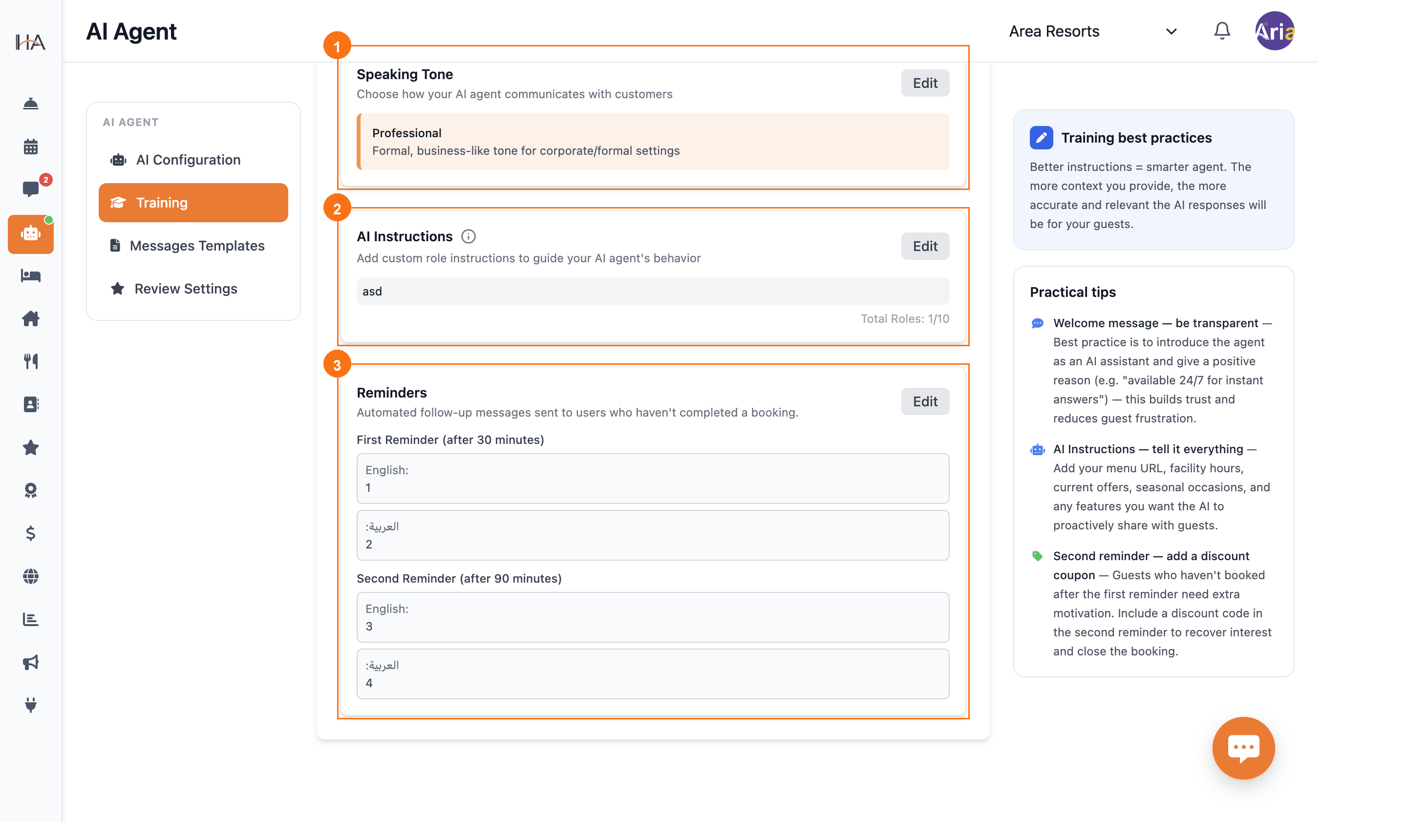
Scrolling down reveals three more training cards: ① Speaking Tone — sets how the agent communicates with guests; options include Professional, Friendly, Casual, Formal, and more; click Edit to change ② AI Instructions — a free-text field for custom role instructions that shape the agent's behavior, including an optional "Welcome message:" instruction for a custom greeting; the counter shows how many roles are active (e.g., "Total Roles: 1/10") ③ Reminders — automated follow-up messages sent to guests who haven't completed a booking; configure a First Reminder (e.g., after 30 minutes) and a Second Reminder (e.g., after 90 minutes), each with English and Arabic versions
More in AI Agent
Understanding the AI Agent
Learn how the AI booking and reservation agent works — the AI hotel assistant that answers guests and takes bookings — and explore the four main tabs in the AI Agent section.
Create and Deploy an AI Agent
Connect your AI agent to a channel by selecting a unit group and choosing the messaging platform.
Message Templates & Review Settings
Customize the WhatsApp notification templates sent to guests and configure automated review collection after checkout.