Message Templates & Review Settings
Customize the WhatsApp notification templates sent to guests and configure automated review collection after checkout.
Messages Templates Tab
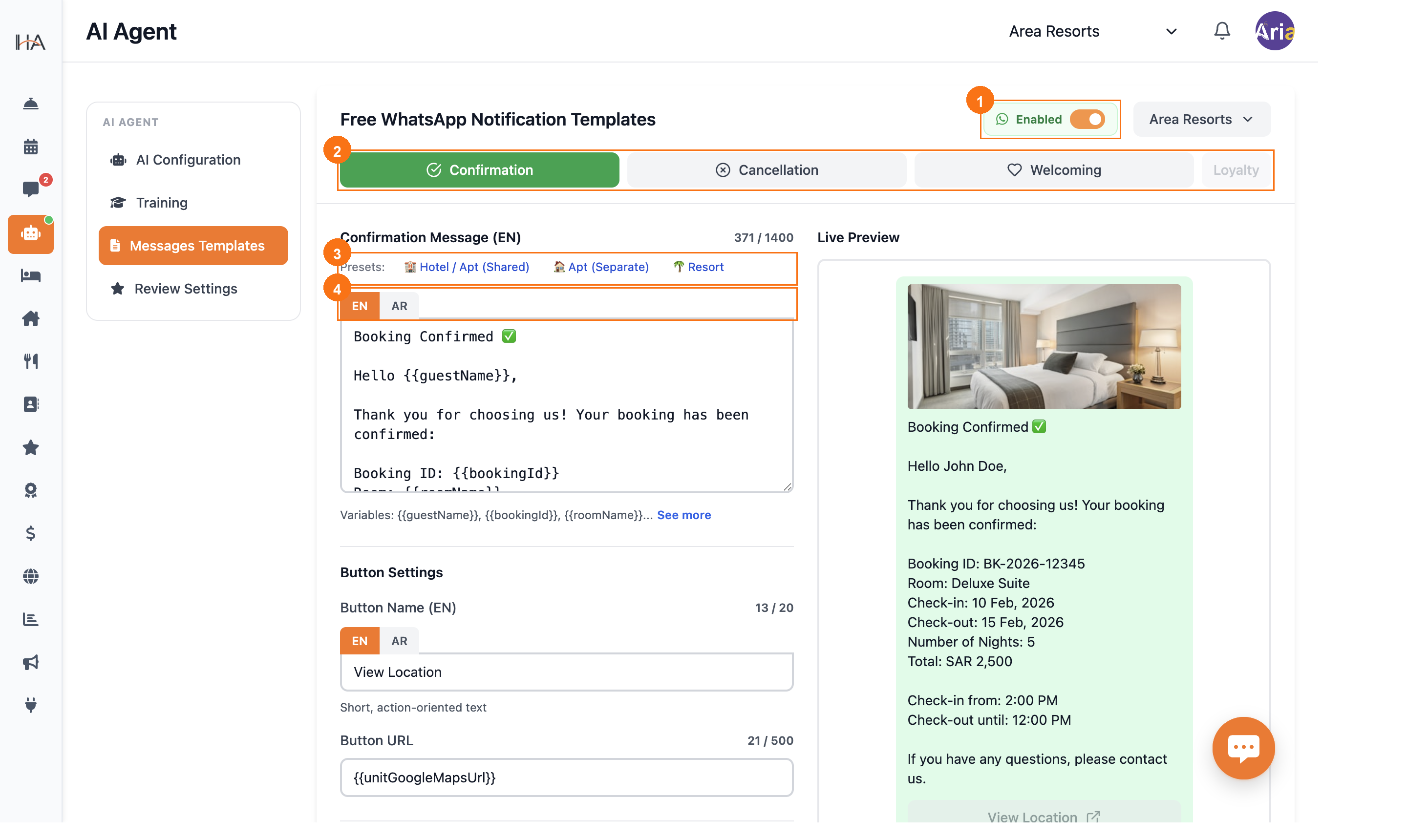
Click Messages Templates in the left sidebar to open the WhatsApp notification template editor: ① Enabled toggle — activates or pauses all template notifications for the selected property ② Template sub-tabs — Confirmation, Cancellation, Welcoming, and Loyalty (Loyalty is disabled unless the loyalty plan is active) ③ Presets — apply a ready-made template formatted for Hotel/Apt (Shared), Apt (Separate), or Resort; overwrites the current text ④ EN / AR toggle — switch between the English and Arabic versions of each template; edit both for bilingual guests
Template Variables & Live Preview
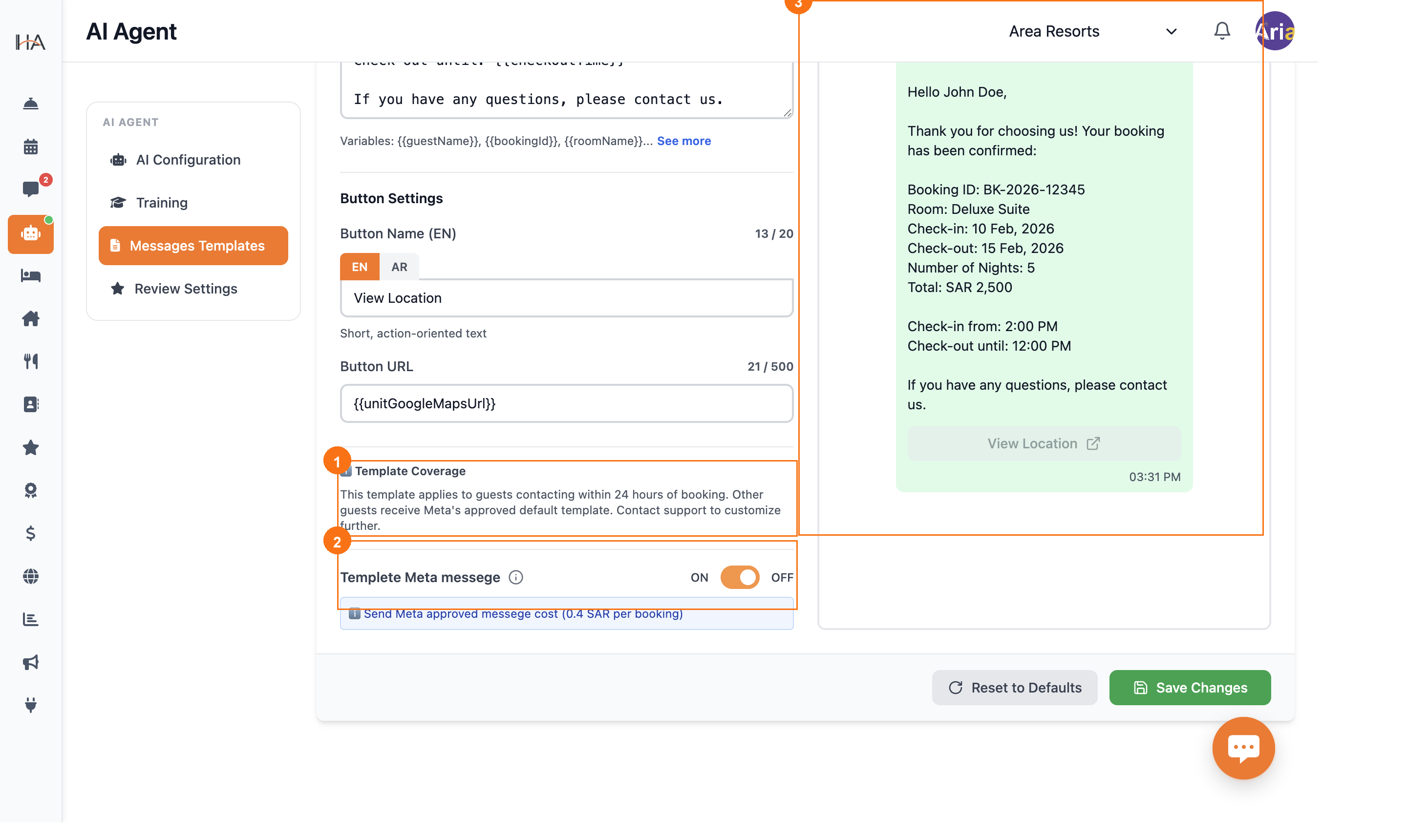
Below the template text area: ① Template Coverage note — this template only applies to guests who message within 24 hours of booking; guests outside that window receive Meta's default approved template ② Templete Meta messege toggle — turn ON to send the template as a Meta-approved message at 0.4 SAR per booking, or OFF to skip the paid confirmation ③ Live Preview — a real-time WhatsApp message mockup showing exactly what the guest will receive Available template variables: {{guestName}}, {{bookingId}}, {{roomName}}, {{checkIn}}, {{checkOut}}, {{nights}}, {{currency}}, {{totalPrice}}, {{checkInTime}}, {{checkOutTime}} Button Settings let you add a call-to-action button (Button Name in EN/AR, max 20 chars) with a custom URL such as a Google Maps link.
Enable Review Collection
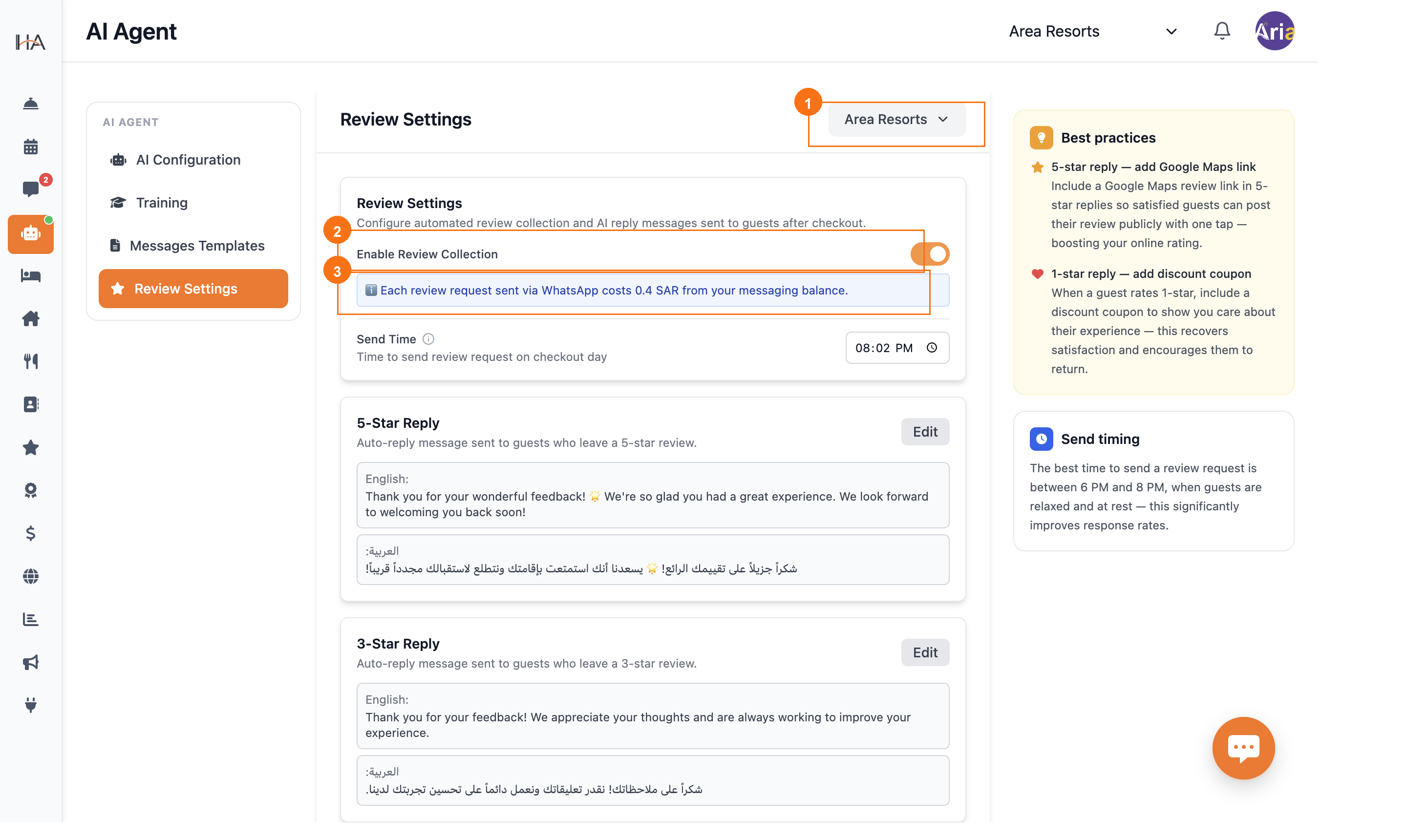
Click Review Settings in the left sidebar: ① Left sidebar with Review Settings selected ② Property selector — choose which property's review settings to configure ③ Review Settings card — check Enable Review Collection to activate; a note reminds you that each WhatsApp review request costs 0.4 SAR from your messaging balance When enabled, the system automatically sends a review request to the guest on their checkout day at the time you specify.
Configure Review Reply Messages
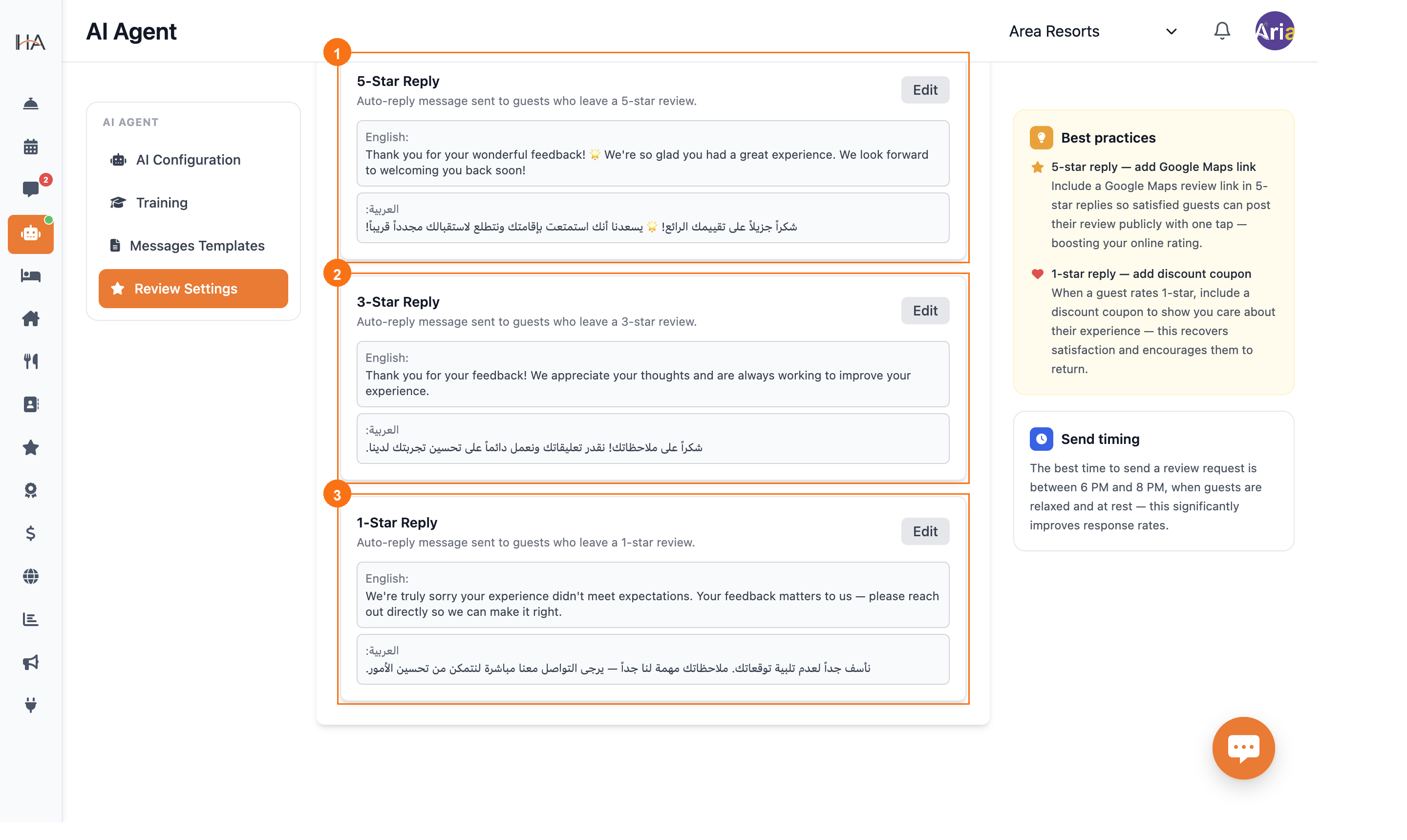
Below the Enable toggle: ① Send Time — set the exact time on checkout day to send the review request (e.g., 8:02 PM) ② 5-Star Reply — the message automatically sent to guests who leave a 5-star rating; click Edit to customize in English and Arabic ③ 3-Star Reply — the message sent to guests with a 3-star rating (for feedback and improvement) A 1-Star Reply card is also available below for handling negative reviews with empathy. Click Save Changes after editing any reply to apply the updates.
More in AI Agent
Understanding the AI Agent
Learn how the AI booking and reservation agent works — the AI hotel assistant that answers guests and takes bookings — and explore the four main tabs in the AI Agent section.
Create and Deploy an AI Agent
Connect your AI agent to a channel by selecting a unit group and choosing the messaging platform.
Configure AI Agent Settings
Customize the agent's speaking tone, AI instructions (including an optional custom welcome message), and follow-up reminders from the Training tab.