Create a Manual Booking
Learn how to create a booking from the calendar using the Add Booking panel, including guest info, stay details, pricing edits, payment details, and final submission.
Open the Add Booking Form
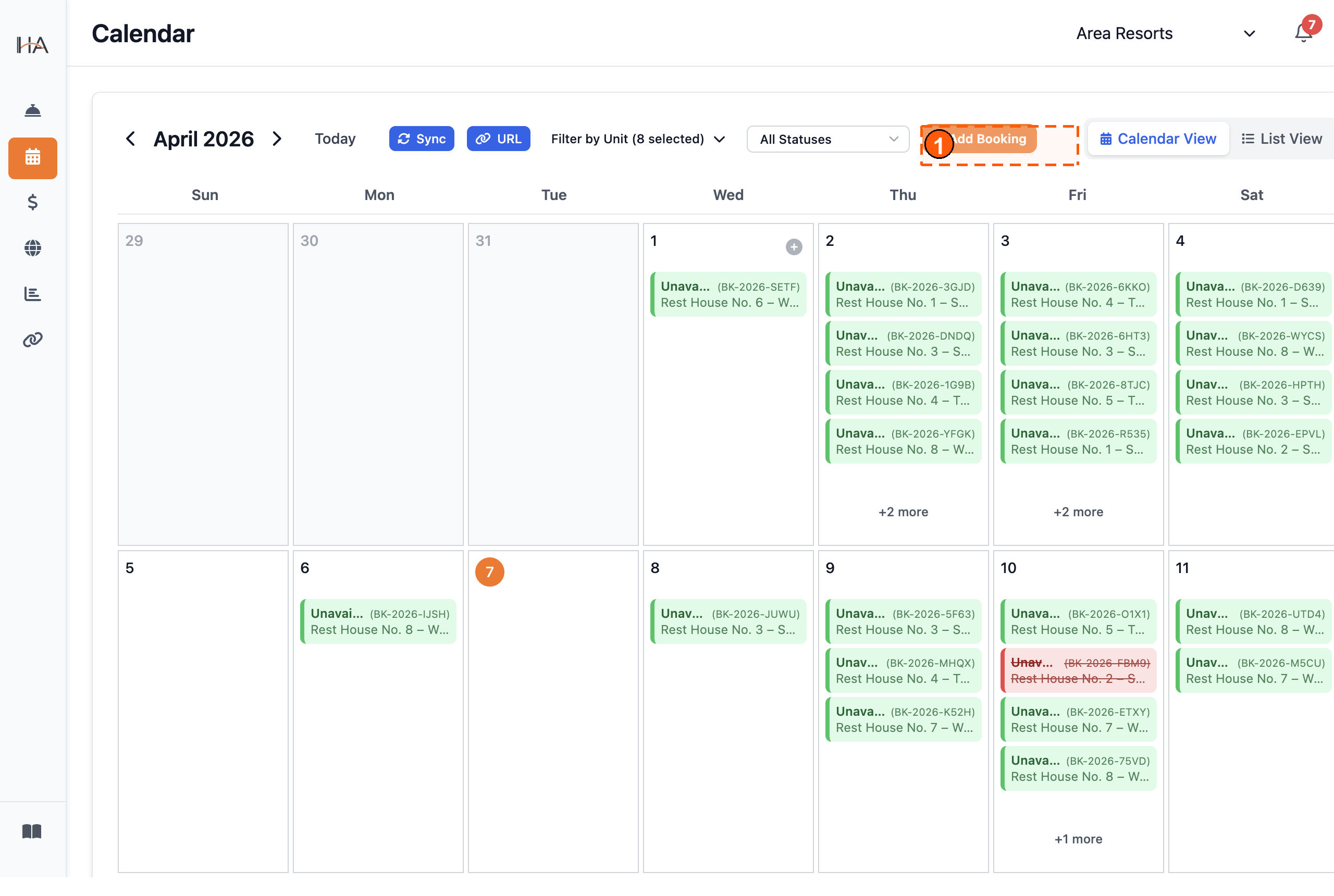
① Click + Add Booking in the calendar toolbar to open the Add New Booking panel.
Enter Guest & Identification Details
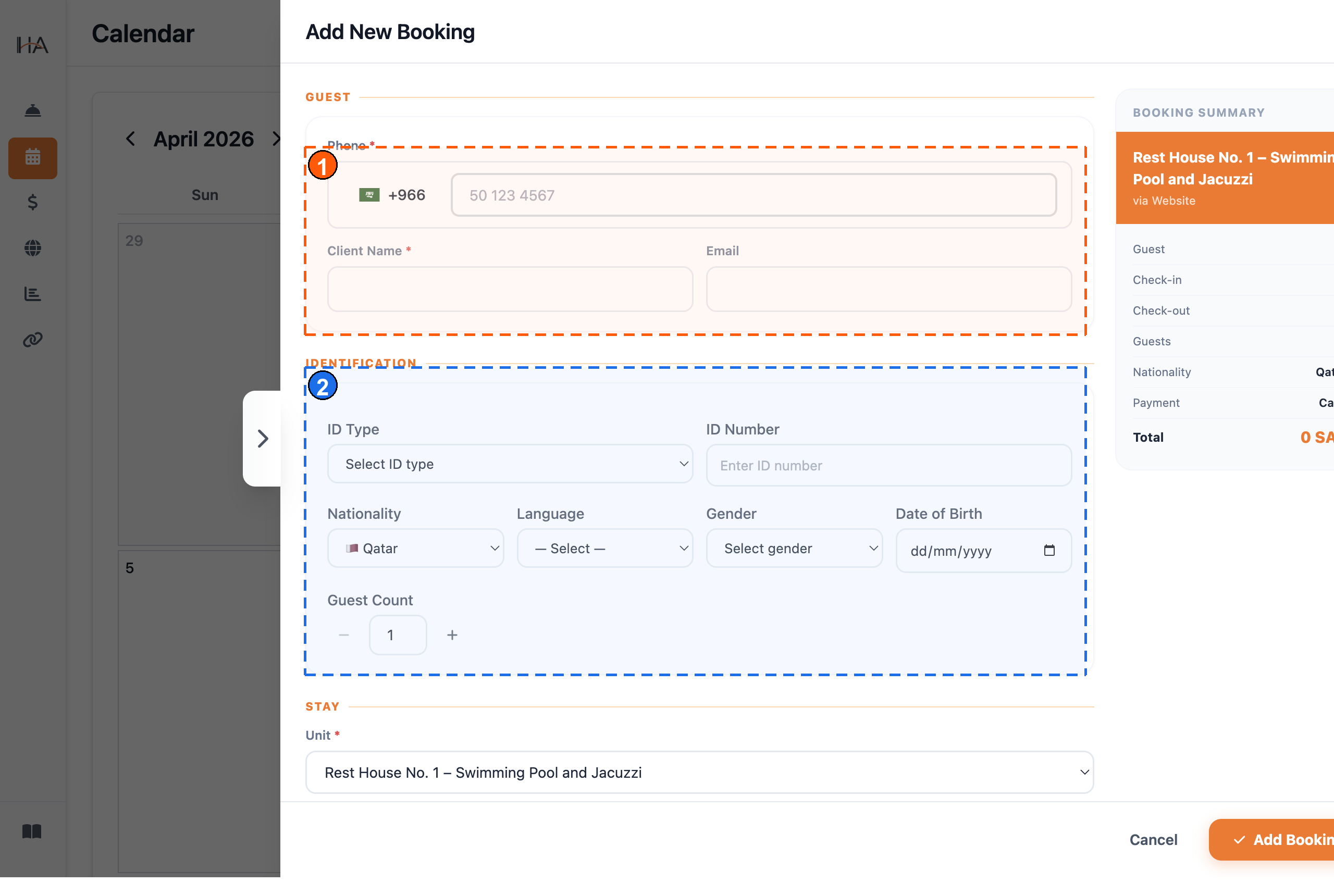
① GUEST section: enter Phone, Client Name, and Email. ② IDENTIFICATION section: enter ID Type, ID Number, Nationality, Language, Gender, Date of Birth, and Guest Count.
Set Stay Details
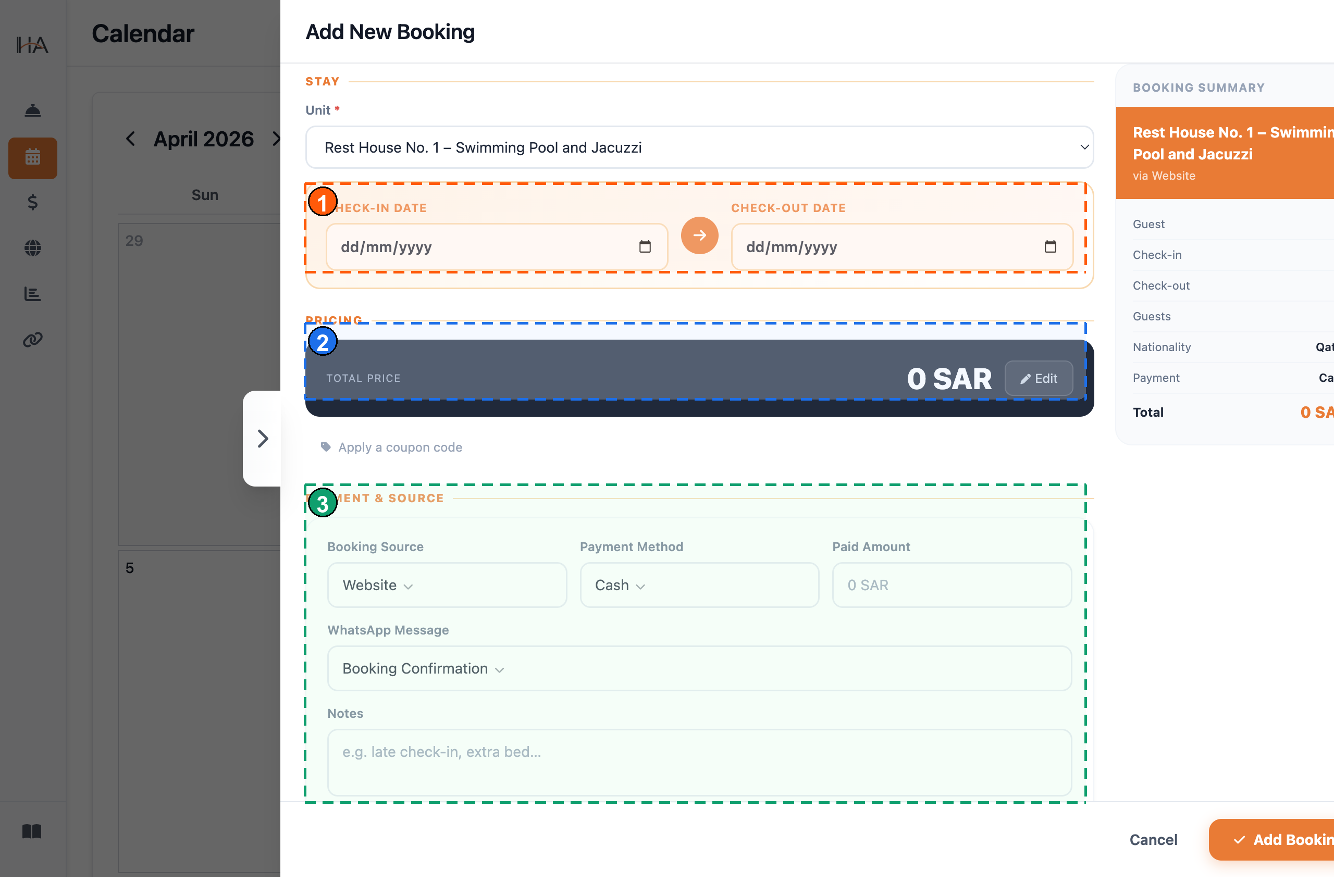
① STAY dates area: select Check-in and Check-out dates. ② PRICING card: review the auto-calculated total price. ③ PAYMENT & SOURCE block: proceed to payment/source inputs below.
Edit Price or Apply Coupon (Optional)
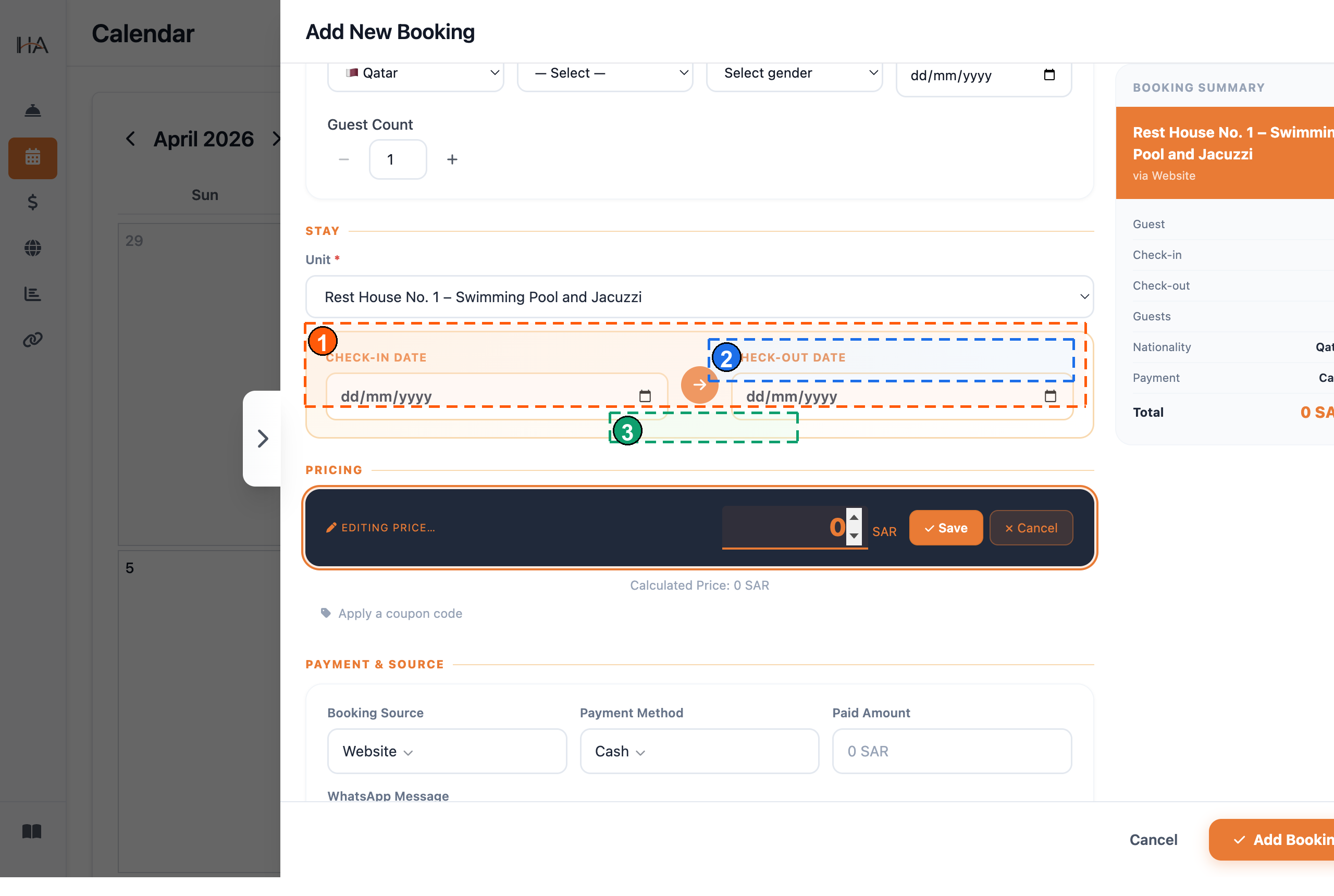
① PRICING in edit mode: manual price override is active. ② Amount + actions: enter the new amount, then Save or Cancel. ③ Calculated Price line: compare the calculated total against the manual override.
Set Payment, Source, and Notes
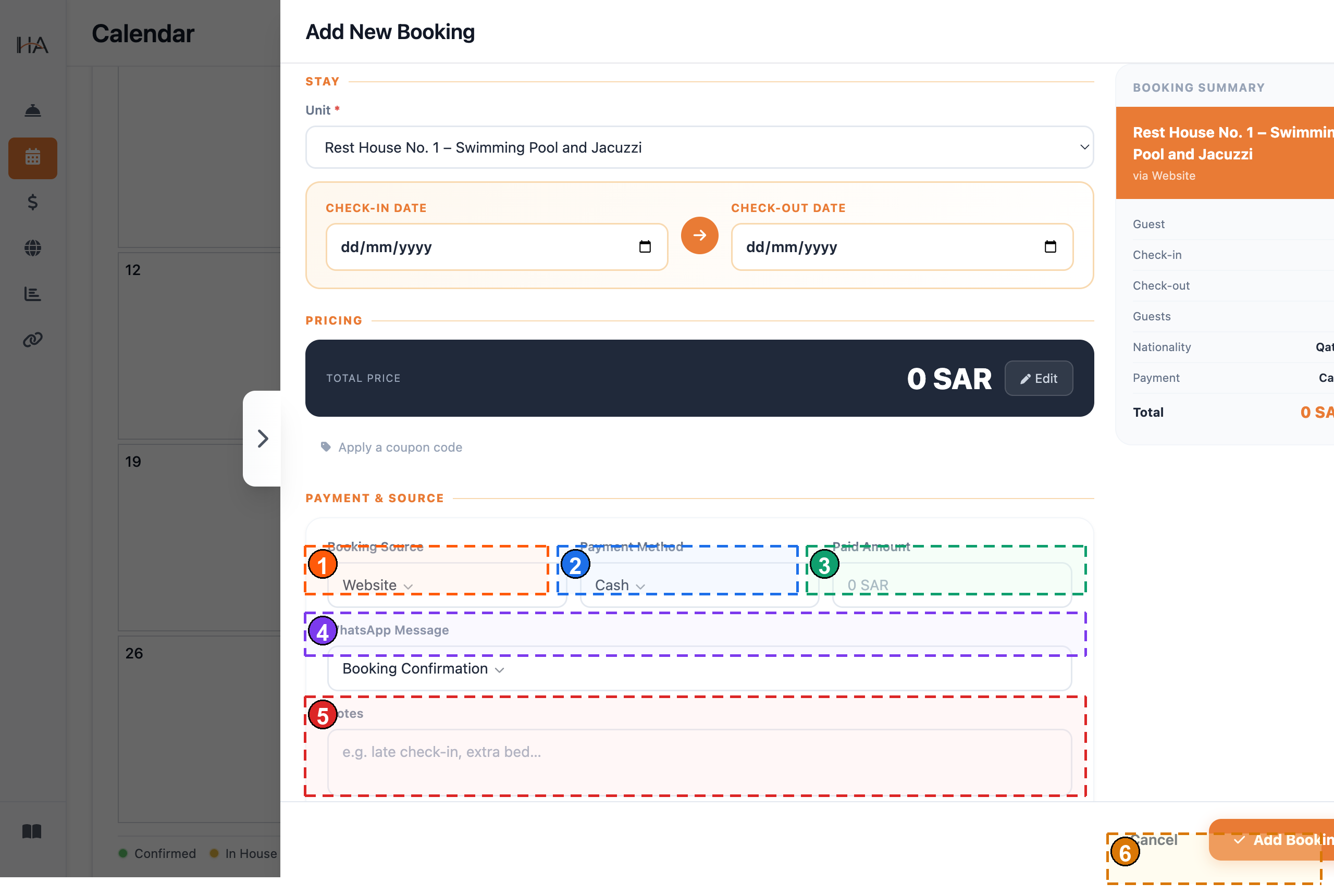
① Booking Source: choose the booking channel. ② Payment Method: choose how payment is collected. ③ Paid Amount: enter the amount already paid (if any). ④ WhatsApp Message: select the confirmation message template. ⑤ Notes: add internal notes for your team.
Review Summary and Create Booking
⑥ Add Booking button: click to submit and create the reservation instantly in the calendar.
More in Calendar & Bookings
Understanding the Calendar View
Learn how to navigate the calendar, understand booking statuses, filter by units, and interpret the visual indicators.
View & Edit Booking Details
Learn how to read the booking panel, transfer units, adjust dates, post incidental charges, generate invoices and documents, assign services, and apply coupon codes.
Cancel or Delete Bookings
Learn how to cancel bookings, process refunds, manage cancellation policies, and handle guest communication.
Set Custom Pricing on Specific Dates
Learn how to create price overrides for specific date ranges — replacing the base price or adding a fixed amount — and apply them to selected units.