Task Details and Booking Integration
Explore the task creation form in depth, and learn how tasks can be linked to guest bookings and room service requests for full context.
The Create Task Form
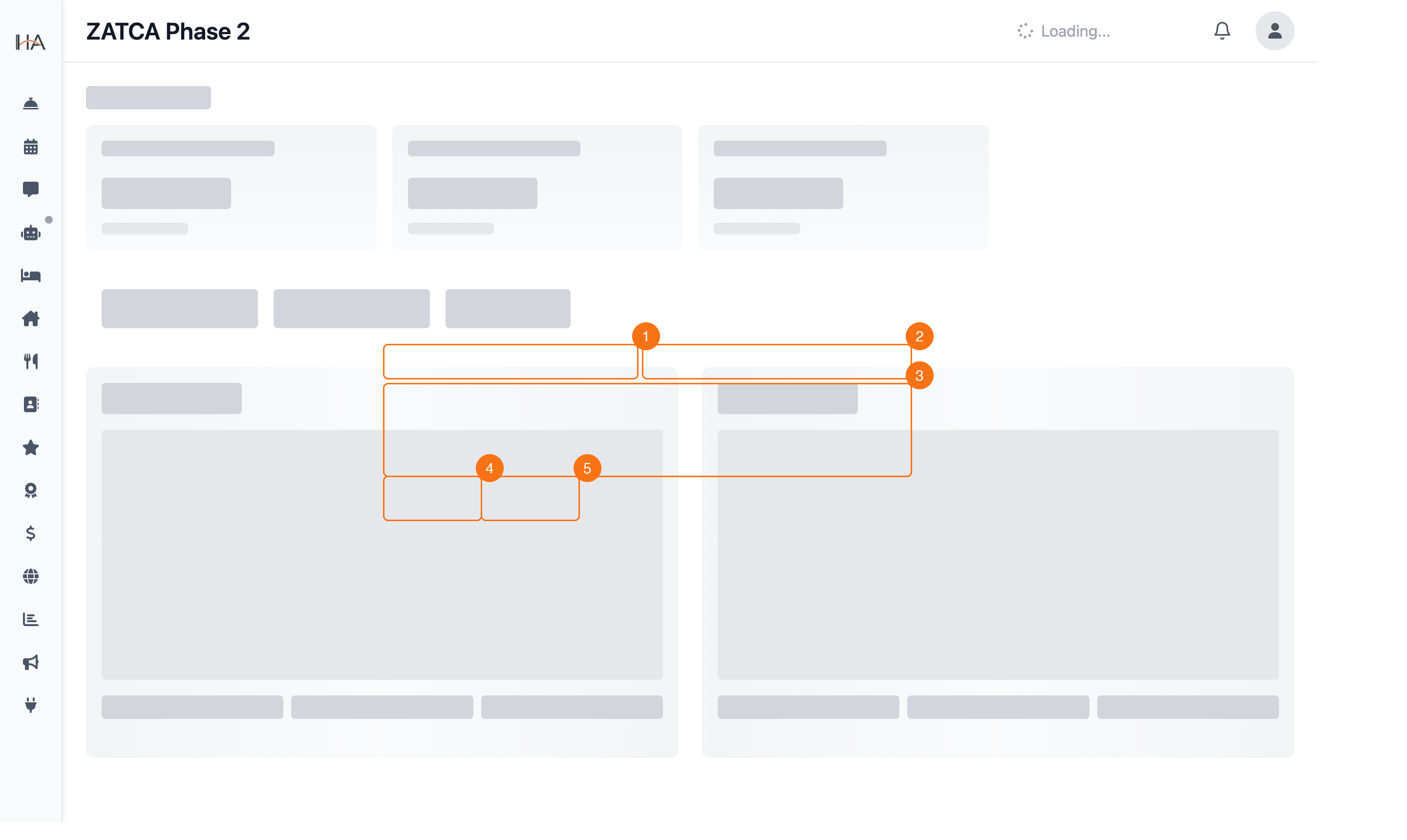
Click '+ Create Task' to open the task creation dialog. The form contains: ① TASK TITLE (required) - A short, descriptive title for what needs to be done - Examples: 'Extra towels needed', 'AC not working - urgent', 'TV remote broken' - Keep it concise — staff will see this in the task card ② ROOM / LOCATION (optional) - Type the room number or location label - Once typed, system attempts to match to an existing unit - Helps staff know exactly where to go - Shows on the task card for quick reference ③ DESCRIPTION (optional) - A larger text area for additional context - Use this to explain what the guest reported, what was tried, or specific instructions - Good descriptions reduce back-and-forth between staff ④ PRIORITY DROPDOWN - Choose: Low, Normal, High, or Critical - Defaults to Normal - Sets the colored badge on the task card ⑤ CREATE TASK BUTTON - Submits the form and creates the task - Task appears in Open status immediately - Staff assigned receives a push/email notification - You'll see a success toast confirmation
How Tasks Connect to Bookings
When a task is linked to a guest booking, the task card shows additional context and an expandable side panel opens with booking details. HOW TASKS GET LINKED TO BOOKINGS: 1. AUTOMATICALLY from Room Service Requests: - When a guest submits a request via the Room Service portal or the chatbot - The system creates a Front Desk task with a direct link to their booking - The request details, category, subcategory, and any photos are included 2. AUTOMATICALLY from Guest Requests: - When staff creates a task while viewing a guest's booking - The booking is pre-linked to the task 3. MANUALLY when creating: - Enter the room number matching a guest's current booking - The system may link the task to the active booking in that room WHAT YOU SEE ON A LINKED TASK: • Booking reference (e.g., BK-2026-HRH0) — clickable to open booking • Guest full name • Room number and unit type • Check-in / check-out dates • Any notes about the guest's stay • Photos attached to the original request (if from room service) • Request subcategory (e.g., 'Electrical → Air Conditioning')
Tasks From Room Service Requests
One of the most powerful integrations is between Room Service requests and Front Desk Tasks. When a guest submits a room service request: 1. THE REQUEST CREATES A TASK automatically - A Front Desk task is generated with the request details - The task title reflects what was requested (e.g., 'Extra Pillows') - Photos the guest uploaded are attached - Guest name and room number are pre-filled 2. SOURCE CONTEXT is preserved - The task card shows the request category (e.g., 'Bedding', 'Electrical') - The subcategory provides specifics (e.g., 'Extra Pillows', 'TV not working') - A 'Subcategory:' label appears in violet on the task card if applicable 3. STAFF CAN VIEW THE ORIGINAL REQUEST - Click on the task to see the full details panel - The original request description is shown - All photos from the request are displayed - Staff can see the guest's own words and images 4. EMAIL NOTIFICATIONS are sent - When the task is created from a guest request - Assigned staff members receive an email alert - Email contains task title, guest name, room number, and priority This integration ensures nothing falls through the cracks — every guest request becomes a trackable, assignable task in your workflow.
Task Continuity Between Shifts
At the end of a shift, uncompleted tasks don't disappear — they remain visible to the incoming shift. This ensures full task continuity: UNCOMPLETED TASKS PERSIST: - Any Open or In Progress tasks stay in the task list - The incoming shift can see all active tasks immediately - Priority levels help them identify what to tackle first BEST PRACTICES FOR TASK CONTINUITY: 1. Before ending your shift, review ALL Open and In Progress tasks 2. Update task descriptions with current status 3. Mark anything CRITICAL so the incoming team knows immediately 4. Assign unassigned tasks before leaving so they don't fall through TASK HISTORY: Completed tasks are archived but remain searchable. If a guest reports a repeat issue, staff can search past tasks to see if the issue was reported before and what resolution was applied.
More in Front Desk
Understanding Front Desk Tasks
Learn about the Front Desk task management system, how it helps organize daily operations, and how it integrates with your staff.
Creating and Managing Front Desk Tasks
Learn how to create new tasks, assign them to team members, and progress them through completion.
Managing Front Desk Shifts
Learn how to start, monitor, and close shifts at the front desk, including cash reconciliation.
Task Priorities and Status Workflow
Master the four task priority levels and understand how tasks flow through Open, In Progress, and Done statuses.