Domain & Subdomain — Your Web Address
Get your free x.hostel-agent.com address, or connect your own custom domain to your booking website.
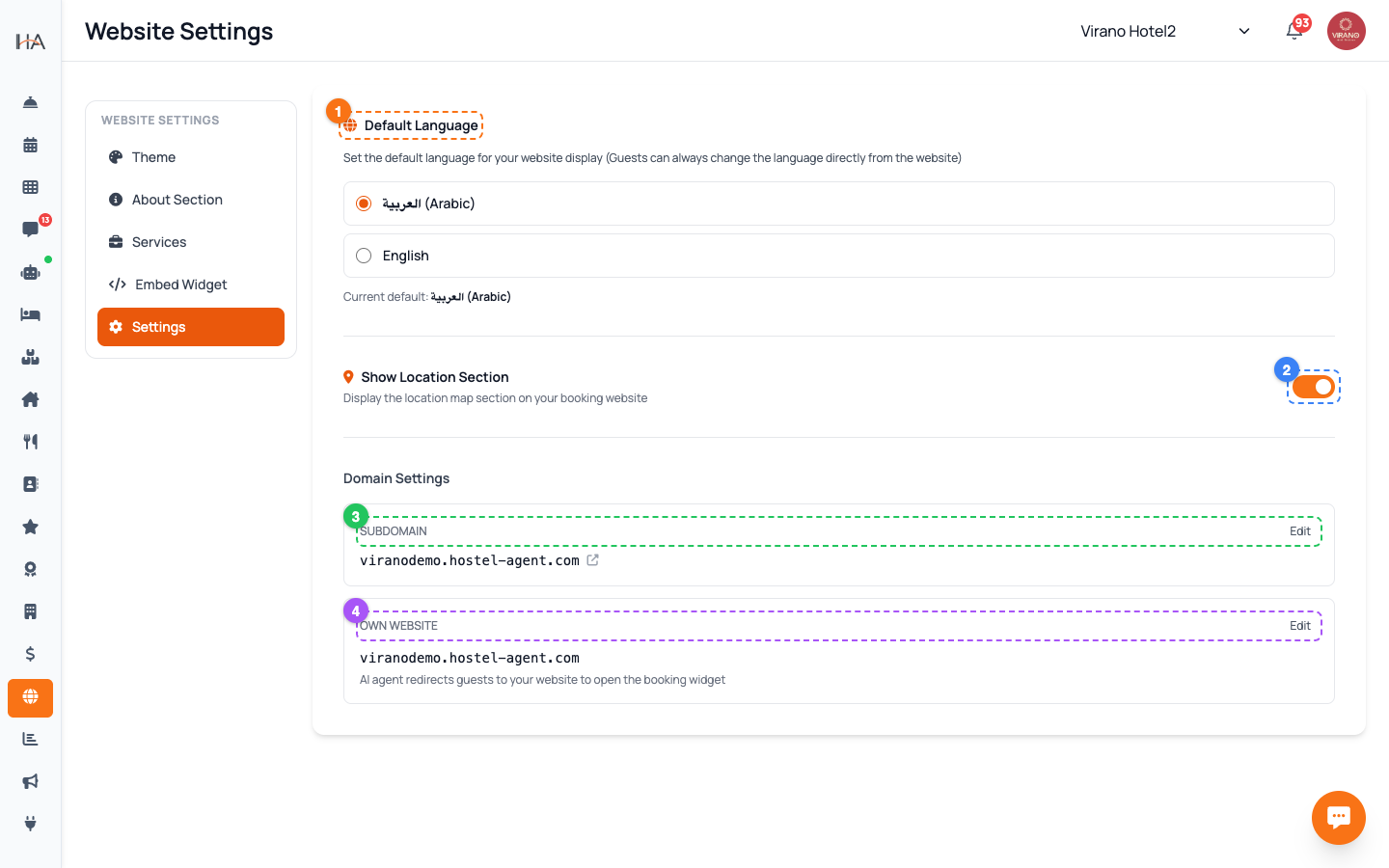
Find Your Domain Settings
Your web address is managed under the Settings tab of Website Settings, in the Domain section. You have three options: - Subdomain — a free address that looks like yourhotel.hostel-agent.com. Easiest to set up. - Custom Domain — your own purchased domain, like yourbooking.com. - Own Website — point guests to a booking widget you install on a website you already have. Whatever you choose appears as a clickable card with an Edit button. You can have a free subdomain and a custom domain at the same time, so it is fine to start with a subdomain and add a custom domain later.
Set Up Your Free Subdomain
The fastest way to go live is with a free subdomain. To set it: 1. In the Domain section, click Add Domain (or Edit). 2. Choose the Subdomain option. 3. Type your chosen name into the box before .hostel-agent.com — for example, typing virano gives you virano.hostel-agent.com. 4. Use only lowercase letters, numbers, and hyphens (spaces and symbols are not allowed). 5. Click Save Domain. Your website goes live at that address almost immediately — no DNS setup, no waiting. Pick a short, memorable name close to your property's name.
Connect a Custom Domain
If you own a domain like yourbooking.com, you can use it for a more professional address: 1. In the Domain section, click Edit and choose Custom Domain. 2. Type your full domain (for example yourbooking.com) — no "https://" needed. 3. The page shows the exact DNS record you must add: an A record, Host @, pointing to the value shown, with TTL 3600. 4. Click Save Domain. After saving, you must add that DNS record at your domain provider (where you bought the domain). The website only goes live once that record is in place and verified.
Add the DNS Record at Your Provider
This step happens outside Hostel Agent, on your domain provider's website (such as GoDaddy, Namecheap, or your registrar): 1. Log in to your domain provider and open the DNS settings for your domain. 2. Add a new record exactly as shown in the dashboard: - Type: A - Host/Name: @ - Value: the IP address shown in the dashboard - TTL: 3600 3. Save it at your provider. DNS changes can take anywhere from a few minutes to a few hours to take effect. If you are unsure, your domain provider's support team can add the A record for you if you give them these exact details.
Check the Verification Status
Once you save a custom domain, its card shows a status badge: - Pending (yellow) — the DNS record has not been detected yet. - Verified (green) — your domain is connected and your website is live on it. The dashboard checks automatically when you open the page. If it still says Pending after you have added the DNS record, click the small "(or click to check manually)" link to re-check on demand. If it stays Pending for several hours, double-check that the A record's value and Host (@) match the dashboard exactly, with no extra spaces.
Use the "Own Website" Option (Optional)
If you already have your own website and just want guests to book through it, choose Own Website instead: 1. Click Edit and select Own Website. 2. Enter your existing website domain (for example myhotel.com). 3. Follow the two on-screen steps: copy the small script tag into your website once, and add a Book Now button using your unit ID. 4. Click Save Domain. With this set, your AI agent sends guests to your own site, where the booking popup opens. This is for properties that prefer to keep their existing website — the Embed Widget guide covers the script and button in more detail.
More in Website & Booking
Your Booking Website — Overview
Understand the Website Settings page and how your free, guest-facing booking website works.
Branding & Theme — Template, Colors, Logo & Hero
Make your booking website match your brand: pick a layout, set your color, upload a logo, and add hero images.
Website Content — About, Gallery, Services & FAQs
Fill your website with the words and details guests want: an about story, photos, featured services, and answers to common questions.
Booking Engine & Policies — Language, Currency & Guest Info
Control how the booking flow behaves for guests: default language, the currency they pay in, the location map, and the policies they see.
Sharing Your Website — Links & Embed Widget
Make your booking website easy to find and share: set a clear title and description, copy your live link to post anywhere, and embed a booking button on your own site.