Your Booking Website — Overview
Understand the Website Settings page and how your free, guest-facing booking website works.
What Your Booking Website Is
Every property you manage in Hostel Agent gets its own guest-facing booking website — automatically. Guests can browse your rooms or apartments, check availability, see prices, and pay online without you building anything from scratch. The website pulls live data straight from your dashboard: - Units and photos from the Units page - Prices and availability from your calendar - Your logo, colors, and text from Website Settings This means when you update a price or add a photo elsewhere in the dashboard, your website stays in sync. You do not need a web designer or a separate hosting account.
Open Website Settings
From the main dashboard menu, open Website Settings. The page is organized as a vertical tab menu on the side with these sections: - Theme — template, colors, logo, and hero images - About — a richer about page with headline, description, and hero image - Services — featured services or amenities you want to highlight - Embed Widget — add a booking popup to your own existing website - Settings — default language, location map, and your domain Click any tab to switch between sections. Your last open tab is remembered, so you return to where you left off next time.
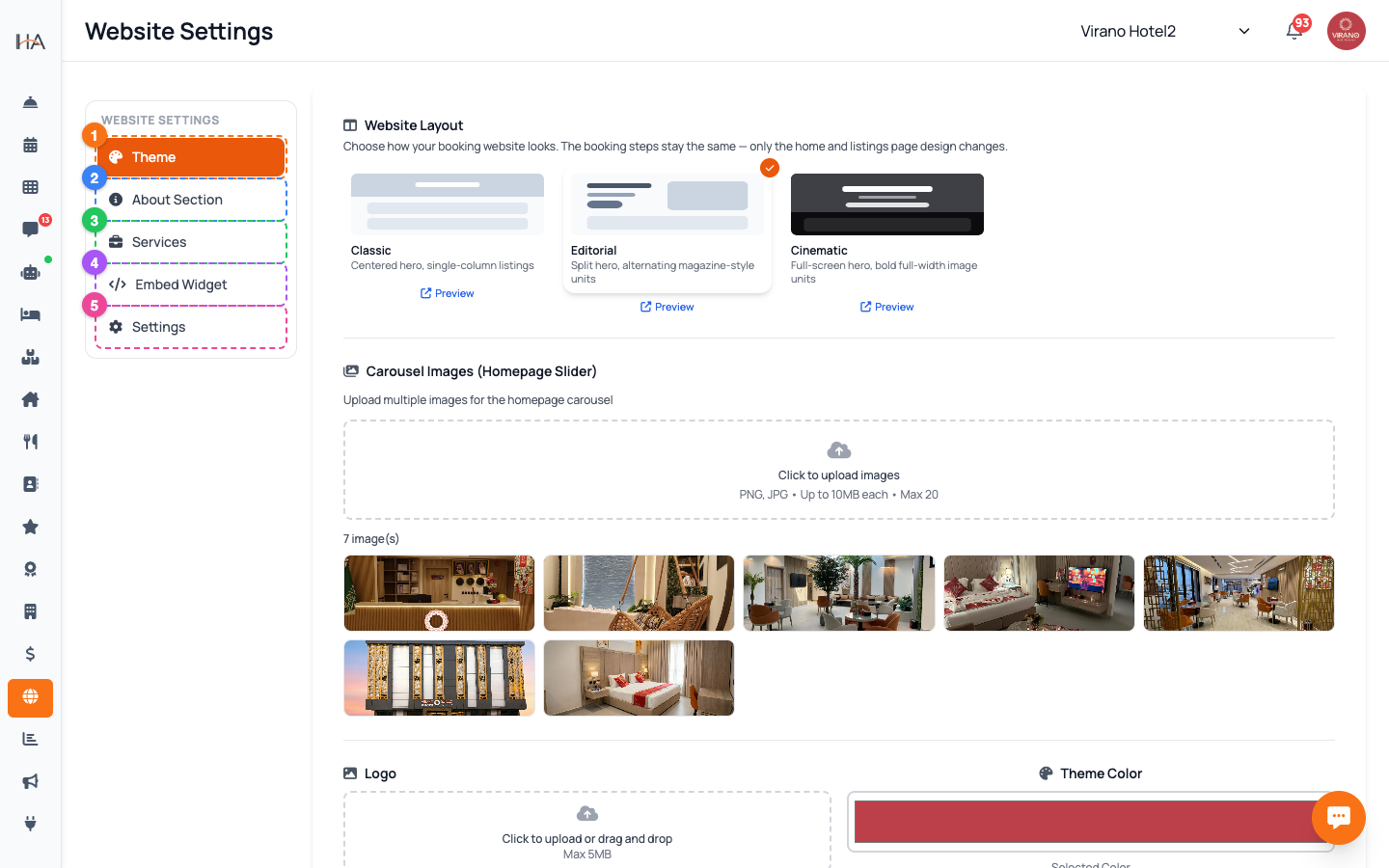
Choose the Property First
Website settings are saved per property, not for your whole account. Before you edit anything: 1. Look at the property selector at the top of the dashboard. 2. Select the specific property (unit group) you want to set up — for example your hotel or your apartment building. 3. The Website Settings page will then show that property's logo, colors, text, and domain. If you have the property set to "All", the page asks you to pick a single property first. Each property has its own website and its own web address, so always confirm you are editing the right one before saving changes.
How Edits Are Saved
Different sections save in slightly different ways, so watch for the confirmation: - Quick choices (like picking a template, a color, or a language) save the moment you click, and you see a "Settings saved" message. - Text blocks (like Website Title, Description, or About) have an Edit button. Click Edit, type your text, then click Save to apply it. - Images upload and save automatically as soon as you choose a file. A short green pop-up confirms each successful save. If something fails, you will see a red error message and can simply try again.
Preview Your Live Website
To see your website exactly as guests do, open its live web address: 1. Go to the Settings tab and find the Domain section. 2. Click your address (your free subdomain or custom domain) — it opens in a new browser tab. 3. Browse it like a guest: check the home page, click into a unit, and walk through the booking steps. In the Theme tab, each template card also has a Preview link that opens your live site with that template applied, so you can compare designs before committing. Make a change, save it, then refresh the live tab to confirm it looks right.
Who Can Edit These Settings
Editing the website requires permission. If your role does not include website permissions, you may: - See an "Access Denied" message on the whole page, or - See the settings but find the Save buttons disabled. Owners and managers normally have full access. If you need to make changes but cannot, ask your property owner or administrator to grant you website settings permission from the Team page. This protects your public site from accidental changes by staff who only need access to bookings or the front desk.
More in Website & Booking
Branding & Theme — Template, Colors, Logo & Hero
Make your booking website match your brand: pick a layout, set your color, upload a logo, and add hero images.
Website Content — About, Gallery, Services & FAQs
Fill your website with the words and details guests want: an about story, photos, featured services, and answers to common questions.
Domain & Subdomain — Your Web Address
Get your free x.hostel-agent.com address, or connect your own custom domain to your booking website.
Booking Engine & Policies — Language, Currency & Guest Info
Control how the booking flow behaves for guests: default language, the currency they pay in, the location map, and the policies they see.
Sharing Your Website — Links & Embed Widget
Make your booking website easy to find and share: set a clear title and description, copy your live link to post anywhere, and embed a booking button on your own site.