Sharing Your Website — Links & Embed Widget
Make your booking website easy to find and share: set a clear title and description, copy your live link to post anywhere, and embed a booking button on your own site.
Set the Title & Description That Identify Your Site
Your Website Title and Description are the words that describe your property to guests and to search engines. Set them in the Theme tab: 1. Click Edit next to Website Title and enter a clear name in both English and Arabic — include your property type and city, for example "Virano Hotel — Riyadh". 2. Click Edit next to Website Description and write one warm, descriptive sentence in both languages. 3. Save each one. A descriptive title and description help guests recognize your site at a glance and make it more likely to appear when people search for places to stay in your area.
Copy Your Shareable Booking Link
Your live web address is your shareable booking link — paste it anywhere guests can click it. To grab it: 1. Open the Settings tab and find the Domain section. 2. Your address (your subdomain or custom domain) is shown as a clickable link. 3. Click it to open your site in a new tab, then copy the address from your browser's address bar; or right-click the link and choose Copy link address. Share this link in your Instagram bio, Google Business profile, WhatsApp status, email signature, and printed materials. Every guest who clicks it lands directly on your booking website.
Make a Clear First Impression for Social Shares
When you paste your link into WhatsApp, Facebook, or a message, those apps show a small preview built from your site. To make that preview attractive: - Keep your Website Title short and recognizable (set in the Theme tab). - Keep your Website Description clear and inviting. - Make sure your hero/carousel images are bright and high quality, since the first image often becomes the preview picture. Test it yourself: paste your link into a WhatsApp chat to yourself and see how the preview looks. If it looks plain, improve the title, description, and lead photo, then share again.
Embed a Booking Widget on Your Own Website
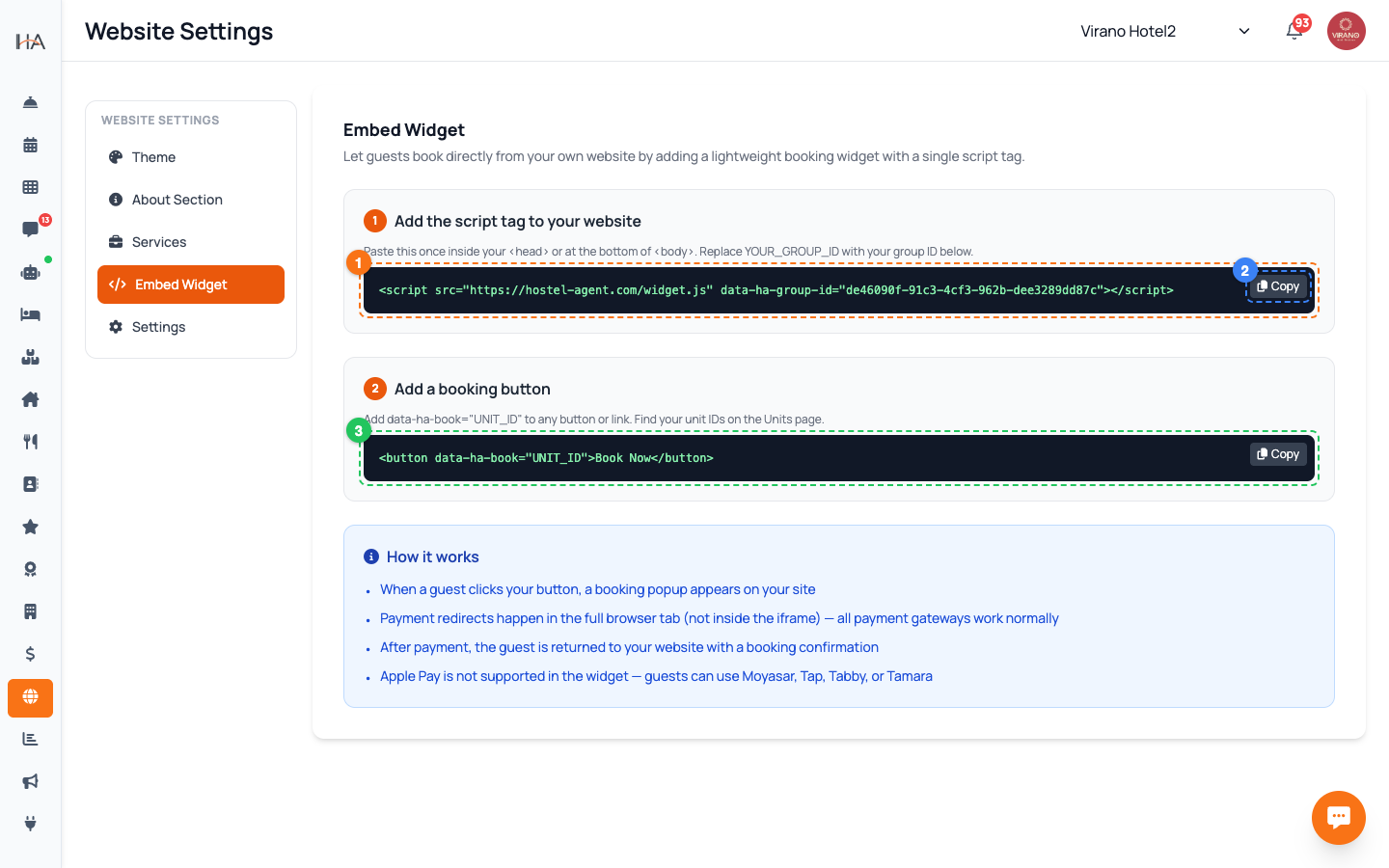
If you already run your own website, you can let guests book directly there using the Embed Widget. Open the Embed Widget tab: 1. In Step 1, click Copy to copy the small script tag, then paste it once into your website (in the head section or at the bottom of the body). Your group ID is already filled in. 2. In Step 2, copy the booking button code and place it anywhere on your page, replacing UNIT_ID with the unit's ID from the Units page. Now visitors to your own website see a Book Now button that opens the booking popup right where they are.
Know How the Widget Behaves
The Embed Widget tab includes a "How it works" box explaining what guests experience: - Clicking your button opens a booking popup directly on your site. - Payment redirects happen in the full browser tab (not inside the popup), so all payment gateways work normally. - After payment, the guest returns to your website with a booking confirmation. - Apple Pay is not supported inside the widget; guests can pay with Moyasar, Tap, Tabby, or Tamara. Keep this in mind when you ask a non-technical person to add the code — they only need to paste the script once and add the button, no advanced setup required.
Promote Your Website Everywhere
Once your link is ready, put it in front of guests on every channel you use: - Add it to your social media bios (Instagram, TikTok, Snapchat) and pinned posts. - Add it to your Google Business profile so it shows up in Maps and search. - Include it in your AI agent's WhatsApp replies so guests can book in one tap. - Print it (or a QR code generated from it using any free QR tool) on business cards, room cards, and flyers. The more places your booking link appears, the more direct bookings you receive — with no commission to online travel agencies. Re-check the link after any domain change.
More in Website & Booking
Your Booking Website — Overview
Understand the Website Settings page and how your free, guest-facing booking website works.
Branding & Theme — Template, Colors, Logo & Hero
Make your booking website match your brand: pick a layout, set your color, upload a logo, and add hero images.
Website Content — About, Gallery, Services & FAQs
Fill your website with the words and details guests want: an about story, photos, featured services, and answers to common questions.
Domain & Subdomain — Your Web Address
Get your free x.hostel-agent.com address, or connect your own custom domain to your booking website.
Booking Engine & Policies — Language, Currency & Guest Info
Control how the booking flow behaves for guests: default language, the currency they pay in, the location map, and the policies they see.