Website Content — About, Gallery, Services & FAQs
Fill your website with the words and details guests want: an about story, photos, featured services, and answers to common questions.
Where Content Lives
Your website content is spread across a few tabs, each handling one type of detail: - About — a dedicated about page with a hero image, headline, and full description. - Services — featured services or amenities you want to highlight (each with an icon). - Theme — also holds your short About summary and your FAQs. A quick note on photos: the unit photos and gallery your guests browse come from each unit on the Units page, while the rotating home-page hero photos live under the Theme tab's Carousel Images. This guide covers the wording and service details; manage individual unit photos from the Units page.
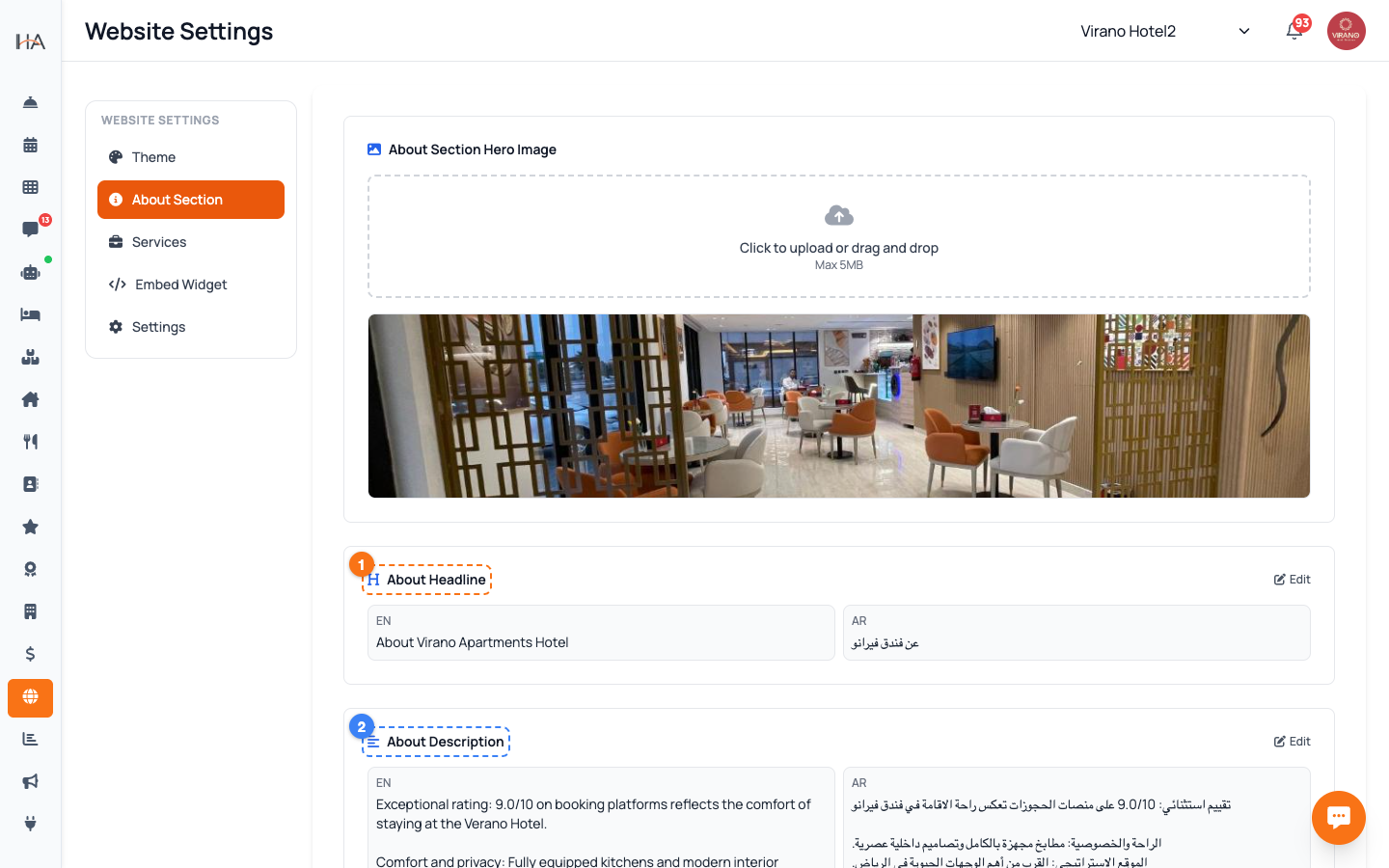
Build Your About Page
Open the About tab to tell your property's story in detail. It has three parts: 1. About Hero Image — click the upload box to add a large banner photo for the about section (keep it under the stated size limit). A preview shows once it uploads. 2. About Headline — click Edit, write a short attention-grabbing line in both English and Arabic, then Save. 3. About Description — click Edit, write a fuller paragraph about who you are, your location, and what makes you special, then Save. Write in a warm, welcoming voice. This is where guests decide whether your place feels right for them.
Add a Short About Summary
Separate from the full About page, the Theme tab has a short About summary that appears on your home page. To set it: 1. Go to the Theme tab and scroll to the About Section heading. 2. Click the Edit link. 3. Type a brief, two-or-three sentence summary in both English (EN) and Arabic (AR). 4. Click Save. Think of this as the teaser: a quick, inviting summary on the home page, with the full story available on the dedicated About page. Keep it concise so it reads well at a glance on phones.
Highlight Featured Services
Open the Services tab to showcase what your property offers — like free Wi-Fi, parking, breakfast, a pool, or airport pickup. To add one: 1. Click Add Service. 2. A new service card appears. Pick an icon, then type the service name and a short description in both languages. 3. Repeat for each service you want to feature. You can drag the cards to reorder them, and click the trash icon on a card to remove it. When everything looks right, click Save. Complete every field on each card — a card left half-empty will prompt you to finish it before saving.
Answer Common Questions (FAQs)
FAQs reduce the number of repeat questions guests ask before booking. The FAQ manager sits at the bottom of the Theme tab. Use it to add questions and answers such as: - "What time is check-in and check-out?" - "Do you allow pets?" - "Is parking available?" - "Is breakfast included?" Add each question with its answer in both languages, and save. Clear, honest FAQs build trust and cut down on phone calls and messages — and they also help your AI agent answer guests accurately on WhatsApp and other channels.
Show or Hide the Location Map
Many guests want to see exactly where you are before booking. To control the map: 1. Open the Settings tab. 2. Find Show Location Section. 3. Use the toggle to turn the map on (orange) or off (gray). It saves instantly. When on, your website displays a map section so guests can judge how close you are to landmarks, the airport, or the city center. Turn it off only if you prefer not to publish your exact location. The map uses the address details set up for your property elsewhere in the dashboard.
More in Website & Booking
Your Booking Website — Overview
Understand the Website Settings page and how your free, guest-facing booking website works.
Branding & Theme — Template, Colors, Logo & Hero
Make your booking website match your brand: pick a layout, set your color, upload a logo, and add hero images.
Domain & Subdomain — Your Web Address
Get your free x.hostel-agent.com address, or connect your own custom domain to your booking website.
Booking Engine & Policies — Language, Currency & Guest Info
Control how the booking flow behaves for guests: default language, the currency they pay in, the location map, and the policies they see.
Sharing Your Website — Links & Embed Widget
Make your booking website easy to find and share: set a clear title and description, copy your live link to post anywhere, and embed a booking button on your own site.