Conversations & Shared Inbox — Talking to Guests
See where each guest came from, reach them on WhatsApp in one click, and understand how your guest messages flow in through the AI agent channels.
See Each Guest's Channel (Source)
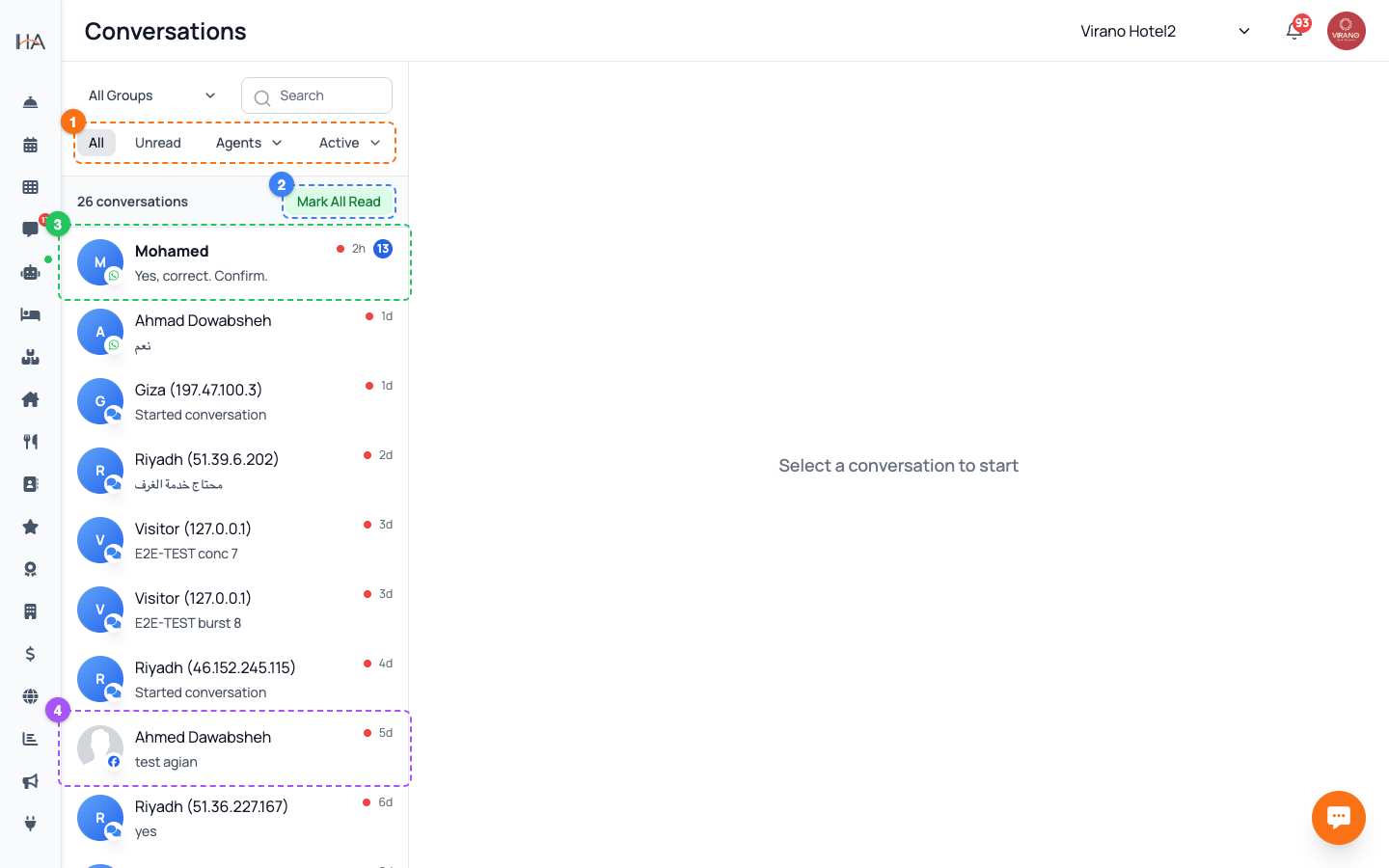
The Source column in the Contacts table tells you which channel a guest first reached you on. Each source has its own icon: - WhatsApp (green) — messaged your WhatsApp agent - Instagram / Facebook / TikTok — messaged on social media - Website (globe) — booked directly on your site - Walk-in / Dashboard (store) — added or booked in person - AI Agent (robot) — talked to your automated assistant, including Live Chat - Phone — added after a phone call Knowing the source helps you reply on the channel the guest actually prefers.
Reply on WhatsApp in One Click
The fastest way to contact a guest is the green WhatsApp button. You'll find it in two places: - In the table: hover over a guest's row and click the green WhatsApp icon on the right. - In the profile: open a guest and click the green WhatsApp button at the top. Either one opens a WhatsApp chat with that guest's saved phone number in a new tab, ready for you to type. This works only when the guest has a valid phone number on file, so keep numbers in international format.
Email a Guest Directly
When a guest has an email address on file, an Email button appears next to WhatsApp at the top of their profile drawer. Click it to open a new message in your computer's default email program, already addressed to the guest. Use email for things that suit a longer, formal message: - Booking confirmations or invoices - Detailed directions or check-in instructions - Follow-up after a stay asking for a review If no Email button shows, the guest simply has no email saved — add one via the pencil edit icon in the table.
Where Guest Conversations Are Handled
Live, two-way guest chats run through the AI Agent section, your shared inbox for messaging. Open AI Agent from the sidebar to see your connected channels for each property: - WhatsApp, Instagram, Facebook, Telegram, TikTok, and your website Live Chat Each channel card shows a status dot (green = live, yellow = pending connection) and a Conversations count of active chats. Your AI agent answers guest questions automatically, and your team can step in on Live Chat when a human touch is needed.
How a Chat Becomes a Contact
Every guest who messages one of your channels is saved automatically as a contact — so your inbox and your CRM stay in sync. When a new person writes to your WhatsApp or Live Chat: 1. A contact record is created with their name and number. 2. Their Source is set to the channel they used. 3. Their conversation count starts tracking in the AI Agent section. This means you never lose a lead. Even a guest who only asked a question — and never booked — appears in Contacts, ready for follow-up later.
Send a WhatsApp Campaign to Many Guests
To message a group of guests at once instead of one by one: 1. On the Contacts page, use the checkboxes to select the guests you want (or filter first, then select). 2. Click the green WhatsApp Campaign button in the action bar. 3. Compose your message and send it to the selected audience. This is ideal for promotions, seasonal offers, or re-engaging past guests. The WhatsApp Campaign button only appears if your role includes marketing campaign permission, and your contacts must have valid phone numbers.
More in Contacts & CRM
Contacts & CRM — Your Guest Database
The Contacts page is your guest customer database (CRM). It collects everyone who has booked, messaged, or been added manually — with bookings, spending, and tags in one place.
Contact Profiles — The Full Guest View
Click any guest to open their profile drawer: contact details, lifetime stats, full booking history, loyalty tier, tags, and private staff notes — all in one slide-out panel.
Tags, Segments, Import & Export
Organize your guest list with tags, filter it into focused segments, and move contacts in and out using CSV import and export.