WhatsApp & Direct Campaigns
Build a target audience, write a message or pick an approved template, schedule it, and send a WhatsApp campaign to your guests.
Open the Campaign Tab
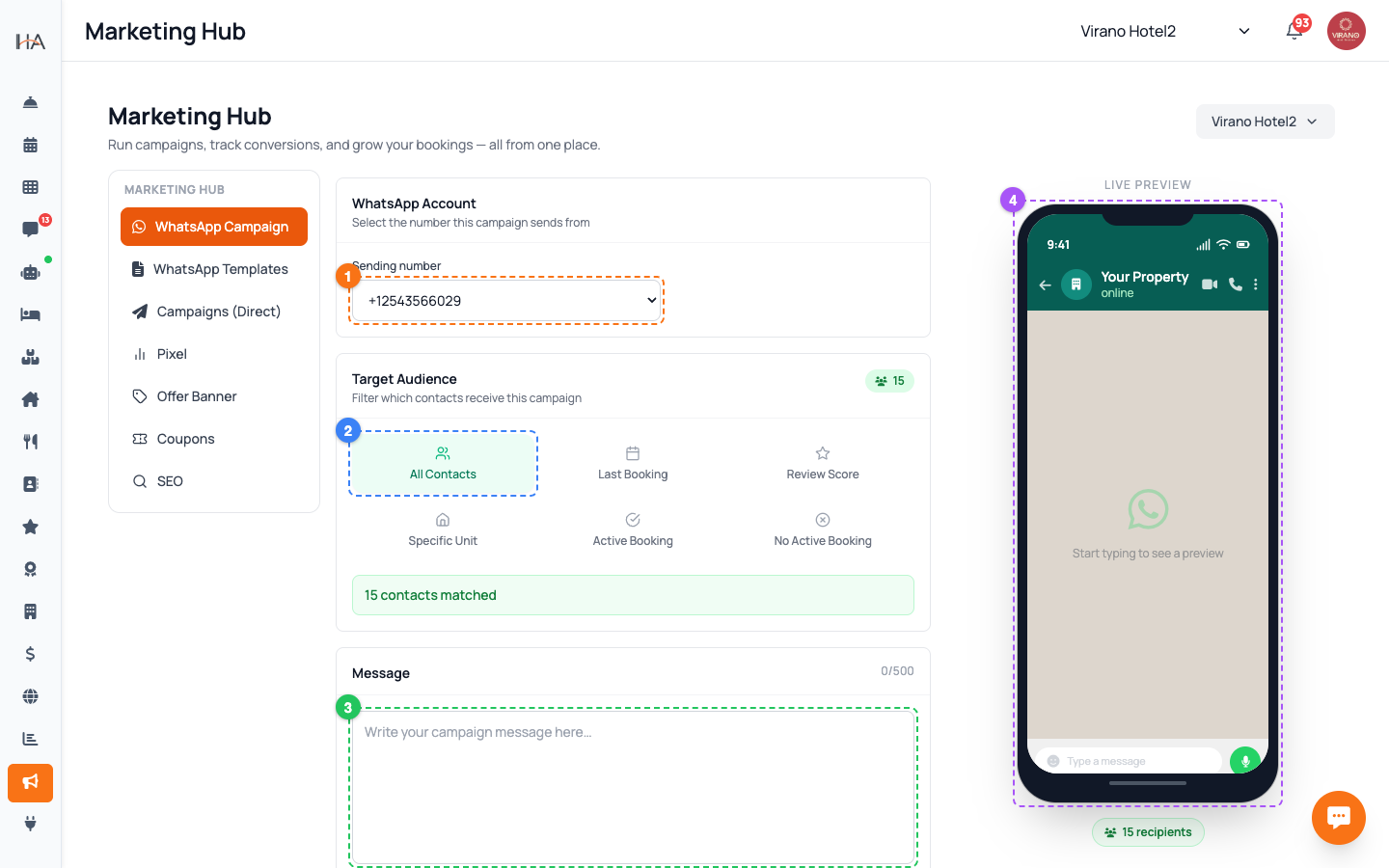
Go to Marketing in the sidebar, then click the WhatsApp Campaign tab. This is the simplest way to broadcast a message to many guests at once. If your WhatsApp number is connected directly, you will also see two extra tabs: - WhatsApp Templates — where your pre-approved message designs live - Campaigns (Direct) — send using one of those approved templates For a normal promotional broadcast, the WhatsApp Campaign tab is all you need. Make sure the correct property is selected at the top so the audience is built from the right contacts.
Choose the Sending Number
At the top of the page, in the WhatsApp Account section, pick the number this campaign will send from using the Sending number dropdown. Notes: - If no number appears, you have no connected WhatsApp account yet. Connect one in the AI Agent settings first, then come back - Guests will receive the message as coming from this number, so choose the one they recognise - All replies from guests land in your usual inbox, so you can keep the conversation going This step ties the whole campaign to a real, verified business number — it is not sent from a random gateway.
Build Your Target Audience
In the Target Audience section, choose a filter so only the right guests receive the message: - All Contacts — everyone with a phone number - Last Booking — guests whose last booking was after / before / on a date you set - Review Score — guests who rated at least or at most a chosen number of stars - Specific Unit — guests linked to one unit - Active Booking — guests staying with you right now - No Active Booking — guests not currently staying As you change filters, the page shows a live "X contacts matched" count so you always know how many people will be reached before sending.
Write Your Message and Add an Attachment
In the Message section, type your campaign text in the box (it follows your language, Arabic or English). Keep it warm, short, and clear about the offer or news. Tips: - Include the value: a discount, a free upgrade, a season greeting - If you made a coupon, paste the code right in the text - Use the optional Attachment to add a single image or file (within the size limit shown). A nice photo of a room or offer lifts response rates Watch the live phone preview on the right — it updates as you type so you see the exact message and image your guests will receive.
Schedule the Send Time
In the Schedule section, set the Send Date & Time. You can send immediately by choosing now, or pick a future date and time so the campaign goes out at the perfect moment. Good timing ideas: - Mid-morning or early evening tends to get the most reads - Avoid very late night sends - Line up a weekend-deal campaign to land on Thursday If message billing is enabled for your account, this section also shows the Campaign Cost (and a Recharge link if your balance is low). If billing is off, you only see the schedule — there is no per-message charge.
Review and Send
Before sending, do a final check: 1. Sending number is correct 2. The matched recipient count matches your intent 3. The message text and attachment look right in the live preview 4. The send date and time are what you want When everything is set, press the green Send to X Contacts button. The page shows a sending progress indicator, and you will get a confirmation when the campaign is on its way, including the recipient count and scheduled time. After that, just watch your inbox for replies and bookings.
Optional: Send with an Approved Template
If your number is connected directly to WhatsApp, the Campaigns (Direct) tab lets you send using an official approved template — useful for reaching guests outside the normal reply window. To use it: 1. Give the campaign a Campaign name (for example "June promo") 2. Choose an Approved template from the dropdown (if none appear, create and submit one in the WhatsApp Templates tab first) 3. Fill any variable values — set each to the Contact name or a fixed Static text 4. Press Send campaign The campaign list below tracks Recipients, Sent, Failed, and Status for every send.
More in Marketing & Loyalty
Marketing Hub — Your Growth Toolkit
A guided tour of everything in the Marketing area: WhatsApp campaigns, discount coupons, the loyalty program, and guest reviews — and where to find each tool.
Coupons & Discount Codes
Create percentage or fixed-amount discount codes, set their validity dates and usage limits, restrict them to certain units, and track how often they are used.
Loyalty Program Setup
Turn on your loyalty program, set how guests earn points and how much each point is worth, and add bonuses and tiers that keep guests coming back.
Apple & Google Wallet Loyalty Cards
Design a branded digital loyalty card that guests add to their Apple or Google Wallet, with points that update live on their phone every time their balance changes.
Reviews Management
See every rating and comment guests leave after their stay or housekeeping service, filter and sort them, and use the feedback to lift your ratings and win repeat bookings.