Coupons & Discount Codes
Create percentage or fixed-amount discount codes, set their validity dates and usage limits, restrict them to certain units, and track how often they are used.
Open the Coupons Tab
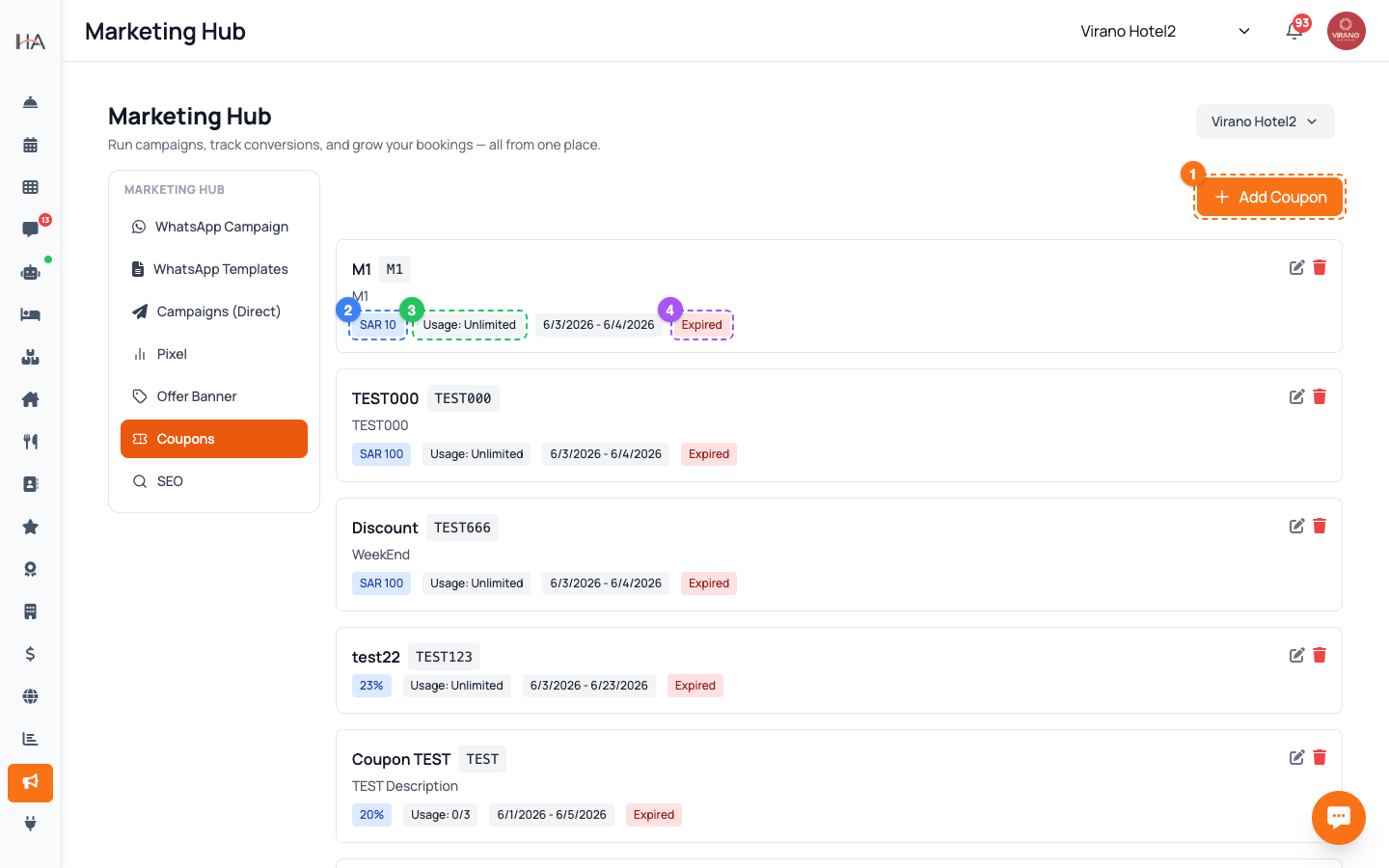
Go to Marketing in the sidebar, then click the Coupons tab. First make sure the correct property is selected at the top of the dashboard, because each coupon belongs to one property group. The Coupons tab shows all your existing codes as cards. Each card displays: - The coupon name and its code - The discount (for example 10% or 100 SAR off) - The Usage so far (used / limit) - The valid date range and a colored status badge To start a new code, click the orange Add Coupon button. To change one, click the pencil icon on its card.
Set the Code, Name, and Description
When the Add Coupon panel opens, fill the top fields: - Coupon Code (required) — what guests type at checkout, for example SUMMER2025. Keep it short, memorable, and all capitals - Coupon Name (required) — an internal label so your team recognises it, for example "Summer Sale" - Coupon Description (optional) — a short note about the offer The code is the only part guests ever see. The name and description are just for your own organisation. Avoid spaces and special characters in the code so guests can type it easily on the booking website.
Choose the Discount Type and Value
Under Discount Type, pick one of two options: - Percentage — takes a percent off the booking, for example 10% - Fixed Amount — takes a set amount off in your currency, for example 100 SAR Then enter the Discount Value (required): - For a percentage, type a number from 0 to 100 - For a fixed amount, type the money value If you chose Percentage, an extra Max Discount Amount field appears. Use it to cap how much can ever be taken off (for example "20% but no more than 150 SAR"). Leave it empty for no cap.
Set Validity Dates and Usage Limits
Control when and how often the coupon can be used: - Valid From and Valid Until (both required) — pick the start and end date and time. The coupon only works between these. Valid Until must be after Valid From - Max Uses — the total number of times the code can be used across all guests. Leave empty for unlimited - Max Uses Per Customer — how many times one guest can use it. Leave empty for unlimited These limits protect your margins: a launch code might be unlimited for a week, while a VIP code might allow just one use per customer.
Add Conditions and Restrictions
Fine-tune who and what the coupon applies to: - Minimum Booking Amount — only allow the code on bookings above a certain total. Leave 0 for no minimum - First Booking Only — tick this checkbox to reward only brand-new guests - Applicable Units — keep "All Units" ticked to apply everywhere, or untick it and select the specific units the discount covers These options let you target offers precisely — for example a "first stay" welcome discount, a high-value-booking incentive, or a deal limited to your slower units.
Activate and Save the Coupon
At the bottom, make sure the Active checkbox is ticked so the coupon can be used (untick it to keep a draft that guests cannot redeem yet). Then click Add (or Save when editing). The new coupon appears in the list with a colored status badge: - Active (green) — live and usable now - Scheduled (blue) — valid date has not started yet - Expired (red) — past its end date - Limit reached (orange) — all uses are spent - Inactive (gray) — switched off To edit later, click the pencil icon; to remove a code, click the trash icon and confirm.
Track Usage and Promote the Code
After a coupon is live, the list card shows its Usage (used / limit) so you can see in real time how popular it is. Use this to judge a promotion's success. To get results: 1. Announce the code in a WhatsApp Campaign to a targeted audience 2. Add it to your social media posts and email signature 3. Show it on your booking website using the Offer Banner tab Guests simply enter the code at checkout on your booking website, and the discount is applied automatically as long as it is active and their booking meets the conditions you set.
More in Marketing & Loyalty
Marketing Hub — Your Growth Toolkit
A guided tour of everything in the Marketing area: WhatsApp campaigns, discount coupons, the loyalty program, and guest reviews — and where to find each tool.
WhatsApp & Direct Campaigns
Build a target audience, write a message or pick an approved template, schedule it, and send a WhatsApp campaign to your guests.
Loyalty Program Setup
Turn on your loyalty program, set how guests earn points and how much each point is worth, and add bonuses and tiers that keep guests coming back.
Apple & Google Wallet Loyalty Cards
Design a branded digital loyalty card that guests add to their Apple or Google Wallet, with points that update live on their phone every time their balance changes.
Reviews Management
See every rating and comment guests leave after their stay or housekeeping service, filter and sort them, and use the feedback to lift your ratings and win repeat bookings.