Modify Booking Dates
Learn how to move a booking's check-in or check-out date directly from the Booking Details panel using the inline pencil edit icons.
Open the Booking and Locate the Date Edit Icons
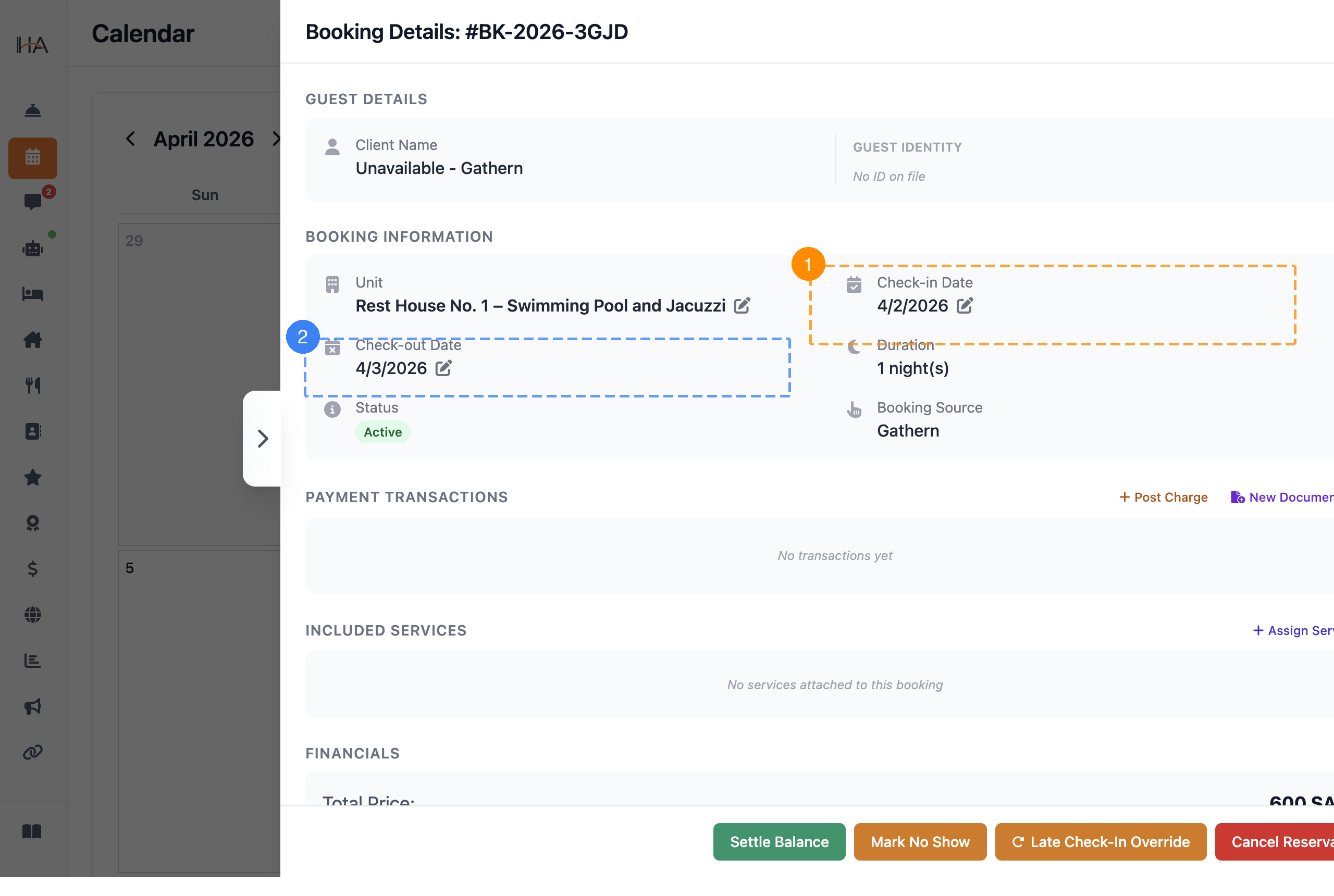
Click any booking on the calendar to open the Booking Details panel on the right. In the BOOKING INFORMATION section: ① Check-in Date — shows the current arrival date with a ✏ edit icon; click it to move the check-in ② Check-out Date — shows the current departure date with a ✏ edit icon; click it to modify the checkout
Move the Check-in Date
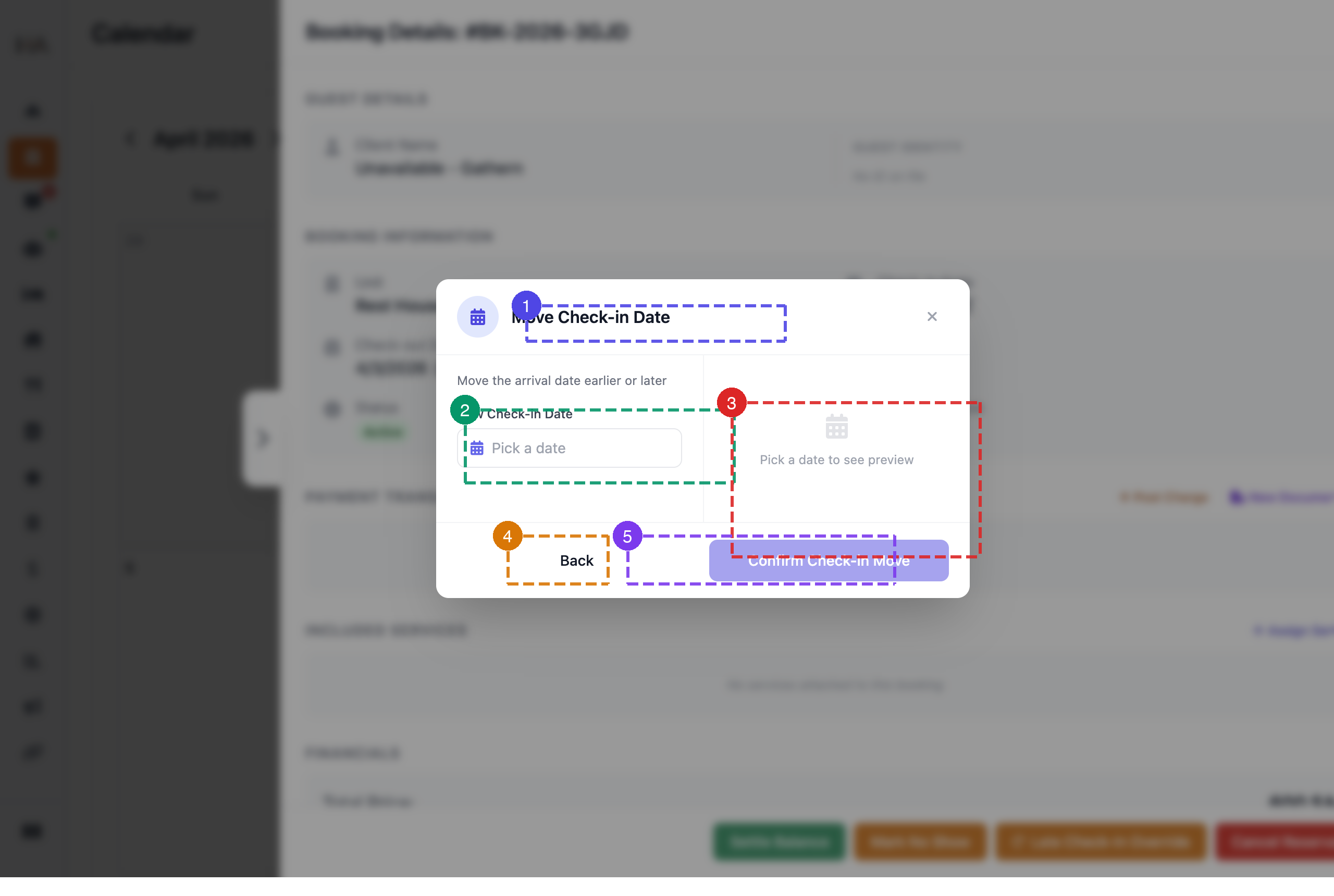
Clicking the ✏ icon next to Check-in Date opens the Move Check-in Date dialog: ① Title "Move Check-in Date" — confirms you are moving the arrival date earlier or later ② New Check-in Date — date picker to select the updated arrival date ③ Preview — shows the pricing impact once a date is selected ④ Back — cancel and return to the booking panel without saving ⑤ Confirm Check-in Move — saves the new arrival date (enabled only after a date is chosen)
Modify the Check-out Date
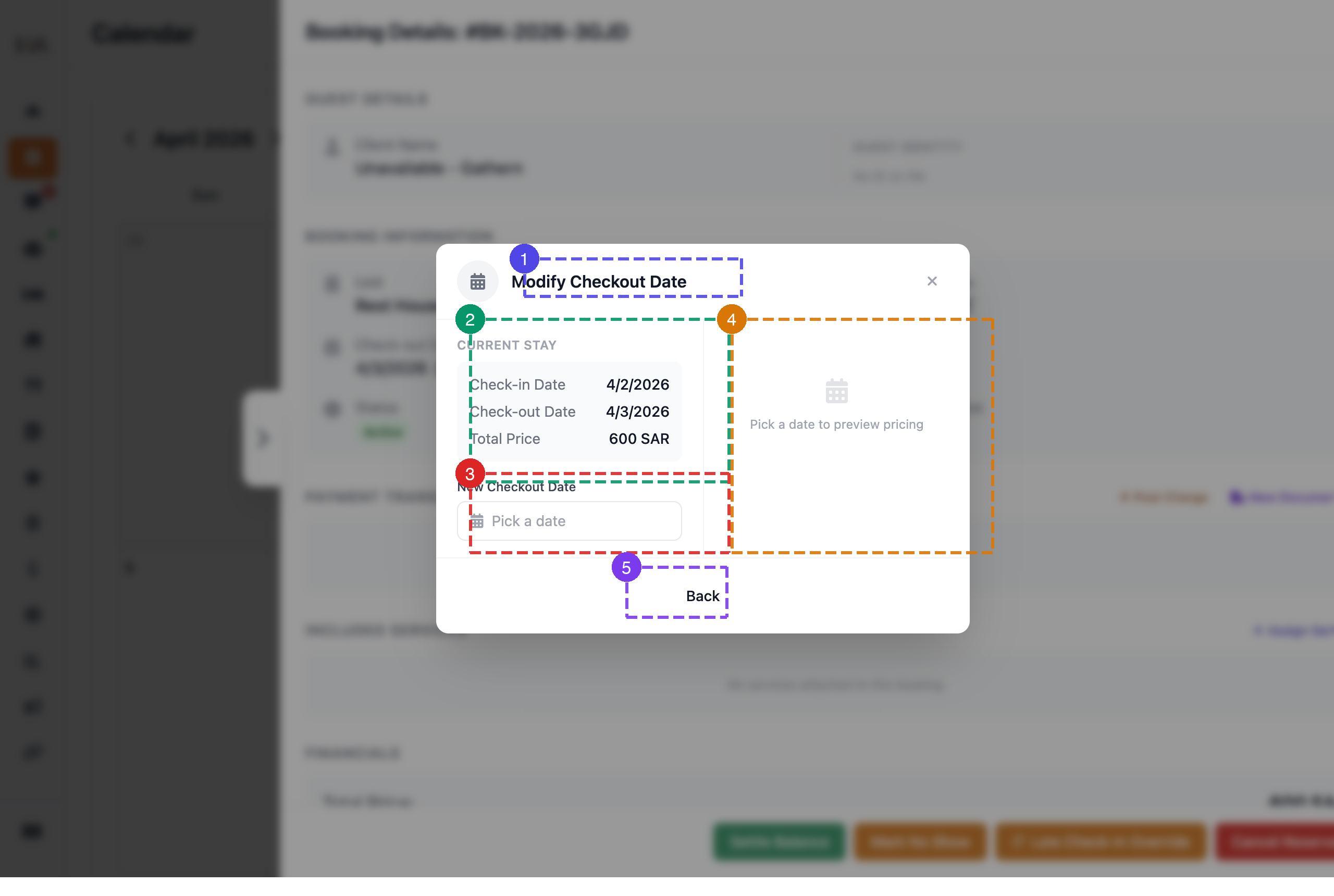
Clicking the ✏ icon next to Check-out Date opens the Modify Checkout Date dialog: ① Title "Modify Checkout Date" — confirms you are extending or shortening the stay ② CURRENT STAY — reference summary showing the existing check-in date, check-out date, and total price ③ New Checkout Date — date picker to select the updated departure date ④ Preview — shows updated pricing once a new date is selected ⑤ Back — cancel and return to the booking panel without saving
More in Calendar & Bookings
Understanding the Calendar View
Learn how to navigate the calendar, understand booking statuses, filter by units, and interpret the visual indicators.
Create a Manual Booking
Learn how to create a booking from the calendar using the Add Booking panel, including guest info, stay details, pricing edits, payment details, and final submission.
View & Edit Booking Details
Learn how to read the booking panel, transfer units, adjust dates, post incidental charges, generate invoices and documents, assign services, and apply coupon codes.
Cancel or Delete Bookings
Learn how to cancel bookings, process refunds, manage cancellation policies, and handle guest communication.
Set Custom Pricing on Specific Dates
Learn how to create price overrides for specific date ranges — replacing the base price or adding a fixed amount — and apply them to selected units.