Channel Manager: One Two-Way Sync for All Your OTAs
Connect your property to Booking.com, Airbnb, Expedia and more through a single connection that keeps prices, availability, and bookings in sync automatically.
What the Channel Manager Does
The Channel Manager is a single bridge between your dashboard and the big online travel agencies (OTAs). Instead of logging into Booking.com, Airbnb, and Expedia separately, you manage everything in one place. It works in two directions: - OUTBOUND: When you change a price, open or close availability, or set a stay rule in your dashboard, it pushes that update to every connected OTA automatically. - INBOUND: When a guest books on any OTA, that reservation flows straight into your dashboard as a confirmed booking, and the room is closed everywhere else. The result: no double bookings, no manual copying of rates, and one calendar that is always correct.
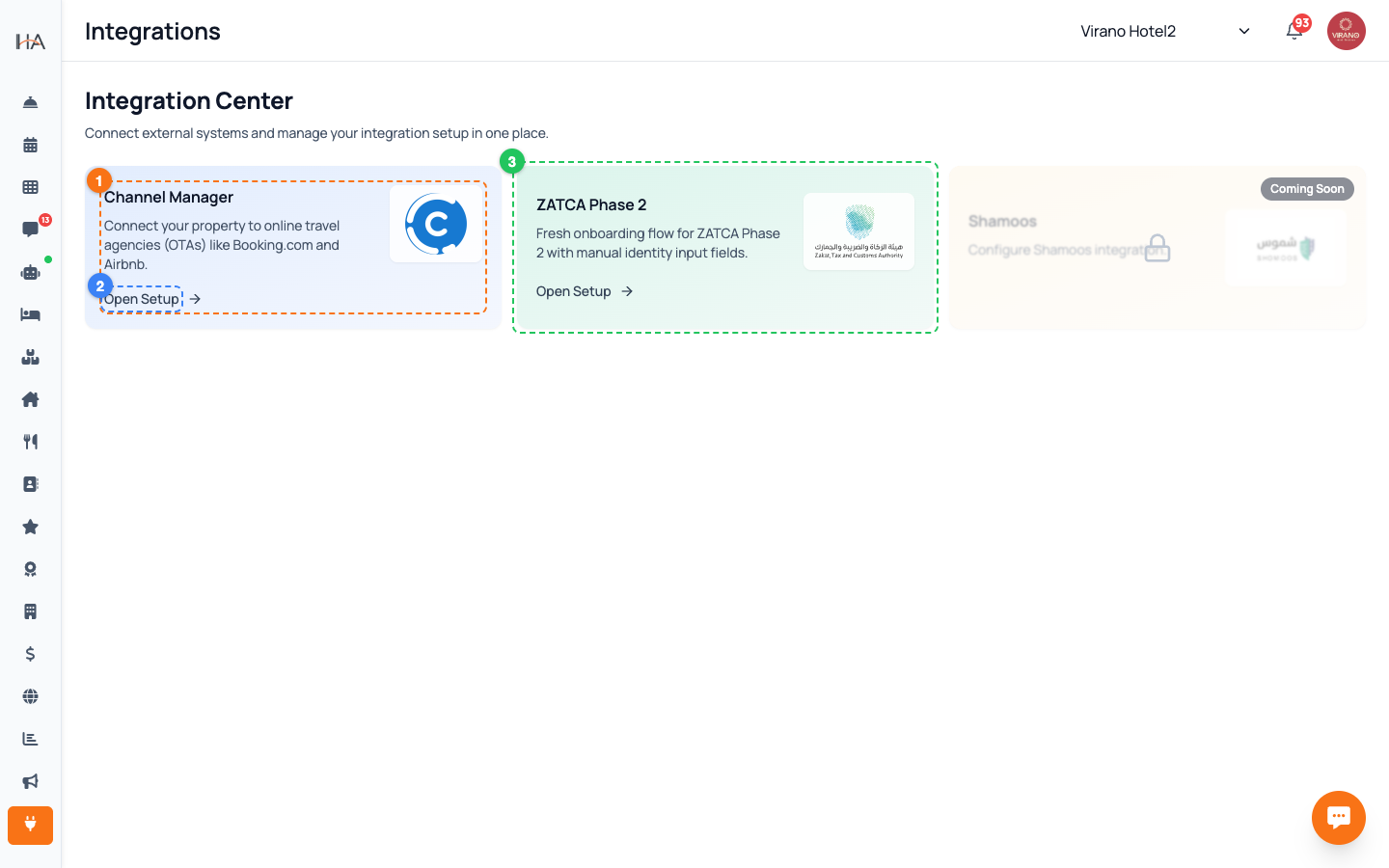
Where to Find It
The Channel Manager lives inside the Integrations area of your dashboard. 1. Open the main menu and go to Integrations. 2. Find the Channel Manager card (it says "Connect your property to OTAs like Booking.com and Airbnb"). 3. Click it to open the Channel Manager page. If your property is not connected yet, you will see a short setup wizard. Once connected, the page switches to a full dashboard with five tabs across the top: Setup, Mapping, Channels, Policy & Rates, and Logs.
The Five Tabs at a Glance
Once connected, your work is split across five tabs: - Setup: Manage the connection, your access key, the sync toggles, and the manual full sync. - Mapping: Match each of your units to a channel room type and rate plan. This is the foundation everything else depends on. - Channels: Turn individual OTAs on, such as Booking.com, Airbnb, and Expedia. - Policy & Rates: Control exactly what gets pushed: prices, availability, and stay rules per rate plan. - Logs: See a history of everything that happened, and handle any bookings that could not be matched automatically. Work through them left to right the first time: Setup, then Mapping, then Channels.
How Updates Reach the OTAs
You do not have to press a button every time something changes. The Channel Manager watches your dashboard and reacts: - When a booking is made, changed, or cancelled, availability is updated everywhere within minutes. - When you edit a price or a stay rule, that change is queued and pushed to the OTAs automatically. - Every night, a full safety sync runs in the background to make sure all your channels match your dashboard exactly. For most days you simply manage your property as usual and the channels stay in step. You only use the manual "Sync now" button for special cases, which we cover in the Setup article.
What You Need Before You Start
To connect, prepare a few things: - An access key from your channel manager account (you will paste it on the Setup tab). - Active listings on the OTAs you want to connect, such as your Booking.com or Airbnb property. - Your units already created in the dashboard with prices set, so they can be matched to channel room types. You also need the right permission. Connecting and managing channels is restricted to owners and managers with the "manage channels" permission. If buttons look greyed out, ask your account owner to grant you access.
Recommended Setup Order
Follow this sequence for a smooth launch: 1. Setup: paste your access key, link your property, and confirm the connection. 2. Mapping: match every unit to its channel room type and rate plan, then save to go live. 3. Channels: activate each OTA you sell on (Booking.com, Airbnb, Expedia). 4. Policy & Rates: decide what to push (prices, availability, stay rules) and fine-tune per rate plan. 5. Logs: check that the first sync succeeded and watch for any unmapped bookings. Each of these has its own article in this section. Take them one at a time the first time, then everything runs on its own afterwards.
More in Channel Manager
Connecting Your Property (Setup Tab)
Enter your channel manager access key, link your property, and run the first full sync so your dashboard and OTAs are in step.
Mapping Units to Channel Room Types (Mapping Tab)
Match each of your units to a channel room type and rate plan so prices, availability, and bookings flow to the right place.
Activating Channels: Booking.com, Airbnb, Expedia (Channels Tab)
Connect each online travel agency using a secure one-time login so your mapped rooms start selling on Booking.com, Airbnb, Expedia and more.
Policy & Rates: Control What Reaches the OTAs
Fine-tune the prices, availability, and stay restrictions pushed to each OTA, per rate plan, and run quick or bulk updates.
Logs & Troubleshooting (Logs Tab)
Read the operation history, handle bookings that could not be matched automatically, and fix common sync issues.