Logs & Troubleshooting (Logs Tab)
Read the operation history, handle bookings that could not be matched automatically, and fix common sync issues.
Open the Logs Tab
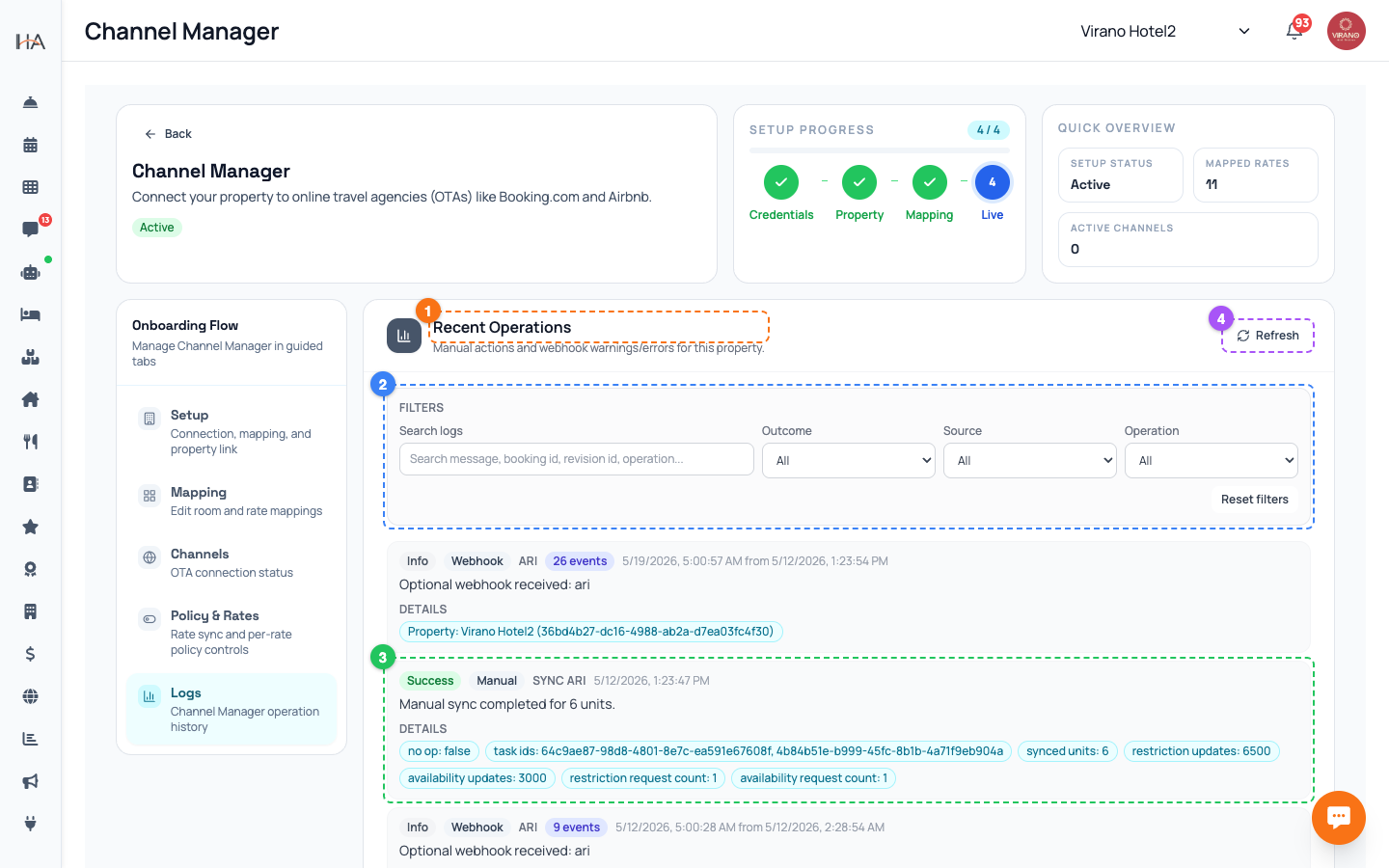
The Logs tab is your record of everything the Channel Manager has done for this property: syncs, channel activations, incoming bookings, and any warnings or errors. Open it from the Channel Manager tabs at the top. You will see: - An operation log table listing each event with a timestamp, where it came from, what happened, and the outcome. - Filters and a search box to narrow things down. - A section for any unmapped bookings that need your attention. This is the first place to look whenever you suspect a price, availability, or booking did not sync correctly.
Read an Operation Log Entry
Each row in the operation log tells a small story: - Time: when it happened. - Source: where it came from, such as Manual (you pressed a button), Webhook (an OTA sent something), System, or Cron (an automatic scheduled job). - Operation: what was done, such as activating a channel, pushing restrictions, or ingesting a booking. - Outcome: Success, Warning, Error, or Info. Click a row to expand it and see extra details, such as which room type or rate plan was involved and how many updates were sent. Most entries will be quiet successes; you mainly watch for warnings and errors.
Filter and Search the Log
When the log is long, use the controls above it to focus: - Outcome filter: show only Success, Warning, Error, or Info. Set it to Error first when troubleshooting. - Source filter: show only Manual, Webhook, System, or Cron events. - Operation filter: narrow to a specific kind of operation. - Search box: type a word to find matching messages. - Pagination: the log shows entries in pages, so use the page controls to go further back. A quick troubleshooting routine: set Outcome to Error, scan the most recent rows, and click any error to read its details. That usually points straight at the problem.
Handle Unmapped Bookings
Sometimes an OTA booking arrives for a room the system cannot match to one of your mapped units. These land in the unmapped booking queue on the Logs tab instead of being created automatically, so nothing is lost. When you see one: 1. Open the unmapped booking and note the room type and dates it was for. 2. Go to the Mapping tab and make sure that room has a unit mapped to the correct channel room type and rate plan. 3. Return and process the booking so it becomes a normal reservation in your dashboard. Unmapped bookings almost always mean a missing or wrong mapping. Fixing the mapping prevents it from happening again for future bookings of that room.
Common Issues and Fixes
Most sync problems have simple causes: - Prices not updating on an OTA: check that "Sync rates to OTA channels" is on (Setup tab) and that the rate plan's source of truth is set to Dashboard (Policy & Rates). - Availability looks wrong: confirm the unit is mapped (Mapping tab) and the channel is active (Channels tab). - A whole channel is silent: open Channels and confirm it shows as connected; reactivate if needed. - Stay rules not applying: open the rate profile and check the restriction toggles and weekday checkboxes. After any fix, use Quick Sync on the affected rate plan, or Sync now on Setup, to push the correction. Then check the Logs for a fresh success entry.
When to Ask for Help
If you have checked your mappings, toggles, and channel status and an error keeps appearing in the log, it is time to escalate: 1. Note the exact error message by expanding the log row. 2. Note the time, the OTA involved, and the room type or rate plan. 3. Take a screenshot of the expanded log entry. 4. Contact support with these details. Clear details make problems much faster to solve. Remember that the system automatically retries failed syncs several times and runs a full safety sync every night, so many temporary glitches fix themselves. Persistent errors, especially around a specific OTA connection, are worth reporting so they can be investigated.
More in Channel Manager
Channel Manager: One Two-Way Sync for All Your OTAs
Connect your property to Booking.com, Airbnb, Expedia and more through a single connection that keeps prices, availability, and bookings in sync automatically.
Connecting Your Property (Setup Tab)
Enter your channel manager access key, link your property, and run the first full sync so your dashboard and OTAs are in step.
Mapping Units to Channel Room Types (Mapping Tab)
Match each of your units to a channel room type and rate plan so prices, availability, and bookings flow to the right place.
Activating Channels: Booking.com, Airbnb, Expedia (Channels Tab)
Connect each online travel agency using a secure one-time login so your mapped rooms start selling on Booking.com, Airbnb, Expedia and more.
Policy & Rates: Control What Reaches the OTAs
Fine-tune the prices, availability, and stay restrictions pushed to each OTA, per rate plan, and run quick or bulk updates.