Policy & Rates: Control What Reaches the OTAs
Fine-tune the prices, availability, and stay restrictions pushed to each OTA, per rate plan, and run quick or bulk updates.
What the Policy & Rates Tab Is For
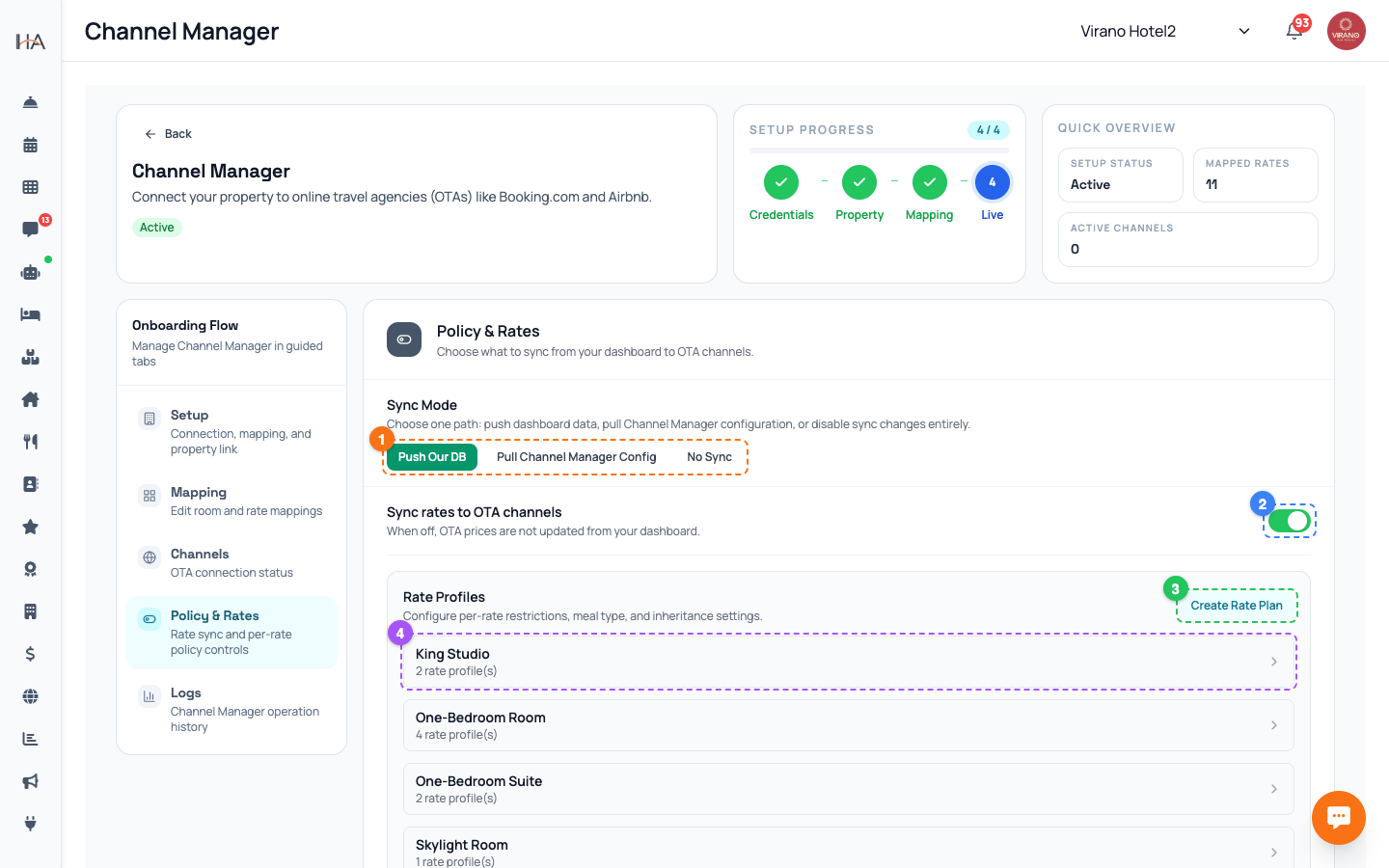
The Policy & Rates tab is where you control the fine detail of what goes out to your OTAs. While the Setup tab has the master on/off switches, this tab lets you decide rules per rate plan. For every mapped unit and its rate plan you get a rate profile card showing the unit name, the rate plan title, and small badges for what is currently being synced. Clicking a card opens an editor with two parts: - Restrictions: stay rules like minimum nights and arrival/departure rules. - Commercial: meal type, tax set, and cancellation policy. This lets you, for example, push prices but not restrictions, or apply a non-refundable policy to one rate plan only.
Choose Who Controls Each Rate Plan
Each rate profile has "source of truth" settings that decide who is in charge: - Rates source of truth: Dashboard means your dashboard prices win and are pushed out; OTA means you set prices on the OTA and the dashboard does not overwrite them. - Restrictions source of truth: same idea for stay rules. There are also simple toggles: - Sync rates to OTA channels - Sync restrictions to OTA channels For most properties, keep the dashboard as the source of truth and the sync toggles on, so you manage everything in one place. Switch a rate plan to OTA control only if you deliberately manage that price directly on the channel.
Set Stay Restrictions
In the Restrictions part of a rate profile you can shape how guests book on the OTAs: - Min stay on arrival: the minimum nights required when a stay starts on a given day. - Min stay through: the minimum nights when a day falls inside the stay. - Max stay: the longest allowed stay (use 0 for no limit). - Closed to arrival (CTA), Closed to departure (CTD), and Stop sell: set these by weekday using the seven day checkboxes, so you can, for example, block arrivals on busy changeover days. Each value has its own enable switch, so you only push the rules you actually want. Click Save in the editor to apply, and the rules are sent to your connected channels.
Set Commercial Details: Meals, Tax, Cancellation
The Commercial part of the editor covers how the rate is presented and charged: - Meal type (optional): choose what the price includes, such as room only or breakfast included, then turn on its sync toggle to push it. - Tax set (optional): pick the tax set that applies (choose "No tax set" if not needed), with its own sync toggle. This keeps your ضريبة القيمة المضافة (VAT) handling consistent on the OTAs. - Cancellation policy: set the policy for this rate plan, with a sync toggle. Use these to make a clear difference between, say, a flexible breakfast-included rate and a non-refundable room-only rate. Each toggle controls whether that detail is sent to the OTAs or kept local.
Use Quick Sync for One Rate Plan
After changing a rate profile, you can push just that rate plan immediately without using the once-a-day full sync. - Use the Quick Sync option on the rate profile to send the next 30 to 45 days of prices and rules for that one rate plan right away. - This is perfect for a quick fix: you adjusted a price or a minimum-stay rule and want it live on the OTAs in minutes. Quick Sync is light and has no daily limit, so use it freely for single rate plans. Regular automatic syncing still happens in the background too, so even if you forget, your change will go out, Quick Sync just makes it instant.
Make Bulk Changes Across Dates
For larger changes across a date range, use the bulk update tools in Policy & Rates. There are three actions: - Edit Availability: pick a room type and a date range, set how many rooms are available. Great for opening or closing inventory for a season. - Edit Price Override: pick a rate plan and date range, set a price. Useful for special pricing over holidays or events. - Edit Advanced Rules: pick a rate plan and date range, then set stay rules such as minimum/maximum stay, closed to arrival, closed to departure, and stop sell, optionally by weekday. Select your dates, fill in the values, and apply. The changes are sent to your connected OTAs. Use this when you need to set the same thing across many days at once.
More in Channel Manager
Channel Manager: One Two-Way Sync for All Your OTAs
Connect your property to Booking.com, Airbnb, Expedia and more through a single connection that keeps prices, availability, and bookings in sync automatically.
Connecting Your Property (Setup Tab)
Enter your channel manager access key, link your property, and run the first full sync so your dashboard and OTAs are in step.
Mapping Units to Channel Room Types (Mapping Tab)
Match each of your units to a channel room type and rate plan so prices, availability, and bookings flow to the right place.
Activating Channels: Booking.com, Airbnb, Expedia (Channels Tab)
Connect each online travel agency using a secure one-time login so your mapped rooms start selling on Booking.com, Airbnb, Expedia and more.
Logs & Troubleshooting (Logs Tab)
Read the operation history, handle bookings that could not be matched automatically, and fix common sync issues.