Maintenance Orders
Log maintenance issues, assign a technician, track work through to completion, approve costs, and block a unit while it is being repaired.
Open the Maintenance Tab
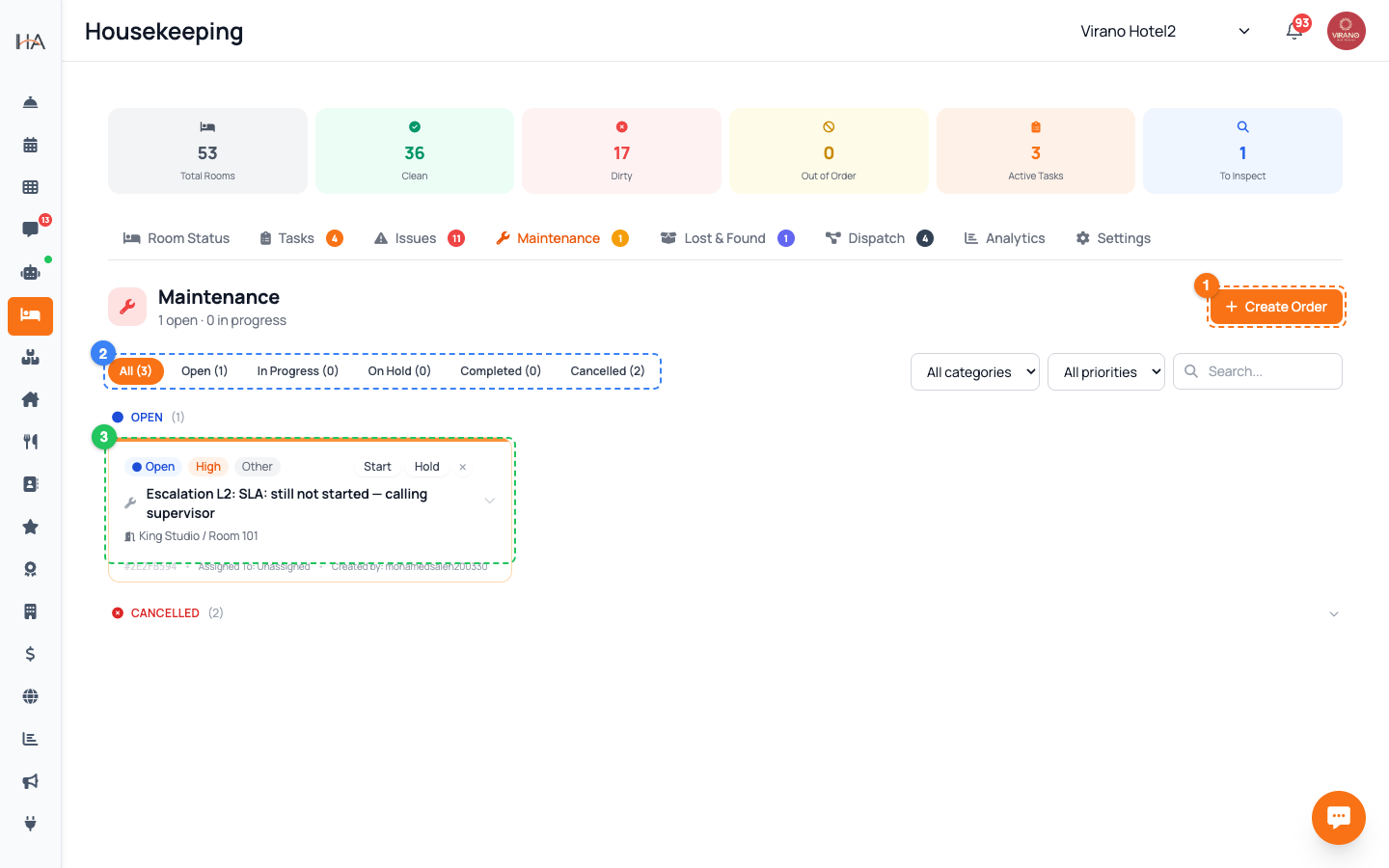
From the left sidebar open Housekeeping, then click the Maintenance tab (wrench icon). You will see all work orders grouped by status, with the active ones (Open and In Progress) shown first and finished ones tucked below. Use the filters at the top to narrow by status, category, or priority, or type into the search box to find a specific order. This is the single place where every repair job lives.
Log a New Work Order
Click Create Order (or the New Order button). Fill in the form: 1. Unit (and Room, for multi-room units) — required 2. Title — a short summary, e.g. "AC not cooling" — required 3. Description — full details for the technician 4. Category: Electrical, Plumbing, HVAC, Furniture, Appliance, Structural, or Other 5. Priority: Low, Normal, High, or Urgent 6. Optionally assign a technician, set a Scheduled date, and add an Estimated Cost Click Create Order. The job appears on the board immediately.
Understand Order Status
Each order shows a colored status label and progresses through clear stages: - Open (blue): logged, not started - In Progress (amber): a technician is working on it - On Hold (gray): paused — waiting for a part or access - Completed (green): the fix is done - Cancelled (red): no longer needed The colored bar at the top of each card mirrors the status (and turns red or orange for Urgent/High priority), so you can scan the board and instantly see what needs attention.
Move Work Forward
Quick action buttons sit on each card so the technician can update progress in one tap: - Start: moves an Open order to In Progress and stamps the start time - Hold: pauses an active order - Resume: brings an On-Hold order back to In Progress - Done: marks the work Completed and stamps the finish time - The small × cancels the order (you will be asked for a short reason) Open any card to expand it and add photos of the problem or the finished repair, which is great evidence for the record.
Block the Unit During Repairs
If a repair makes a unit unusable, set the Estimated Work Period inside the order. Expand the card and edit the Period From and Period To dates. Blocking the unit for that window keeps it out of new bookings so a guest is never sold a room that is under repair. If you do not set the period, it defaults to the order's creation date. Once the work is done and you mark the order Completed, remember to free the unit again so it returns to availability.
Approve or Reject Orders (Supervisors)
Some properties require a supervisor to sign off on work orders. When that is on, an order created by a regular staff member shows a Pending Review tag. A supervisor opens the card and either: - Approve: green-lights the work to proceed - Reject: stops it and records a written reason, which the reporter then sees on the card If you are an owner or manager you can approve as you create. This step keeps spending and scope under control before any money or time is committed.
Assign Technicians & Record Final Cost
Inside an expanded card, supervisors and managers can assign or re-assign the order to a technician from the dropdown — the chosen person gets a notification. As work happens you record money in two fields: - Estimated Cost: your up-front guess, set when creating the order - Actual Cost: the real amount, entered once the order is In Progress or Completed Keeping the actual cost accurate feeds your maintenance spending reports and helps you compare estimates to reality over time.
Handle Guest-Reported Issues
Some orders are created automatically when a guest reports a problem through Room Service. These carry a Created by Room Service tag and may show the linked Booking number and a Preferred Time. Treat them like any other order — assign, work, and complete — but give them prompt attention since a guest is waiting. The booking link helps you confirm exactly which room and guest are affected, so the technician walks in with the full picture.
More in Housekeeping
Understanding Housekeeping
Learn about the comprehensive Housekeeping system that manages room cleaning, inspections, maintenance, and team coordination.
Managing Room Status and Occupancy
Learn how to monitor, update, and manage room status to ensure accurate occupancy information and cleanliness standards.
Cleaning Tasks & Auto-Assignment
Create, assign, prioritize, and track every housekeeping task from one board, and let the system route new cleans to your team automatically.
Inventory, Linen & Supplies
Track your housekeeping stock, linen, and consumable supplies, see what is running low, and record stock movements as items come in and get used.
Lost & Found
Log items left behind by guests, track each one through its lifecycle, and record when it is returned, donated, or disposed of.
Zones, Shifts & KPIs
Organize cleaning by zone, set up staff shifts so the right people get the right work, and watch housekeeping performance with daily KPIs.