Cleaning Tasks & Auto-Assignment
Create, assign, prioritize, and track every housekeeping task from one board, and let the system route new cleans to your team automatically.
Open the Tasks Tab
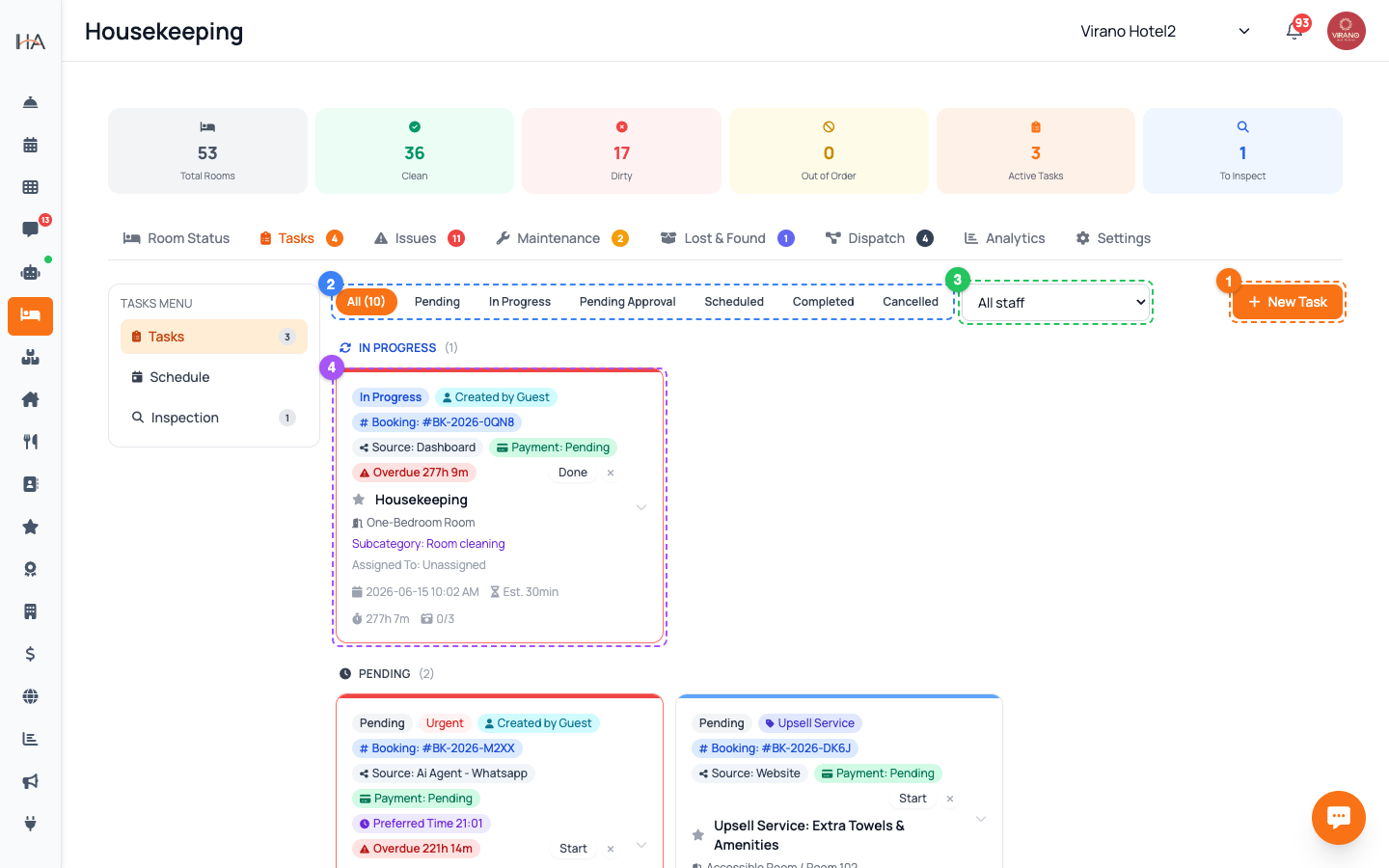
From the left sidebar, open Housekeeping and click the Tasks tab (clipboard icon). Inside Tasks you will see a small left menu with three sub-pages: - Tasks: the live work board for today's cleans - Schedule: a calendar view to plan tasks ahead - Inspection: the queue of completed rooms waiting for a quality check Most daily work happens on the Tasks sub-page. If a sub-page is missing, your role may not have permission for it — ask the owner or a manager to grant it in Team settings.
Understand Task Types
When you create a task you choose its type, which sets the right checklist and icon: - Departure Clean: a full turnover after a guest checks out - Stayover Clean: a light refresh while the guest is still staying - Deep Clean: a thorough periodic clean - Inspection: a supervisor quality check - Maintenance: a fix-it job (links to Maintenance Orders) - Custom Task: anything else, including guest service requests Departure and Stayover cleans are usually generated automatically from your bookings, so you rarely create them by hand.
Create a Task Manually
To add a one-off task, click the Schedule Task button. A form opens — fill it in top to bottom: 1. Choose the Unit (and Room, for multi-room units) 2. Pick the Task Type 3. Set the Planned Start time and Priority 4. Optionally pick who it is Assigned to, or leave it unassigned 5. Add Notes if the cleaner needs special instructions Click Save. The task appears on the board instantly. If you assigned someone, they receive a notification right away.
Set Priority Correctly
Every task carries a priority that controls how high it sits on the board: - Urgent (red): drop everything — e.g. an arriving guest with no clean room - High (orange): needs attention soon - Normal (blue): standard daily work - Low (gray): can wait until time allows Set realistic priorities so your team trusts the order. Tasks tied to a same-day arrival are bumped up automatically. You can change a priority at any time by editing the task.
Track Status on the Board
Each task moves through clear stages, shown as colored labels: - Pending: not started yet - In Progress: a cleaner has started - Pending Approval: finished, waiting for inspection - Completed: done and accepted - Cancelled: no longer needed A cleaner taps Start when they begin and Mark Done when finished. The card updates live for everyone. If a photo is required to close a task (set in Settings), the cleaner must upload it before the task can be completed.
Turn On Auto-Assignment
Instead of assigning every clean by hand, let the system do it. Open the Settings tab inside Housekeeping and turn on Auto-dispatch new tasks. Once enabled, each new task is automatically routed to an available team member based on their shift and zone (set up in the Dispatch tab). To use it well: 1. Make sure staff have active shifts and zone assignments 2. Keep the toggle on so new cleans never sit unassigned 3. You can still re-assign any task manually whenever you need This keeps work moving even when no supervisor is watching the board.
Re-assign or Escalate When Needed
Open any task card to manage it after creation: - Re-assign: pick a different team member if someone is overloaded or off shift - Escalate: flag a task that is stuck or overdue so a supervisor is alerted - Report Issue: log a problem found during the clean (e.g. a stain or damage) - Add to Lost & Found: record an item the cleaner found in the room These quick actions sit right on the card, so a cleaner or supervisor can react without leaving the board.
Plan Ahead with Schedule & Inspection
Use the two extra sub-pages to stay organized: - Schedule: switch the date range to see and plan tasks for upcoming days. You can add, edit, or bulk-delete planned tasks here before they go live. - Inspection: after a cleaner marks a room done, it lands in this queue. A supervisor opens it, checks the work (and photos), then marks it inspected to pass or sends it back if something is wrong. Together these give you a planning view for the future and a quality gate for the present.
More in Housekeeping
Understanding Housekeeping
Learn about the comprehensive Housekeeping system that manages room cleaning, inspections, maintenance, and team coordination.
Managing Room Status and Occupancy
Learn how to monitor, update, and manage room status to ensure accurate occupancy information and cleanliness standards.
Inventory, Linen & Supplies
Track your housekeeping stock, linen, and consumable supplies, see what is running low, and record stock movements as items come in and get used.
Maintenance Orders
Log maintenance issues, assign a technician, track work through to completion, approve costs, and block a unit while it is being repaired.
Lost & Found
Log items left behind by guests, track each one through its lifecycle, and record when it is returned, donated, or disposed of.
Zones, Shifts & KPIs
Organize cleaning by zone, set up staff shifts so the right people get the right work, and watch housekeeping performance with daily KPIs.