Zones, Shifts & KPIs
Organize cleaning by zone, set up staff shifts so the right people get the right work, and watch housekeeping performance with daily KPIs.
Open the Dispatch Tab
Zones and shifts live in the Dispatch tab of Housekeeping (network/diagram icon). Inside it there is a small left menu with two views: - Assignments: the live board showing unassigned work and who is rostered - Settings (Dispatch Settings): where you build shifts, zones, and the unit-to-zone map Start in Settings to set up your structure, then use Assignments day to day. The Dispatch tab only appears if dispatch is enabled for your property and your role can view it.
Create Work Shifts
In Dispatch Settings find the Shift Coverage panel. To add a shift: 1. Type a Shift name, e.g. "Morning" 2. Set the start time and end time 3. Click Add Shift Each shift then lists below with an Active/Inactive badge. Use Edit to change its hours, Activate/Deactivate to turn it on or off without deleting, and the trash icon to remove it. Common setups are Morning, Afternoon, and Night. Shifts tell the system who is on duty at any given hour.
Set Up Zones
Still in Dispatch Settings, find the Zones panel. A zone is a section of your property — a floor, a wing, or a building. To create one: 1. Type a Zone name, e.g. "Floor 2" 2. Optionally enter Floor From and Floor To numbers 3. Click Add Zone Zones let you group rooms so a cleaner can be made responsible for one area instead of the whole property. Like shifts, each zone can be edited, activated/deactivated, or deleted from its row.
Map Units to Zones
Below the panels you will see Unit-to-Zone Mapping. This is where you tell the system which rooms belong to which zone. For each zone, tick the units that fall inside it (e.g. all the rooms on Floor 2 go to the "Floor 2" zone). Accurate mapping is what makes auto-assignment smart: when a task is created for a room, the system knows its zone and can route it to the cleaner working that zone on the current shift. Review the map whenever you add or rename units.
Assign Staff to Shifts & Zones
Switch the left menu to the Assignments view and find Staff Shift & Zone Assignments. Here you connect a person to a shift and a zone, and set what kind of work they handle (the Assignment Type), such as: - Housekeeping or Maintenance - Housekeeping Supervisor or Maintenance Supervisor Add an assignment by choosing the staff member, shift, zone, an effective date, and one or more assignment types. This roster is exactly what auto-assignment reads to pick the right person for each new task.
Clear the Unassigned Queue
The Assignments view also shows a Dispatch Readiness summary and the queue of unassigned tasks and maintenance orders. Anything the system could not route automatically (for example, work in a zone with nobody rostered) waits here. Tick the items you want and assign them to a team member in bulk, or open one and assign it individually. Keeping this queue empty means no clean or repair is sitting forgotten — it is your safety net on top of auto-assignment.
Read Your Housekeeping KPIs
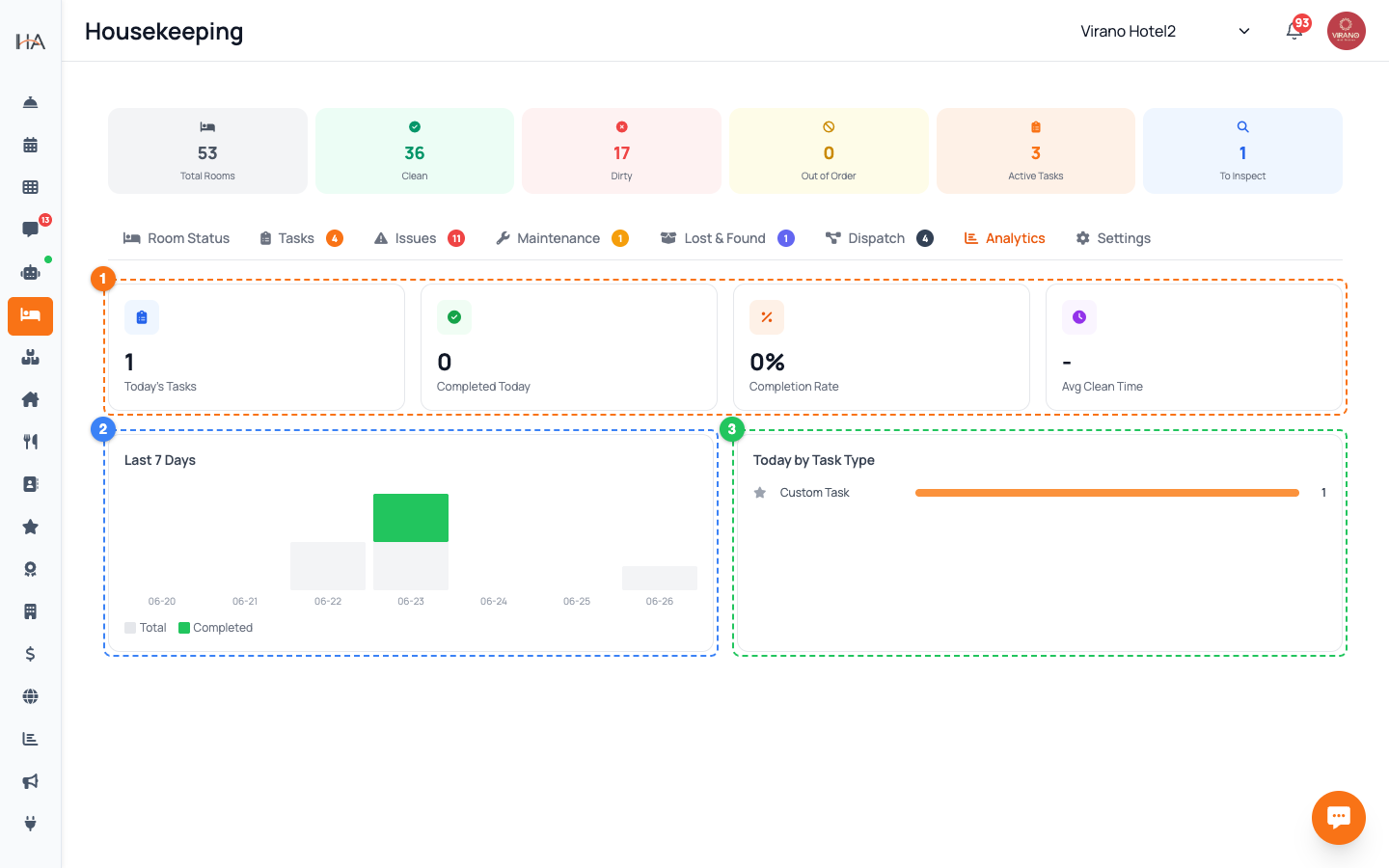
To measure performance, open the Analytics tab in Housekeeping (bar-chart icon). At the top sit four KPI cards for today: - Today's Tasks: total scheduled - Completed Today: how many are done - Completion Rate: the percentage finished - Average Clean Time: typical minutes per completed task Below them, a Last 7 Days bar chart compares total vs completed work each day, and a Today by Task Type breakdown shows where effort is going. Analytics is available to owners and managers when enabled.
Use the Numbers to Improve
Check Analytics once a day to spot trends and act: - A low Completion Rate late in the day means you may need more hands on shift - A rising Average Clean Time can flag a training need or a supply shortage - The Today by Task Type view shows whether departures, stayovers, or inspections are dominating Pair these insights with your shift and zone setup: if one zone is always behind, add coverage there or rebalance assignments. Over time this loop — set up zones and shifts, let auto-assignment run, then review KPIs — keeps your housekeeping efficient and your rooms ready on time.
More in Housekeeping
Understanding Housekeeping
Learn about the comprehensive Housekeeping system that manages room cleaning, inspections, maintenance, and team coordination.
Managing Room Status and Occupancy
Learn how to monitor, update, and manage room status to ensure accurate occupancy information and cleanliness standards.
Cleaning Tasks & Auto-Assignment
Create, assign, prioritize, and track every housekeeping task from one board, and let the system route new cleans to your team automatically.
Inventory, Linen & Supplies
Track your housekeeping stock, linen, and consumable supplies, see what is running low, and record stock movements as items come in and get used.
Maintenance Orders
Log maintenance issues, assign a technician, track work through to completion, approve costs, and block a unit while it is being repaired.
Lost & Found
Log items left behind by guests, track each one through its lifecycle, and record when it is returned, donated, or disposed of.