Building Your Menu
Create categories and add menu items with prices, photos, calories, and availability so guests and staff can order food and drinks.
Open the Menu Tab
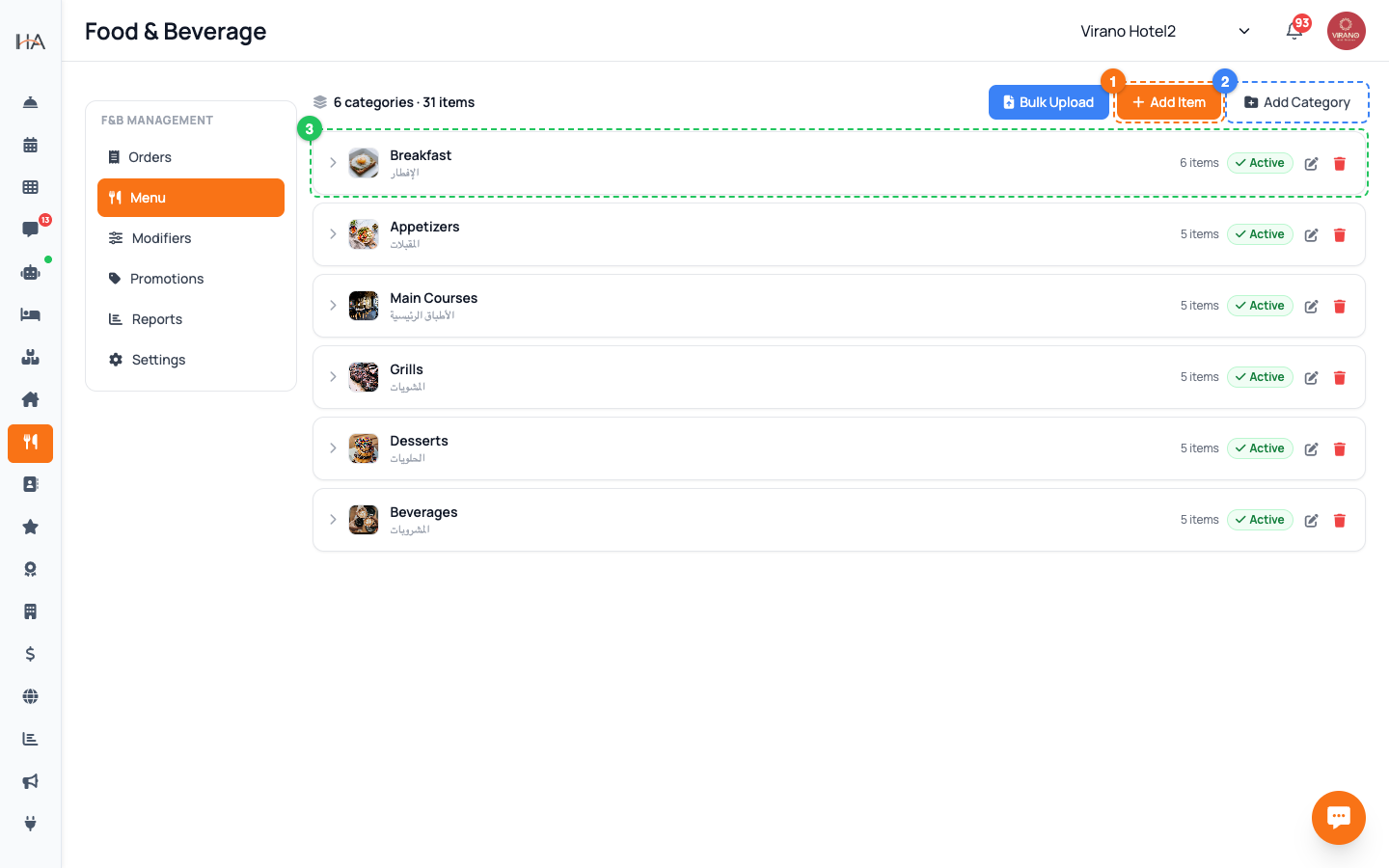
From the side menu open Food & Beverage. You will see a vertical list of tabs on the left under MANAGEMENT: - Orders - Menu - Modifiers - Promotions - Reports - Settings Click Menu. At the top you will see a small summary like "3 categories · 12 items", and on the right three buttons: Bulk Upload, Add Item, and Add Category. Your menu is organized as categories (the folders) that contain items (the dishes and drinks). Always create at least one category before adding items, since every item must belong to a category.
Create a Category
Click Add Category. In the window that opens, fill in: 1. Name (EN) — required, e.g. "Hot Drinks", "Breakfast", "Burgers" 2. Name (AR) — optional, the Arabic name shown to Arabic-speaking guests 3. Category Image — optional; drag in or upload a photo to give the category a nice icon Click Create Category to save. The new category appears in the list as a collapsible row. Each category row shows how many items it holds and an Active/Off badge. Categories help guests find what they want quickly, so keep names short and logical.
Add a Menu Item
Click Add Item. Fill in the Add Menu Item form: 1. Category — required; pick which category this item belongs to 2. Name (EN) — required, the item name 3. Name (AR) — optional Arabic name 4. Price — required; type the base price, e.g. 18.00 5. Description (EN / AR) — a short line shown to guests 6. Calories and Prep Time (min) — optional, side by side The price you enter is the base price before any modifier add-ons. Click Add Item to save. The item now appears inside its category when you expand that category row.
Add Photos and Allergen Tags
Still in the Add Item form: - Allergens — tap any of the colored tags to mark the item: Gluten, Dairy, Nuts, Egg, Soy, Seafood. Tapped tags glow; tap again to remove. These help guests with dietary needs. - Item Photo — upload an appetizing picture. A good photo noticeably increases orders, so use clear, well-lit images. Uploaded photos appear as a small thumbnail next to the item in the menu list. Calories show as an orange flame badge and prep time as a clock badge. Allergens appear as small colored chips so kitchen and guests can see them at a glance.
Control Availability and Stock
Expand a category to see its items. Each item row gives you quick controls without opening it: - The green/gray toggle on the right turns the item ON (visible to guests) or OFF (hidden from the menu). - The In stock / Sold out button instantly marks an item as out of stock when you run out, without deleting it. - The small Qty box lets you type a remaining quantity; a Save icon appears — click it to store the new count. Use Sold out for a temporary shortage and the OFF toggle when an item is removed for the season. Hidden or sold-out items never reach guests ordering from their phones.
Edit or Delete Items and Categories
To change an item, hover over it and click the pencil (edit) icon — the same form opens so you can update the name, price, description, photo, or allergens. To remove an item, click the trash icon next to it. For categories, use the pencil and trash icons on the category header row. Deleting a category removes the way its items are grouped, so move items to another category first if you still need them. The Active/Off badge on each category controls whether the whole category (and all its items) is shown to guests.
Speed It Up With Bulk Upload
If you have a long menu, use the Bulk Upload button instead of adding items one by one: 1. Click Bulk Upload, then Download Template to get the spreadsheet file. 2. Fill in the columns: Item Name EN, Item Name AR, Category EN, Category AR, Price, Calories, Description (English), Description (Arabic). 3. Click Choose CSV and select your filled file. 4. The screen shows how many rows are Valid and Invalid; any missing categories are created automatically. 5. Click Import to add everything at once. This is the fastest way to load a brand-new menu. You can still add photos and modifiers to each item afterward.
More in Room Service & F&B
Understanding Room Service & F&B
Learn how to set up and manage room service and food & beverage operations, including menus, ordering, and online payments.
Modifiers & Combos
Add choices like size, extras, and spice level to your menu items, and bundle items together into combo deals to increase your average order value.
Managing Live Orders
Receive food orders, move them through the kitchen flow from New to On the Way, and collect payment when the order is completed.
Guest QR Ordering
Let guests scan an in-room QR code, browse your menu on their own phone, and place a food order that lands straight on your Orders board.
F&B Settings & Reports
Configure how guests order, which payments you accept, kitchen hours, service charge and tax — then review sales analytics to see what is working.