F&B Settings & Reports
Configure how guests order, which payments you accept, kitchen hours, service charge and tax — then review sales analytics to see what is working.
Open Settings and Enable F&B
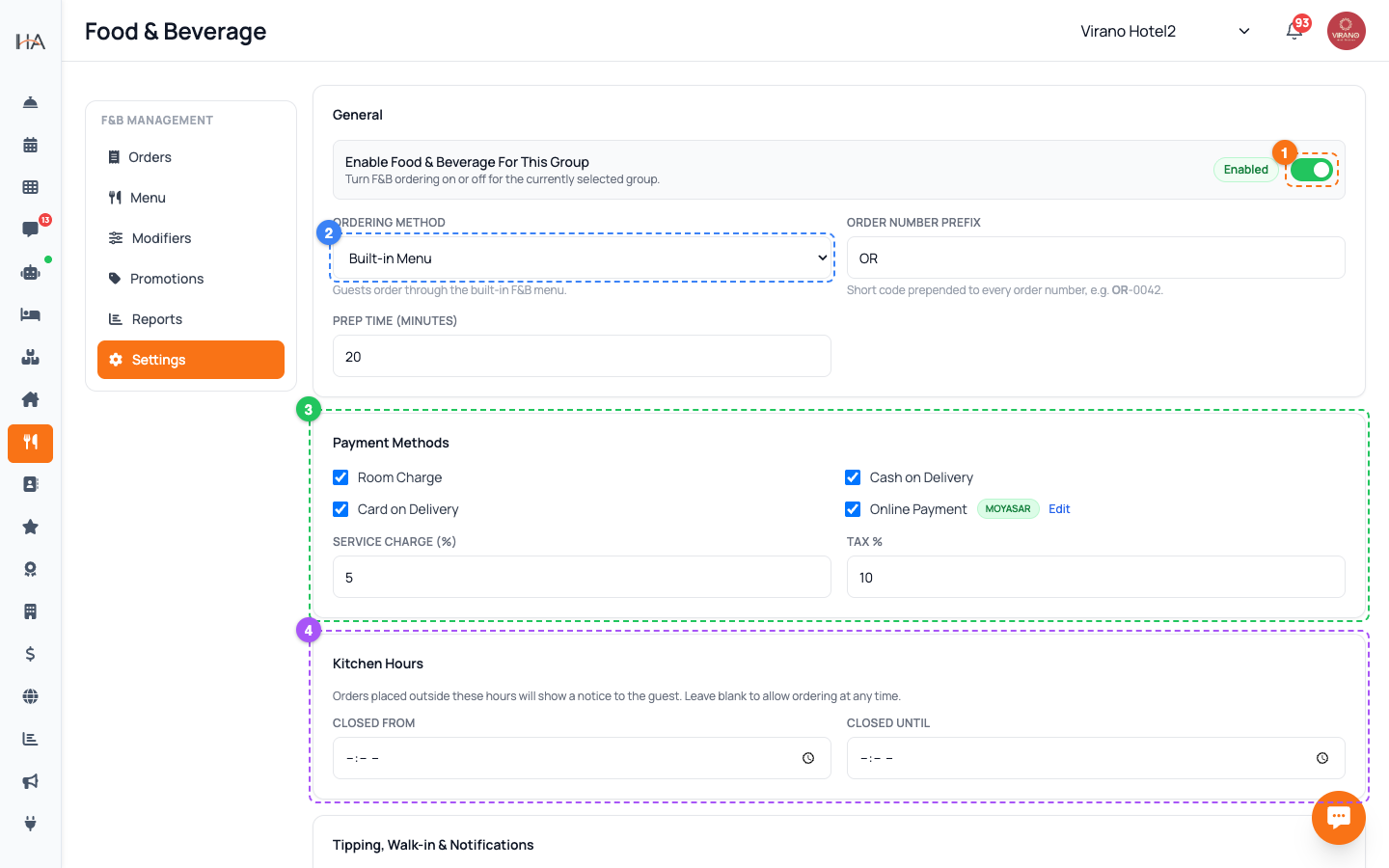
In Food & Beverage, click the Settings tab. The first card is General. At the top is the Enable F&B for this group switch: - Enabled (green) — guests and staff can order; the module is live - Disabled — ordering is turned off for this property F&B settings are saved per property group, so each property can have its own menu, hours, and payment options. Flip the switch on for any property where you serve food, then continue configuring the rest of the page below.
Set Ordering Method and Order Numbers
Still in the General card: - Ordering Method — choose Built-in Menu so guests order from your own menu, or URL Redirect to send them to an external ordering site. If you pick redirect, a Redirect URL field appears for the link. - Order Number Prefix — a short code put in front of every order number, e.g. OR produces OR-0042. Use something staff recognize. - Prep Time (minutes) — the default time you tell guests an order will take. Built-in Menu is the right choice if you want orders to land on your Orders board and use QR ordering.
Choose Payment Methods, Service Charge & Tax
The Payment Methods card lets you tick which options guests can use: - Room Charge — added to the room bill - Cash on Delivery - Card on Delivery - Online Payment — turning this on opens a window to choose a gateway (Moyasar or Tap) and enter its keys; orders are then paid before delivery. Below that, set Service Charge (%) and Tax (%) — for example, enter your VAT rate here. Both are calculated automatically on every order and shown to the guest at checkout, so your totals stay correct and transparent.
Set Kitchen Hours, Tipping & Notifications
Two more cards fine-tune service: - Kitchen Hours — set Closed From and Closed Until times. During these hours guests are told the kitchen is closed and cannot place orders. Leave them empty to accept orders around the clock. - Tipping & Notifications — turn on Tipping to offer guests tip options (set the percentages, e.g. 10,15,20), Allow Walk-in to let staff take in-person orders, and Notify Operations Managers to copy managers on every new order in addition to the F&B team. When everything looks right, click Save Settings at the bottom of the page.
Open the Reports Tab
Click the Reports tab to see how your F&B operation is performing. The top of the page shows summary boxes: - Total Orders and Paid Orders - Revenue and Average Order Value - Decline Rate — the share of orders rejected (a high number turns red as a warning) - Average Delivery Time and Peak Ordering Hour These give you an at-a-glance health check of your kitchen. The Decline Rate and Average Delivery Time in particular tell you whether the kitchen is keeping up with demand during busy periods.
Read Top Items and Act on the Data
Below the summary boxes is the Top Ordered Items table, listing your best sellers with the quantity sold and the revenue each item brought in. Use these numbers to run a smarter operation: - Promote and combo your top items, and keep them well stocked. - Review or remove items that almost never sell. - Use Peak Ordering Hour to schedule more kitchen staff at the busiest times. - If Decline Rate climbs, check whether items are marked sold out or whether the kitchen needs help during peaks. Check Reports weekly to spot trends early and keep your menu profitable.
More in Room Service & F&B
Understanding Room Service & F&B
Learn how to set up and manage room service and food & beverage operations, including menus, ordering, and online payments.
Building Your Menu
Create categories and add menu items with prices, photos, calories, and availability so guests and staff can order food and drinks.
Modifiers & Combos
Add choices like size, extras, and spice level to your menu items, and bundle items together into combo deals to increase your average order value.
Managing Live Orders
Receive food orders, move them through the kitchen flow from New to On the Way, and collect payment when the order is completed.
Guest QR Ordering
Let guests scan an in-room QR code, browse your menu on their own phone, and place a food order that lands straight on your Orders board.