Modifiers & Combos
Add choices like size, extras, and spice level to your menu items, and bundle items together into combo deals to increase your average order value.
Understand Modifiers vs Combos
Two different tools live in Food & Beverage: - Modifiers (the Modifiers tab) — reusable groups of choices you attach to items, such as Size (Small/Medium/Large) or Extras (Extra Cheese, Bacon). Each choice can add to the price. - Combos (inside the Promotions tab) — bundles of several existing menu items sold together at one special price, like a "Burger + Fries + Drink" meal. Use modifiers when guests customize a single item, and combos when you want to package multiple items at a discount. Build your modifiers first, because you attach them to items as you create them.
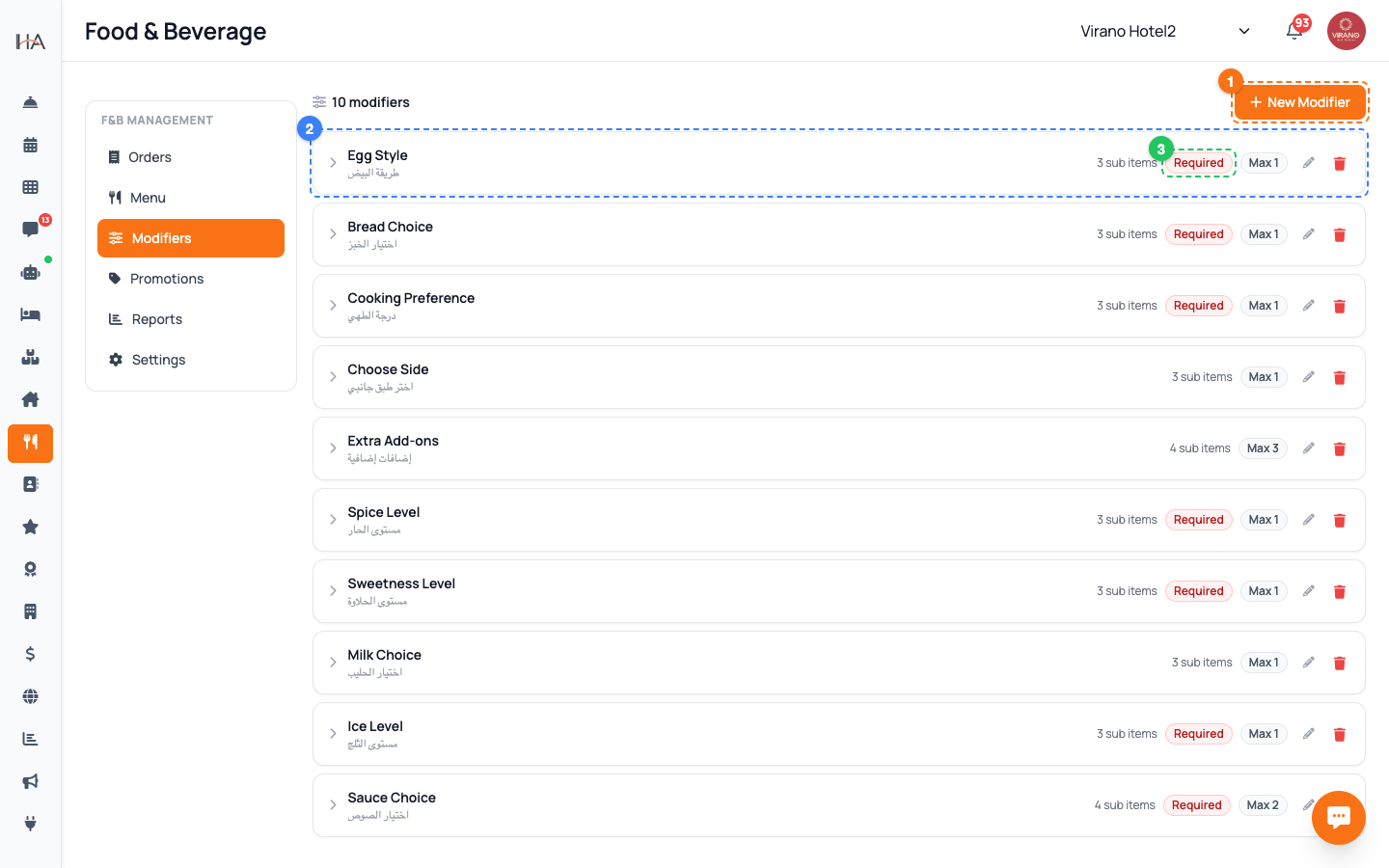
Create a Modifier Group
Open the Modifiers tab and click New Modifier. Fill in: 1. Name (EN) — required, e.g. "Size", "Extras", "Spice Level" 2. Name (AR) — optional Arabic name 3. Required — tick this if the guest MUST pick at least one option (for example, a drink size) 4. Min and Max — the smallest and largest number of options a guest may choose For a single-pick choice like Size, set Min 1 and Max 1 and turn Required on. For optional Extras, leave Required off and set a Max like 3. Click Create Modifier to save the group.
Add Options (Sub Items)
Click a modifier group to expand it. At the bottom you will see a row to add each option: 1. Sub item name (EN) — required, e.g. "Large", "Extra Cheese" 2. AR — optional Arabic name 3. +price — how much this option adds; leave it empty for a free option Click Add Sub Item. The option appears in the list with an orange price badge (or "Free"). Repeat for every choice in the group. To change a sub item later, hover over it and click the pencil icon; to remove one, click the trash icon. Build all your options before attaching the group to menu items.
Attach Modifiers to a Menu Item
Modifiers only affect an item once you attach them. Go to the Menu tab and Add Item (or edit an existing one). Near the bottom of the form is a Modifiers section listing every group you created. Tick the box next to each group you want on this item. Each group shows its name, a Required tag if applicable, and a "pick up to" note. For a pizza, for example, you might attach Size (required, pick 1) and Extras (optional, pick up to 3). Save the item. Now when anyone orders it, those choices appear and the price adjusts automatically based on the options chosen.
Create a Combo Meal
Open the Promotions tab and scroll to the Combo Meals section — described as "Bundle items together at a special price." Click Add Combo: 1. Give the combo a name, e.g. "Lunch Box" 2. Set the Combo Price — the single price the guest pays for the whole bundle 3. Save the combo The combo now appears in the list. Click Add on the combo to add the individual menu items that make it up. Pricing the bundle below the sum of its parts gives guests a clear reason to choose it, while still raising the total they spend.
Tips for Smart Upselling
A few habits keep modifiers and combos profitable: - Keep group names obvious so guests understand instantly ("Size", not "Option A"). - Price add-ons fairly; small reasonable upgrades sell far better than expensive ones. - Mark genuine choices as Required only when the kitchen truly needs the answer (e.g. drink size), so you never block an order. - Review your Reports tab to see which items sell most, then build combos around those favorites. - Combos shine for breakfast sets, family bundles, and late-night deals — anything where guests want a quick, all-in-one choice.
More in Room Service & F&B
Understanding Room Service & F&B
Learn how to set up and manage room service and food & beverage operations, including menus, ordering, and online payments.
Building Your Menu
Create categories and add menu items with prices, photos, calories, and availability so guests and staff can order food and drinks.
Managing Live Orders
Receive food orders, move them through the kitchen flow from New to On the Way, and collect payment when the order is completed.
Guest QR Ordering
Let guests scan an in-room QR code, browse your menu on their own phone, and place a food order that lands straight on your Orders board.
F&B Settings & Reports
Configure how guests order, which payments you accept, kitchen hours, service charge and tax — then review sales analytics to see what is working.