Payment Methods — Enable Gateways for Online Bookings
Choose how guests pay on your booking website: card processors (Moyasar, Tap), Buy Now Pay Later (Tabby, Tamara), Apple Pay, bank transfer, or pay on arrival.
Open Payment Methods and Pick the Property
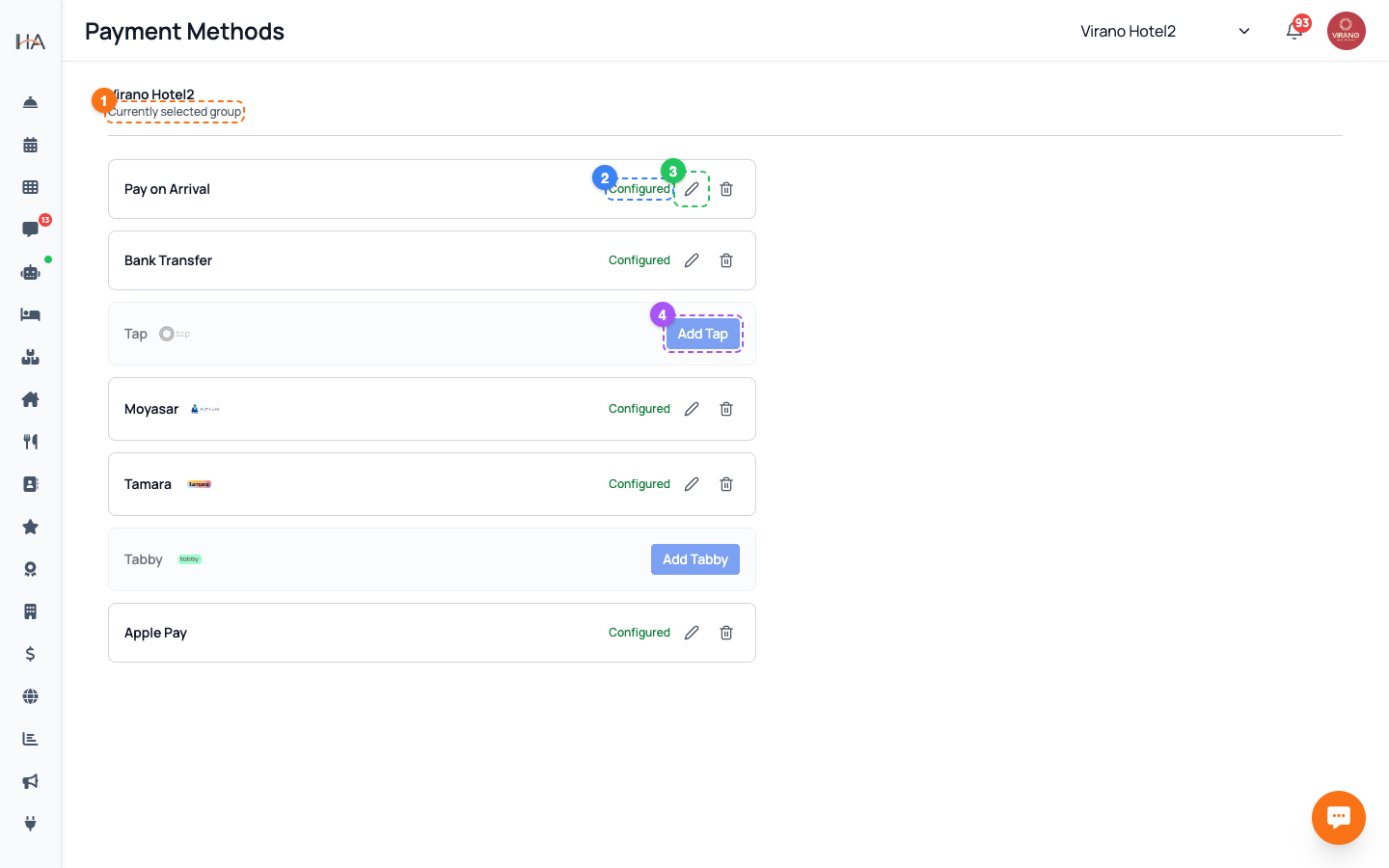
Go to Settings and open Payment Methods. Payment settings are saved per property group, so first make sure the correct group is selected at the top of the dashboard — the page header shows the currently selected group's name and logo. You'll see a list of payment method cards, each with its own enable/setup action: - Pay on Arrival - Bank Transfer - Tap - Moyasar - Tamara - Tabby - Apple Pay Each card shows whether it's already configured. If you don't have permission to manage payments, the page will tell you.
Enable Pay on Arrival or Bank Transfer
These two options don't need any payment provider account: - Pay on Arrival lets guests reserve now and pay at check-in. Just click its Add button to activate it — no details required. - Bank Transfer shows your bank details to the guest so they can transfer the amount. Click its setup action and fill in: 1. Bank Account Name (the account holder) 2. Bank Name 3. IBAN (Saudi IBAN: SA followed by 22 digits) These are great low-cost options to offer alongside card payments, especially for larger bookings.
Connect a Card Processor (Moyasar or Tap)
Card processors let guests pay instantly by credit or debit card. Click the setup action on Moyasar or Tap and enter the keys from your processor account: - Moyasar needs a Publishable Key (starts with pk_) and a Secret Key (starts with sk_). - Tap needs a Secret Key (starts with sk_). Important: - Moyasar and Tap cannot both be active at the same time — choose one. If you try to enable one while the other is on, you'll get a message asking you to remove the other first. - Use your live keys (not test keys) when you're ready to take real payments. Save, and the card option becomes available on your booking site.
Offer Buy Now Pay Later (Tabby & Tamara)
Tabby and Tamara let guests split payments into installments, which can boost conversions for higher-priced stays. Click the setup action on each card and enter the credentials from your Tabby or Tamara merchant account: - Tamara needs an API Token, and optionally a Public Key (only needed if you embed Tamara widgets on your own website). - Tabby needs its API key. These providers handle the installment plan and pay you up front, then collect from the guest. Make sure your account is fully approved with the provider before going live, and save once your keys are entered.
Set Up Apple Pay
Apple Pay gives iPhone and Mac users a fast, one-tap checkout. There's one requirement: - Apple Pay is locked until Moyasar is set up and active. The card shows a lock with a tooltip explaining this. Configure Moyasar first. Once Moyasar is active, click the Apple Pay setup action. A guided setup window opens to register your domain with Apple Pay for the selected property's booking website. A new Apple Pay configuration starts as inactive until verification completes. Follow the on-screen steps; when it succeeds you'll see a confirmation and Apple Pay becomes available at checkout.
Edit or Remove a Payment Method
Your configured methods can be updated any time: - To change keys (for example, when you switch from test to live), click the method's edit action, enter the new keys, and save. You'll see a confirmation that the keys were updated. - To turn a method off completely, use its delete action. A confirmation dialog appears; confirm to remove the credentials so that method no longer shows at checkout. Tips: - Test a small real booking after changing keys to confirm payments succeed. - Editing or removing methods requires the payment-management permission; otherwise the actions are hidden.
More in Settings & Team
Property Settings — Groups, Properties & Units
Manage your property groups and the bookable units inside them. This is where you add new properties, edit details, and control which units are available.
Team Management — Invite Members, Assign Roles & Permissions
Invite your staff, control exactly what each person can do, and manage roles. Use predefined roles for quick setup or build custom roles for fine-grained control.
Manager Approval PIN Gate — Anti-Theft for Sensitive Front-Desk Actions
Require a manager's PIN before front-desk staff can perform sensitive actions like refunds, cancellations, and discounts. Set it up per property and choose who approves.
Taxes (VAT) & ZATCA E-Invoicing
Set up VAT on your bookings and connect Saudi ZATCA Phase 2 e-invoicing so your invoices are officially compliant.
Account Settings & Security
Update your profile, change your password, and protect your login with two-factor authentication and trusted devices.
Subscription, Plan & Wallet Balance
See your current plan and its features, track unit usage, renew your subscription, and review your transactions and invoices.