Subscription, Plan & Wallet Balance
See your current plan and its features, track unit usage, renew your subscription, and review your transactions and invoices.
Open Subscription & Balance
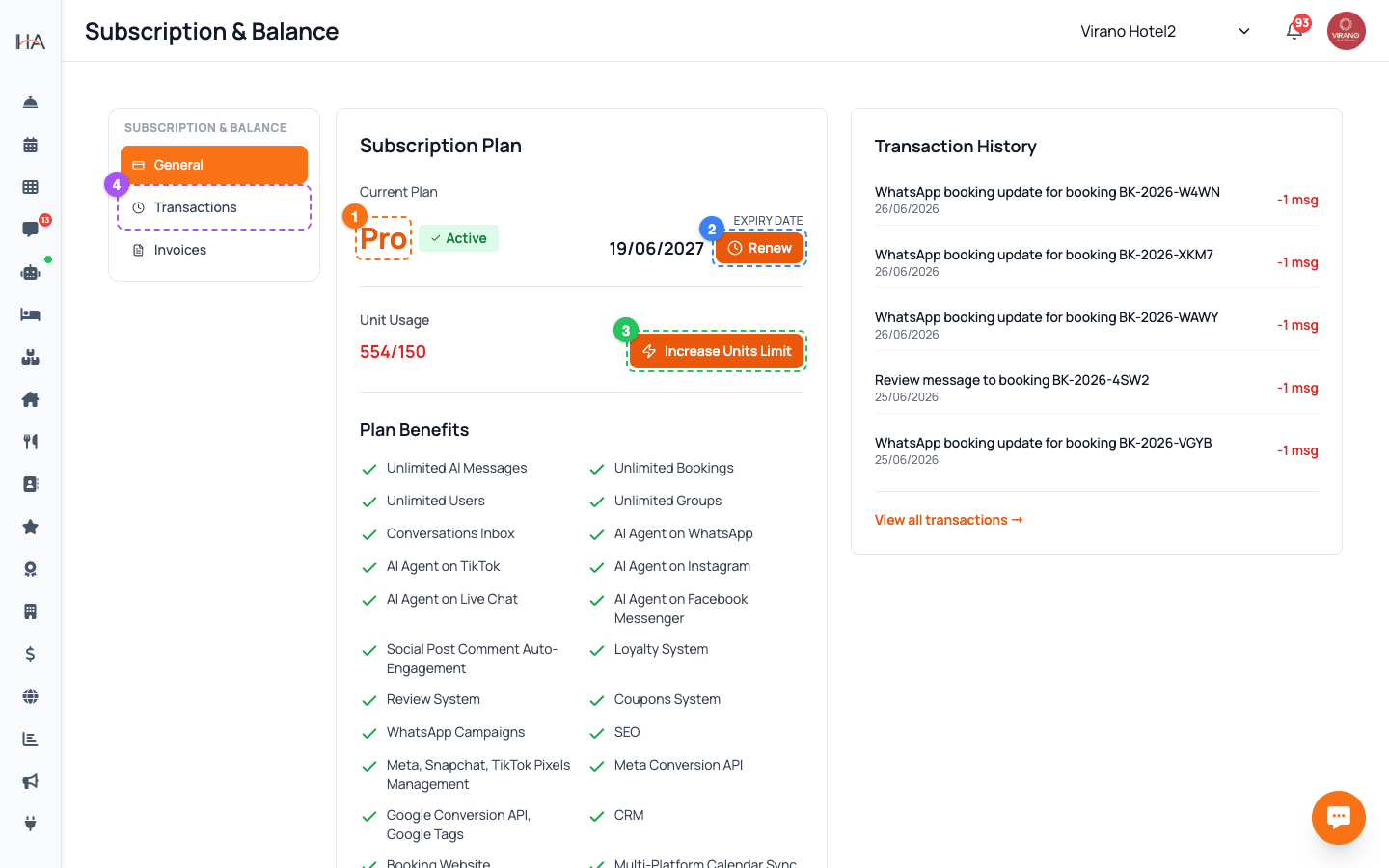
Go to Settings and open Subscription & Balance. On the left is a small menu with three tabs: - General — your plan, unit usage, balance, and recent transactions - Transactions — your full payment and balance history - Invoices — downloadable invoices for your subscription The page opens on the General tab. If your role doesn't allow viewing billing, you'll see an access message instead. This is the home for everything about your Hostel Agent subscription and account billing.
Read Your Current Plan
On the General tab, the Subscription Plan card shows: - Your plan name (for example Starter, Growth, or Pro) in large text - A status badge — green Active means your subscription is live - The Expiry Date of your subscription If you're on the free/Starter plan, an Upgrade to Pro button appears so you can unlock more features. Knowing your plan matters because it controls which features (like loyalty, the channel manager, or extra AI channels) are available to you.
Review Plan Benefits
Scroll down the Subscription Plan card to the Plan Benefits list. Each feature shows whether it's included in your plan: - A green check means the feature is included and ready to use. - A grey cross means it's not in your current plan (upgrade to unlock it). The list covers things like unlimited AI messages and bookings, the booking website, payment methods, VAT/tax invoicing, reports, Loyalty, and AI agents on WhatsApp, Instagram, and more. Use this list to decide whether an upgrade is worth it for your property.
Track Your Unit Usage
The General tab shows Unit Usage as a simple ratio, for example 12/20 — the number of units you're using out of the number your plan allows. - As you get close to the limit, the number turns orange; at the limit it turns red. - If you've used all your allowed units, an Increase (your limit) button appears so you can request more. When you click Increase or Upgrade, you're taken to a WhatsApp chat with the Hostel Agent team to arrange the change. Keep an eye on this so you're never blocked from adding a new room during a busy season.
Renew Your Subscription
On a paid plan, next to the Expiry Date you'll see a Renew button. Click it to renew before your subscription ends. 1. Click Renew — the dashboard prepares a secure payment link for your account. 2. You're taken to a payment page in the same tab. 3. Complete payment; on success your subscription is extended automatically. If renewal can't start, you'll see a short error message — wait a moment and try again, or contact the Hostel Agent team. Renewing on time keeps all your features and bookings running without interruption.
Check Transactions and Download Invoices
Your billing history lives in two places: - On the General tab, a Recent Transactions box shows your latest activity, with a View all transactions link. - The Transactions tab (left menu) shows your complete history — each entry has a description, date, and amount (green for credits, red for charges). - The Invoices tab lists your subscription invoices, which you can open and download for your records and accounting. Use these tabs whenever you need proof of payment, want to reconcile your accounts, or need to hand an invoice to your finance team.
More in Settings & Team
Property Settings — Groups, Properties & Units
Manage your property groups and the bookable units inside them. This is where you add new properties, edit details, and control which units are available.
Team Management — Invite Members, Assign Roles & Permissions
Invite your staff, control exactly what each person can do, and manage roles. Use predefined roles for quick setup or build custom roles for fine-grained control.
Manager Approval PIN Gate — Anti-Theft for Sensitive Front-Desk Actions
Require a manager's PIN before front-desk staff can perform sensitive actions like refunds, cancellations, and discounts. Set it up per property and choose who approves.
Payment Methods — Enable Gateways for Online Bookings
Choose how guests pay on your booking website: card processors (Moyasar, Tap), Buy Now Pay Later (Tabby, Tamara), Apple Pay, bank transfer, or pay on arrival.
Taxes (VAT) & ZATCA E-Invoicing
Set up VAT on your bookings and connect Saudi ZATCA Phase 2 e-invoicing so your invoices are officially compliant.
Account Settings & Security
Update your profile, change your password, and protect your login with two-factor authentication and trusted devices.