Taxes (VAT) & ZATCA E-Invoicing
Set up VAT on your bookings and connect Saudi ZATCA Phase 2 e-invoicing so your invoices are officially compliant.
Understand VAT vs ZATCA E-Invoicing
There are two related but separate things to set up for Saudi tax compliance: - VAT (Value Added Tax) — the tax percentage applied to bookings and shown on guest invoices. This is configured as part of your property group details (commercial name, tax number, and address). - ZATCA Phase 2 e-invoicing — the official integration that submits your invoices electronically to the Saudi tax authority (ZATCA) in the required format. You should have your VAT/tax details complete on the property first, then connect ZATCA so each invoice is reported correctly.
Open the ZATCA Integration Page
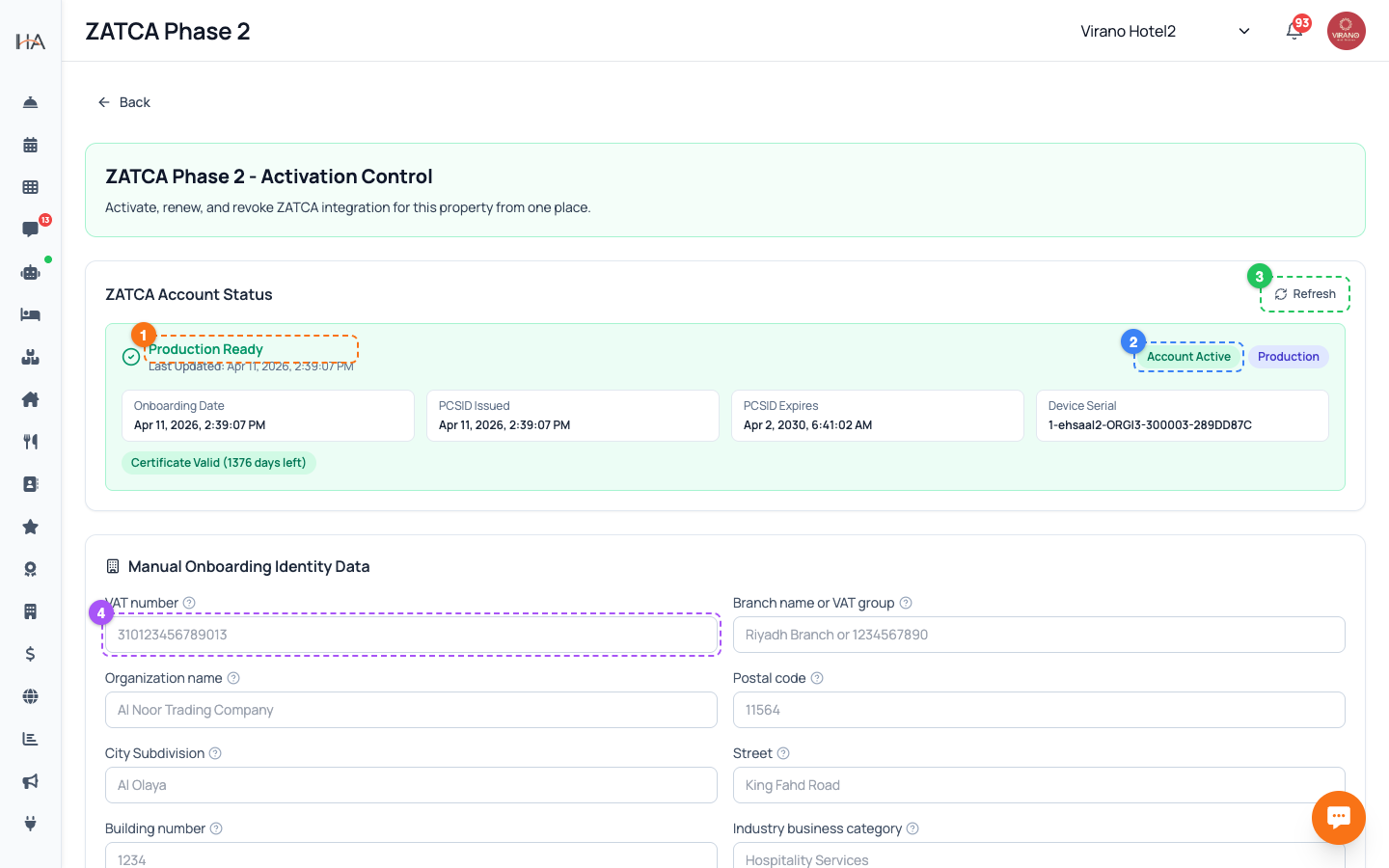
Go to the Integration Center (Integrations). You'll see integration cards including Channel Manager and ZATCA Phase 2. Click ZATCA Phase 2, then Open Setup. Important: ZATCA is set up per property group. At the top of the dashboard, select the property you want to connect. If no property is selected, the page shows a reminder to choose one first. The page is titled ZATCA Phase 2 - Activation Control, and from here you can activate, renew, or revoke the connection for that property.
Read the Account Status Card
When a property is selected, a ZATCA Account Status card shows where you stand: - A status label such as Not Started, In Progress, Compliance Passed, Production Ready, or Failed - Whether the account is Active or Inactive, and the environment (Production) - Dates: Onboarding Date, certificate (PCSID) Issued, and Expires - The device serial - A badge telling you if the certificate is Valid (with days remaining) or Expired - A Latest Error line if something went wrong Use the Refresh button (top right of the card) to reload the latest status from ZATCA at any time.
Fill In the Onboarding Identity Data
Below the status card is the Manual Onboarding Identity Data form. Fill in your official taxpayer details exactly as registered with ZATCA. Each field has a small help icon you can tap for guidance: 1. VAT number — 15 digits, starts and ends with 3 (e.g. 310123456789013) 2. Branch name or VAT group member number 3. Organization name (legal name) 4. Postal code (5–10 digits) 5. City subdivision / district 6. Street 7. Building number 8. Industry / business category (e.g. Hospitality Services) Accuracy matters — wrong identity data is the most common reason activation fails.
Activate the ZATCA Connection
ZATCA requires a one-time code to authorize the connection: 1. In the ZATCA portal (Fatoora), generate the latest 6-digit OTP for your device. 2. Back in the dashboard, enter that code in the OTP field at the bottom of the form. 3. Click the Activate button. A progress window appears — do not close the page until it finishes, as the process can take a moment. When it succeeds you'll see a confirmation that Phase 2 connected successfully, and the status card updates to Production Ready / Active. If you get a Wrong or expired OTP message, generate a fresh code in the ZATCA portal and try again.
Renew or Revoke the Connection
Once a property is connected and Production Ready, two more buttons appear: - Renew PCSID — your compliance certificate expires periodically. The status card shows the expiry date and days remaining. Before it expires, enter a fresh OTP and click Renew PCSID to keep e-invoicing working without interruption. - Revoke — disconnects ZATCA for this property. A confirmation dialog appears; this is reversible — you can activate again later from the same page. Good habit: check the Certificate Valid badge from time to time, and renew well before the expiry date so guest invoices are never rejected.
More in Settings & Team
Property Settings — Groups, Properties & Units
Manage your property groups and the bookable units inside them. This is where you add new properties, edit details, and control which units are available.
Team Management — Invite Members, Assign Roles & Permissions
Invite your staff, control exactly what each person can do, and manage roles. Use predefined roles for quick setup or build custom roles for fine-grained control.
Manager Approval PIN Gate — Anti-Theft for Sensitive Front-Desk Actions
Require a manager's PIN before front-desk staff can perform sensitive actions like refunds, cancellations, and discounts. Set it up per property and choose who approves.
Payment Methods — Enable Gateways for Online Bookings
Choose how guests pay on your booking website: card processors (Moyasar, Tap), Buy Now Pay Later (Tabby, Tamara), Apple Pay, bank transfer, or pay on arrival.
Account Settings & Security
Update your profile, change your password, and protect your login with two-factor authentication and trusted devices.
Subscription, Plan & Wallet Balance
See your current plan and its features, track unit usage, renew your subscription, and review your transactions and invoices.