Account Settings & Security
Update your profile, change your password, and protect your login with two-factor authentication and trusted devices.
Open Account Settings
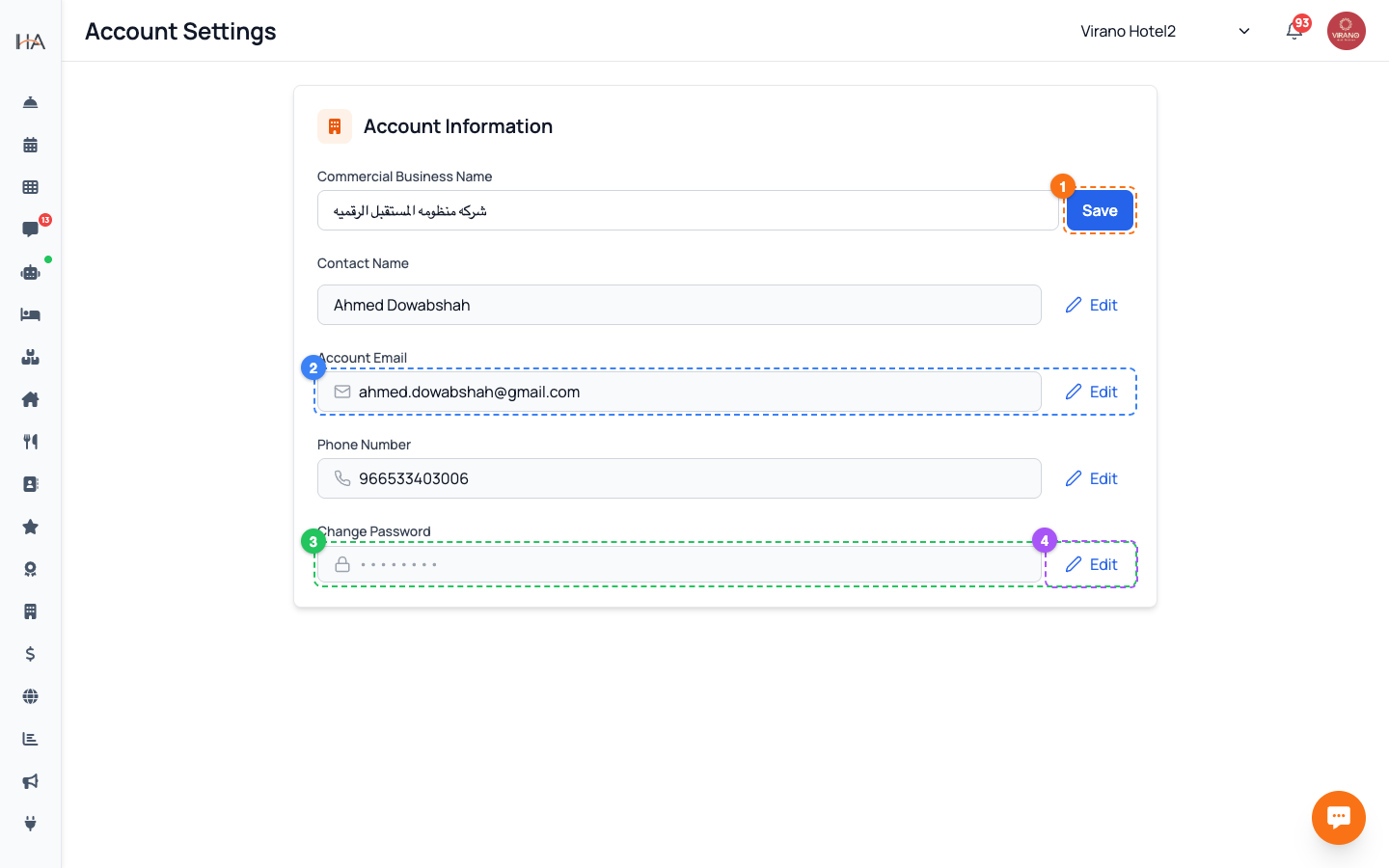
Go to Settings and open Account Settings. The Account Information section lets you view and edit your personal and business details: - Commercial / Business Name (the name on invoices) - Contact Name (the person responsible for the account) - Account Email - Phone Number - Password (change password) Most fields show a value with an Edit (pencil) button beside them. Click Edit to change a field, then Save. Note: the business name can only be edited by the owner or an Operations Manager — for others it is read-only.
Edit Your Name and Contact Details
To update your profile basics: 1. Business Name — type the new name in the field and click Save. It updates immediately and is used on guest invoices. 2. Contact Name — click Edit, type your name, and click Save. This is the human contact for your account. Keeping these accurate matters because they appear on official documents and help your team and Hostel Agent reach the right person. If you don't have permission to edit the business name, the field is greyed out and there's no Save button for it.
Change Your Email (with Password Confirmation)
Changing the email used to sign in is a two-part, secure process: 1. Next to Account Email, click Edit, type the new email, and click Save. 2. A window asks you to enter your current password to confirm the change. 3. After verifying, a confirmation link is sent to the new email address. The address shows a Pending Confirmation badge until you click that link. If the email doesn't arrive, you can use the Resend Confirmation Email option shown under the field. Your old email keeps working until the new one is confirmed.
Update Your Phone Number
Your phone number is also protected. To change it: 1. Next to Phone Number, click Edit and enter the new number (with the correct country code). 2. Click Save — a window asks for your current password to confirm. 3. After the password is accepted, a 6-digit verification code (OTP) is sent to the new number over WhatsApp — from the official Hostel Agent number — with an automatic SMS fallback if WhatsApp can't be delivered. 4. Enter the code in the verification window to finish. If you don't see the WhatsApp message, you can tap Send via SMS once the resend timer ends. This double check (password plus the code sent to your phone) ensures nobody can change your contact number without your full credentials. Keep your number current — it's used for alerts and account recovery.
Change Your Password
To set a new password, find the Change Password field and click Edit. Then: 1. Enter your Current Password 2. Enter your New Password (at least 6 characters; the longer and more mixed, the safer) 3. Re-type it in Confirm New Password 4. Click Update Password Use the eye icon in each box to show or hide what you type. The new password must be different from the old one. After saving you'll see a success message and the form collapses. Choose a strong, unique password you don't use anywhere else.
Protect Login with Two-Factor Authentication (2FA)
For extra security on the web dashboard, Hostel Agent uses two-factor authentication (2FA) by email at sign-in: - When you log in on a new device, after your password you're sent a one-time code by email and must enter it to continue. - This stops anyone who somehow learns your password from getting in without also having your inbox. Trusted Devices: when 2FA succeeds on a device you use regularly, you can have it remembered for about 30 days, so you won't be asked for a code every time on that same device. Always decline trusting shared or public computers.
Security Best Practices
Keep your account safe with a few simple habits: - Use a strong, unique password and update it if you suspect it was shared. - Never share your login — instead, invite each person in Team Management with their own account and role. - Keep your email and phone up to date so 2FA codes and recovery work. - Only mark personal devices as trusted; on shared computers, always log out when done. - If a staff member leaves, change shared secrets and remove their access immediately. Note: the mobile app handles sign-in slightly differently and is exempt from the web 2FA code prompt.
More in Settings & Team
Property Settings — Groups, Properties & Units
Manage your property groups and the bookable units inside them. This is where you add new properties, edit details, and control which units are available.
Team Management — Invite Members, Assign Roles & Permissions
Invite your staff, control exactly what each person can do, and manage roles. Use predefined roles for quick setup or build custom roles for fine-grained control.
Manager Approval PIN Gate — Anti-Theft for Sensitive Front-Desk Actions
Require a manager's PIN before front-desk staff can perform sensitive actions like refunds, cancellations, and discounts. Set it up per property and choose who approves.
Payment Methods — Enable Gateways for Online Bookings
Choose how guests pay on your booking website: card processors (Moyasar, Tap), Buy Now Pay Later (Tabby, Tamara), Apple Pay, bank transfer, or pay on arrival.
Taxes (VAT) & ZATCA E-Invoicing
Set up VAT on your bookings and connect Saudi ZATCA Phase 2 e-invoicing so your invoices are officially compliant.
Subscription, Plan & Wallet Balance
See your current plan and its features, track unit usage, renew your subscription, and review your transactions and invoices.